
Description:
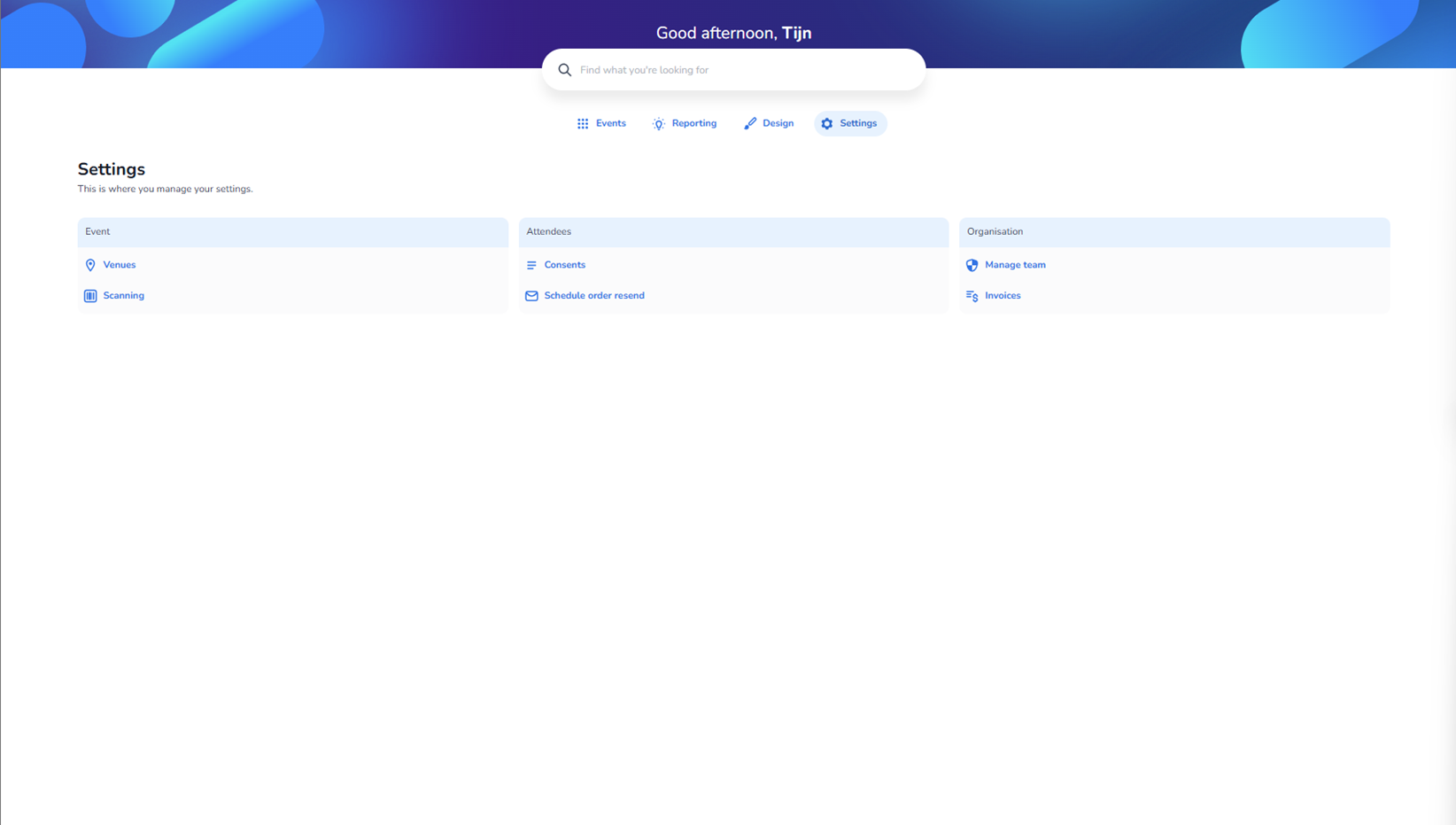
This screen appears when a user clicks on Settings in the main navigation. It allows configuration of organisation-level, event-level, and attendee-related platform settings.
The layout is divided into structured configuration categories:
-
Event settings
-
Attendee settings
-
Organisation settings
Each category contains direct navigation buttons to specific configuration modules.
Important:
Changes made within these sections may impact platform-wide behaviour, event operations, compliance settings, team access, or billing configuration.
Top Section – Global Navigation & Context
Greeting Area
Displays a personalised greeting (e.g., “Good afternoon, Tijn”).
This confirms the active user session.
Global Search Bar
Located centrally at the top.
Purpose:
-
Allows searching across the platform.
-
Can help locate settings, events, templates, or other platform elements.
Main Navigation Buttons
Events
Navigates to the event management section.
Reporting
Navigates to analytics and data export modules.
Design
Navigates to branding configuration modules.
Settings (Active)
Highlighted to indicate the user is currently inside the Settings section.
Settings Page Header
Title: Settings
Main section heading.
Subtitle
“This is where you manage your settings.”
Explains that this section is used for configuration and management rather than operational event actions.
Settings Categories Overview
The page is divided into three clearly separated blocks:
-
Event
-
Attendees
-
Organisation
Each block contains configuration shortcuts (clickable buttons).
🔹 Event Section
This section controls configuration related to event operations and infrastructure.
Venues
Icon: Location pin
Purpose:
-
Create, edit, and manage venue locations.
-
Store venue details such as:
-
Address
-
Capacity
-
Location information
-
-
Assign venues to events.
Impact:
-
Affects event setup and ticket validity.
-
May influence seating or scanning configuration.
Scanning
Icon: Barcode / scan icon
Purpose:
-
Configure ticket scanning behaviour.
-
Manage check-in and access control rules.
-
Possibly define:
-
Validation logic
-
Scan status handling
-
Device configuration
-
Entry restrictions
-
Impact:
-
Directly affects operational event access.
-
Critical for real-time event control.
🔹 Attendees Section
This section manages attendee-related data handling and communication behaviour.
Consents
Icon: Document/list icon
Purpose:
-
Configure consent management.
-
Define:
-
GDPR-related consent fields
-
Marketing opt-ins
-
Terms and conditions acceptance
-
-
Control which consents are mandatory during checkout.
Impact:
-
Affects legal compliance.
-
Governs data collection and marketing permissions.
Schedule Order Resend
Icon: Envelope/mail icon
Purpose:
-
Configure automatic ticket/order resend behaviour.
-
May allow:
-
Setting reminder timing
-
Triggering follow-up communications
-
Automating confirmation re-sends
-
Impact:
-
Improves customer experience.
-
Reduces manual support actions.
🔹 Organisation Section
This section controls organisation-wide settings and access control.
Manage Team
Icon: Shield/team icon
Purpose:
-
Add or remove platform users.
-
Assign roles and permissions.
-
Control access levels (e.g., admin, operator, finance).
Impact:
-
Controls security and access management.
-
Defines who can access specific modules.
Invoices
Icon: Currency icon
Purpose:
-
View organisation invoices.
-
Access billing history.
-
Download invoice documents.
-
Monitor subscription or usage costs.
Impact:
-
Used by finance or administrative roles.
-
Affects billing transparency and financial control.
Functional Summary
Within the Settings section, the user can:
-
Configure venue infrastructure
-
Manage scanning and check-in behaviour
-
Define legal consent requirements
-
Configure automated order resend behaviour
-
Manage team access and permissions
-
Access organisation billing information
This section is focused on platform configuration rather than event content editing.
It influences:
-
Operational behaviour
-
Legal compliance
-
Access control
-
Billing management