
Description
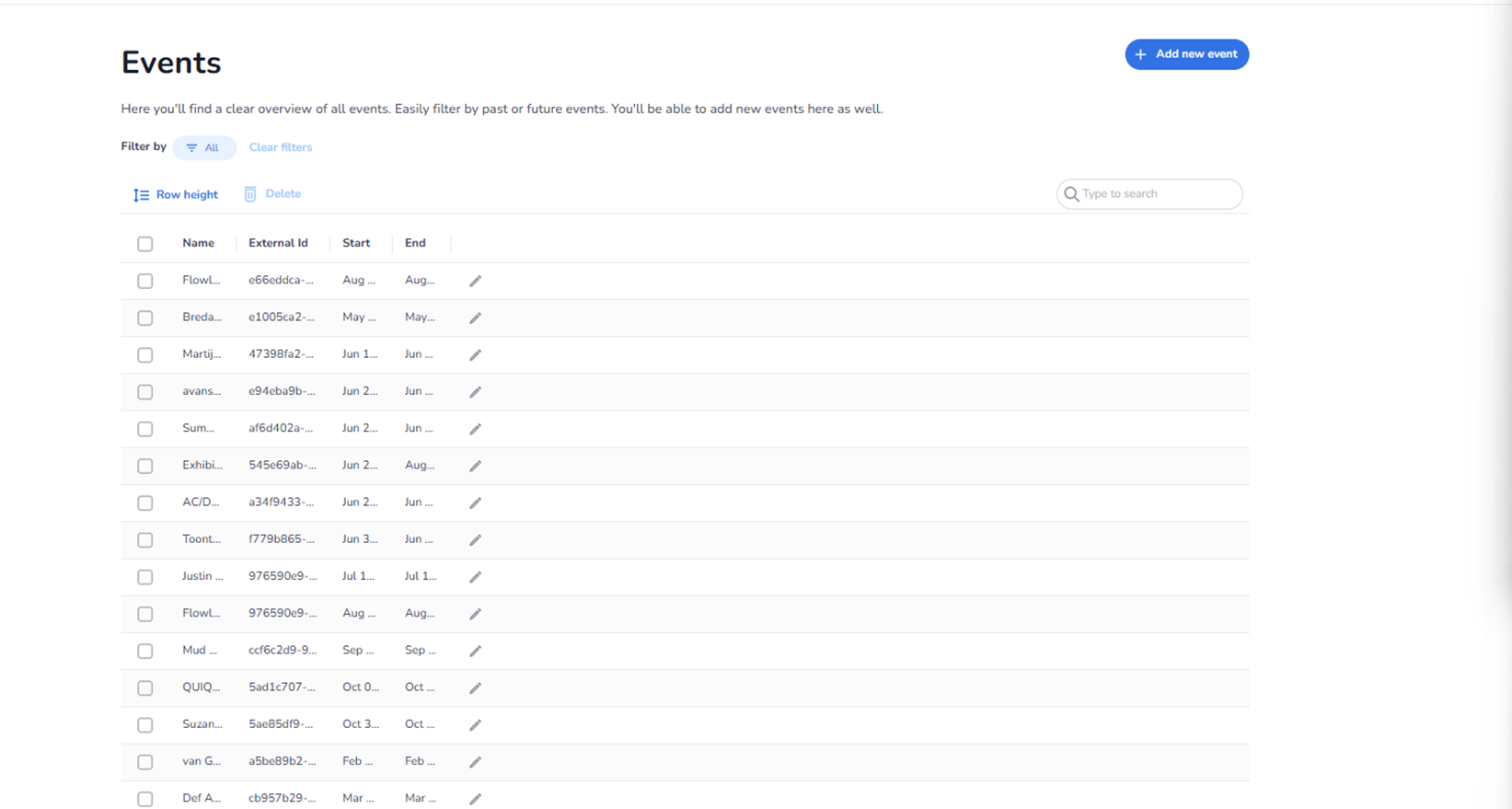
The Events section provides a complete overview of all events within the selected organisation.
From this page, users can:
-
View all existing events
-
Filter events
-
Search for specific events
-
Add new events
-
Edit existing events
-
Delete selected events
All event names, dates, and identifiers shown in the screenshot are examples and differ per organisation.
Top Right Action
Add New Event
Blue button located in the top-right corner.
Function:
-
Opens the event creation workflow.
-
Allows users to create a new event.
-
Required before tickets, entrance plans, and venues can be linked.
This is the starting point for setting up a new event in the system.
Filter Section
Located below the page title.
Filter By
All
Displays all events regardless of status or date.
Other filter options may allow filtering by:
-
Past events
-
Future events
Clear Filters
Removes active filters and resets the event list to the default view.
Action Controls Above the Table
Row Height
Adjusts the visual density of the table.
Allows users to:
-
Switch between compact and expanded view.
-
Improve readability depending on preference.
Delete
Deletes selected events.
To use:
-
Select one or more events using the checkboxes.
-
Click Delete.
-
Confirm deletion (if required).
Note:
Deleting an event may impact linked tickets and entrance plans.
Search Field (Right Side)
Allows direct searching within the event list.
Users can search by:
-
Event name
-
External ID
-
Other searchable event attributes
Search works together with filters.
Events Table
Each row represents one event.
Checkbox (Left Side)
Used to select events.
Enables:
-
Bulk deletion
-
Future batch actions (if supported)
Name
Displays the event name.
Clicking the event name typically:
-
Opens the event detail page.
-
Allows editing event configuration.
External ID
Displays the external reference ID of the event.
Used for:
-
API integrations
-
External system linking
-
Synchronisation purposes
Start
Displays the event start date and time.
Used for:
-
Chronological sorting
-
Filtering past and future events
End
Displays the event end date and time.
Used for:
-
Determining event duration
-
Controlling ticket validation windows
Edit Icon (Pencil)
Located at the end of each row.
Function:
-
Opens the event edit screen.
-
Allows modification of event details.
What This Page Does
The Events page acts as the structural foundation of the platform.
Everything else is connected to events:
-
Tickets
-
Entrance plans
-
Venues
-
Scanning
-
Reporting
Without an event, no ticketing or entrance logic can exist.
What You Can Do Here
From this page, users can:
-
Create new events
-
Modify existing events
-
Remove unused events
-
Quickly find events using search
-
Filter by time-based categories
-
Manage event lifecycle
This page is typically used by:
-
Event managers
-
Operations teams
-
System administrators