
Description
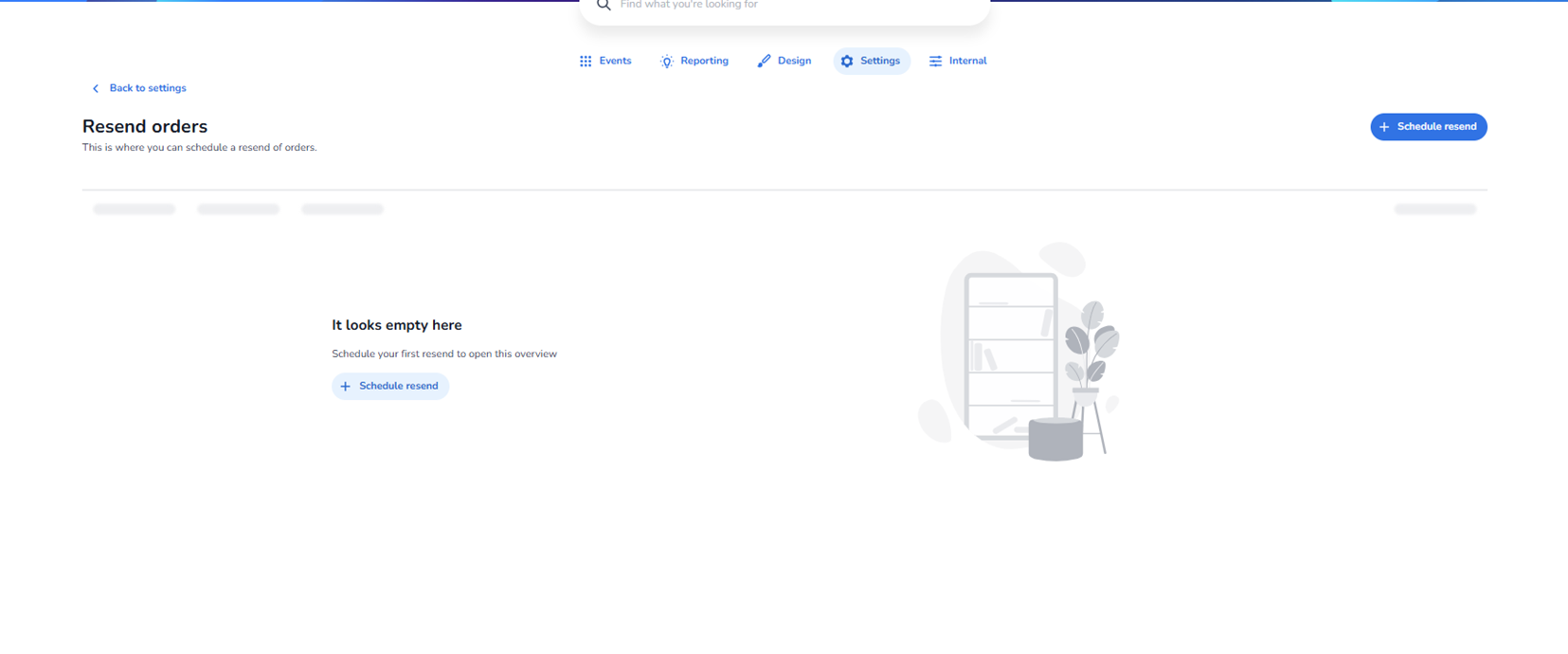
The Resend orders section allows administrators to schedule automatic re-sending of ticket orders to attendees.
This feature helps ensure that attendees receive their tickets again at a defined time without requiring manual intervention.
It improves communication reliability and reduces customer support workload.
Purpose of This Page
This section is used to:
-
Schedule automatic order confirmation resends
-
Remind attendees of upcoming events
-
Re-deliver tickets if emails were lost
-
Support operational communication strategies
Scheduled resends are automated once configured.
Page Structure
Back to Settings
Located at the top left.
Function:
-
Returns to the main Settings overview.
Schedule Resend Button (Top Right)
Primary action button.
Function:
-
Opens the scheduling configuration workflow.
-
Allows administrators to create a new resend schedule.
Empty State
If no schedules exist, the page displays an empty overview.
This indicates that:
-
No automatic resends are currently configured.
-
No communication automation is active.
A central Schedule resend button is also available to quickly create the first schedule.
Creating a Schedule Resend
When clicking Schedule resend, administrators can define:
-
Which event(s) the resend applies to
-
Which orders should receive the resend
-
The timing of the resend (date and time)
-
Whether it triggers before or after event start
-
The communication template used
This enables precise targeting of communication.
Typical Use Cases
-
Sending a reminder 24 hours before the event
-
Re-sending tickets 1 week before event day
-
Automatically re-sending tickets after purchase
-
Handling support-driven re-delivery campaigns
What This Section Controls
This section influences:
-
Email communication timing
-
Ticket delivery reliability
-
Attendee experience
-
Operational workload
It does not affect:
-
Ticket validity
-
Scan results
-
Entrance plan rules
Operational Flow
-
Configure event and ticketing.
-
Set up scheduled resend.
-
System automatically triggers resend at defined time.
-
Attendees receive updated or repeated order confirmation.
Who Should Use This
Typically managed by:
-
Event operations managers
-
Customer support managers
-
Communication or CRM teams
-
Platform administrators
Because automated emails affect all attendees within scope, scheduling should be configured carefully.