
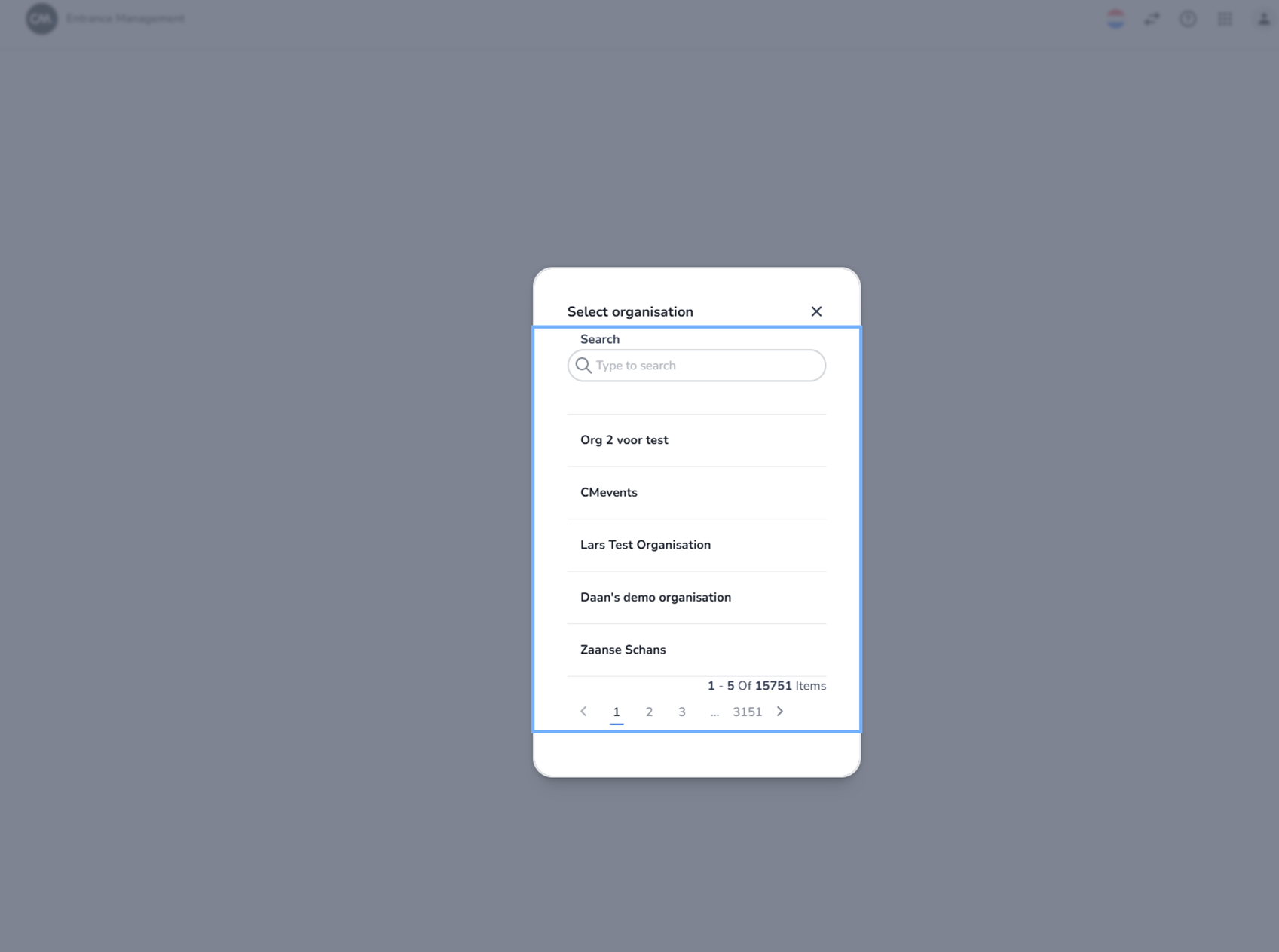
Description
This screen appears when a user navigates to Settings → Scanning → Event → Scanning.
Before scanning configurations can be viewed or modified, the user must first select an organisation. Scanning settings are organisation-specific, meaning they are scoped to a particular organisational context within the platform.
No scanning configuration can be accessed until an organisation has been selected.
Important:
The organisation names displayed in the list are dynamic and differ per user and environment. The data shown in the screenshot is example data and should not be treated as fixed or reusable.
Modal Overview – Select Organisation
A centered modal window appears with the title:
Select organisation
This modal overlays the current page and requires a selection before continuing.
Close Button
Located in the top-right corner of the modal.
Function:
-
Closes the organisation selection window.
-
Does not select an organisation.
-
Returns the user to the previous screen.
Search Field
Located at the top of the modal.
Label: Search
Placeholder: “Type to search”
Function:
-
Allows users to filter organisations by name.
-
Useful when managing a large number of organisations.
-
Dynamically updates the list as the user types.
Organisation List
Below the search field is a scrollable list of available organisations.
Each row:
-
Displays the organisation name.
-
Is clickable.
Function:
-
Clicking an organisation selects it.
-
After selection, the platform loads scanning settings specific to that organisation.
Organisation names are environment-dependent and vary per account.
Pagination Controls
Located at the bottom of the modal.
Displays:
-
Current item range (e.g., 1–X of Y items).
-
Page numbers.
-
Previous and next navigation arrows.
Function:
-
Allows navigation through multiple pages of organisations.
-
Only affects which organisations are visible in the list.
-
Does not select an organisation.
Functional Role
The organisation selection step ensures:
-
Scanning settings are configured within the correct organisational scope.
-
Multi-organisation accounts remain separated.
-
Permissions and configurations remain isolated per organisation.
This step is required before accessing:
-
Event-level scanning rules
-
Device configurations
-
Validation settings
-
Access control logic
Summary
On this screen, the user must:
-
Search for the correct organisation (optional).
-
Select the appropriate organisation from the list.
-
Navigate through pages if necessary.
-
Confirm the organisation by clicking it.
Only after this selection will the platform display scanning settings for the chosen organisation.