
Description
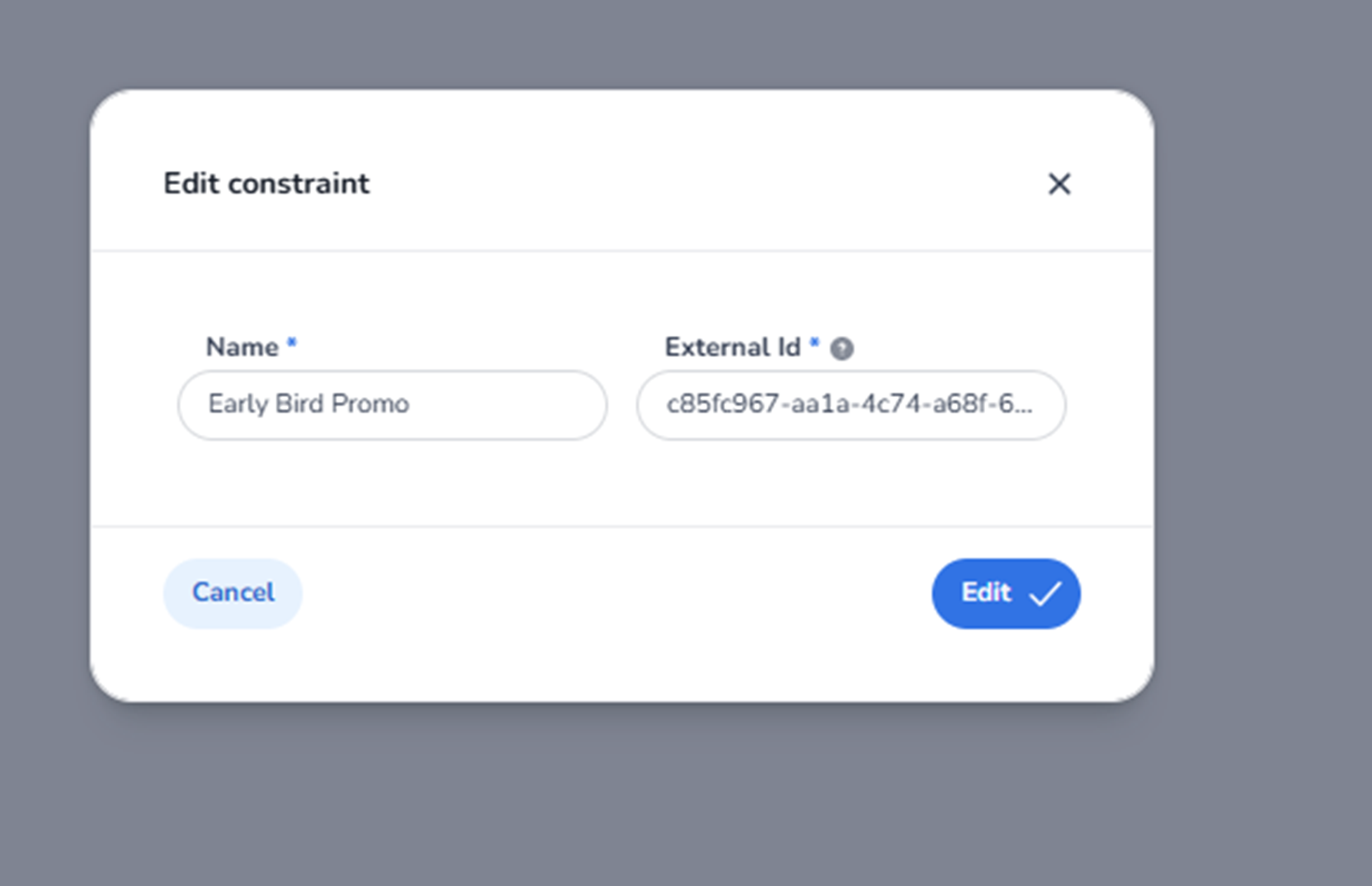
When clicking the pencil icon next to a custom constraint in the Custom Constraints overview, the Edit constraint modal appears.
This modal allows users to modify the core metadata of an existing custom constraint.
A custom constraint represents a reusable business rule or validation condition that can be applied within entrance plans or ticket validation logic.
All names and identifiers shown in the screenshot are example data and differ per organisation.
Modal Structure
The Edit Constraint modal is a centered pop-up window containing:
-
A title
-
Editable input fields
-
Action buttons
-
A close icon
This modal focuses on constraint-level configuration.
Top Section
Edit Constraint Title
Displayed at the top of the modal.
Indicates:
-
The user is modifying an existing constraint.
-
This is not creating a new constraint.
Close Icon (X)
Located in the top-right corner.
Function:
-
Closes the modal.
-
Discards unsaved changes.
Editable Fields
Name (Required Field)
Label: Name *
Function:
-
Defines the display name of the constraint.
-
Used in:
-
Entrance plans
-
Rule configuration
-
Reporting
-
Internal reference
-
The name should clearly describe the purpose of the rule.
Requirements:
-
Mandatory field.
-
Must contain a valid constraint name.
External ID
Label: External id
Function:
-
Stores a unique identifier for integration purposes.
-
Used for:
-
API mapping
-
Synchronisation
-
External system references
-
Important:
-
Should only be modified if integration requirements change.
-
Does not directly change validation logic.
Bottom Action Buttons
Cancel
Function:
-
Closes the modal.
-
Discards unsaved changes.
-
Returns to the Custom Constraints overview.
Edit (Primary Action Button)
Function:
-
Saves modifications made to the constraint.
-
Updates the constraint in the system.
-
Applies changes immediately.
After saving:
-
The modal closes.
-
Updated information is reflected in the constraint list.
What This Screen Controls
This modal controls the metadata of a custom constraint.
Changes here affect:
-
How the constraint appears in entrance plans.
-
How it is referenced in validation rules.
-
How administrators identify the rule.
It does not directly change:
-
The detailed rule logic (if configured elsewhere).
-
Ticket scan history.
-
Existing validation results.
What You Can Do Here
From this modal, users can:
-
Rename a constraint for clarity.
-
Update integration identifiers.
-
Maintain structured rule management.
This screen is typically used by:
-
Access control administrators
-
Operations managers
-
System administrators
-
Integration specialists