
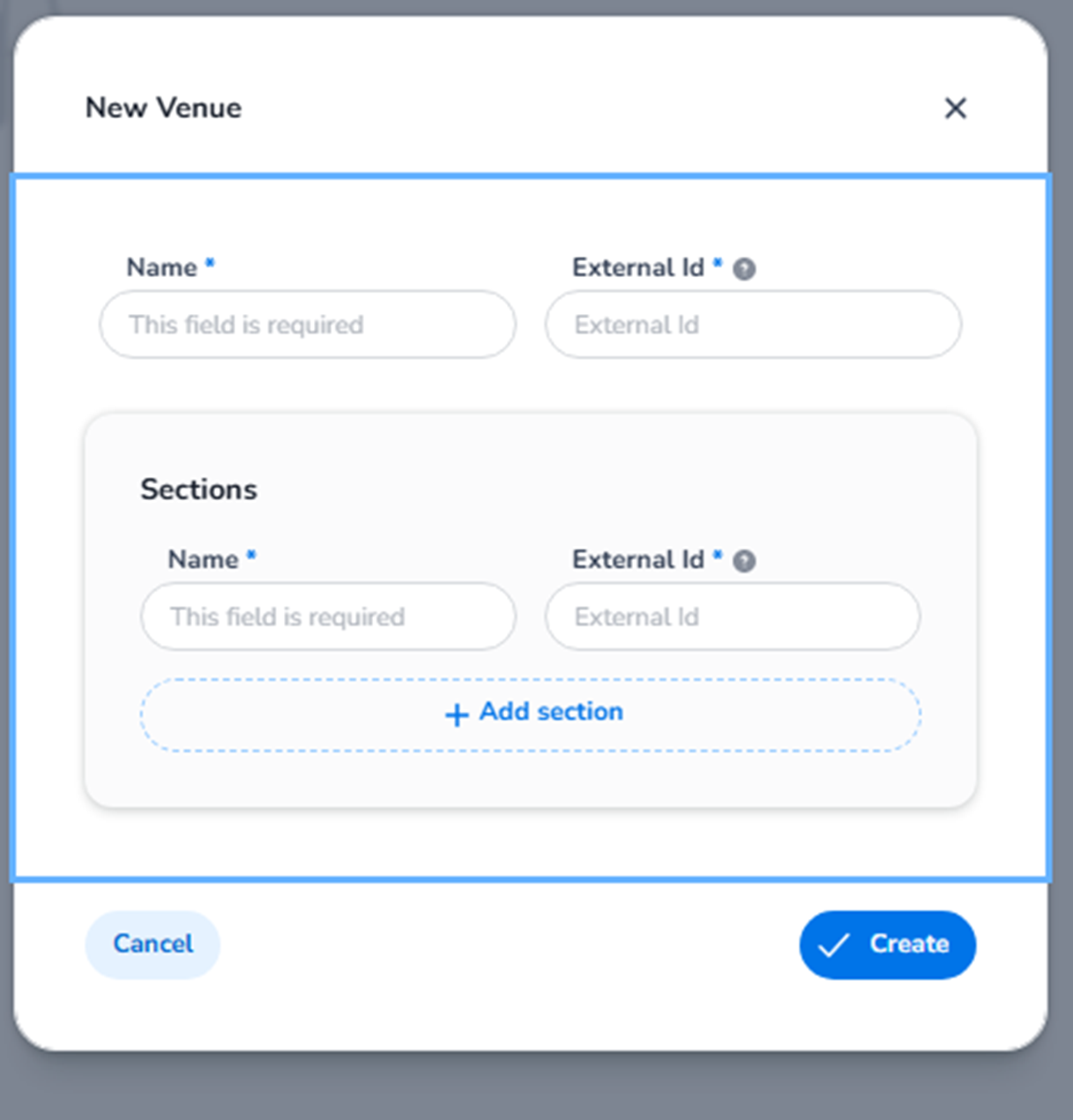
When clicking the blue + Add new event button on the Events overview page, the following modal appears:
New event
This modal is used to create a new event in the system.
An event is the structural foundation required before configuring:
-
Tickets
-
Venues
-
Entrance plans
-
Scanning
-
Reporting
Without creating an event first, no ticketing or entrance logic can exist.
What You See in the New Event Modal
-
Name (Required)
Field: Name
Purpose:
-
Defines the public and internal name of the event.
-
This name appears:
-
In the Events overview
-
In ticket configurations
-
In entrance plans
-
In reports
-
Examples:
-
“Festival 2025”
-
“Breda Jazz Festival”
-
“Conference Q4”
This field is mandatory.
-
External ID (Optional)
Field: External Id
Purpose:
-
Used for API integrations.
-
Links the event to an external system.
-
Allows synchronisation between platforms.
This is especially relevant when:
-
Integrating with third-party systems
-
Using automated imports
-
Matching events with external software
If not using integrations, this field can remain empty.
-
From (Start Date)
Field: from
Purpose:
-
Defines the event start date (and possibly time).
-
Used for:
-
Chronological sorting
-
Ticket validation windows
-
Reporting structure
-
Filtering past vs future events
-
Includes a calendar picker for easy selection.
-
To (End Date)
Field: to
Purpose:
-
Defines the event end date.
-
Determines:
-
Event duration
-
Validation boundaries
-
Lifecycle of the event
-
Also includes a calendar picker.
The start and end dates define the event timeline within the platform.
Action Buttons
Cancel
Closes the modal without creating an event.
Create event
Button: Create event
Function:
-
Saves the event.
-
Adds it to the Events overview.
-
Makes it available for further configuration.
Once created, you can then:
-
Add ticket types
-
Configure shop design
-
Create entrance plans
-
Assign venues
-
Import tickets
-
Set up scanning
What Creating an Event Actually Does
Creating an event:
-
Establishes a new event container.
-
Enables ticket configuration.
-
Allows linking entrance validation.
-
Structures reporting data.
-
Defines operational scope.
It does NOT automatically:
-
Create tickets
-
Assign venues
-
Configure scanning
-
Activate payment settings
Those are configured separately after the event is created.
Functional Summary
Within Events → + Add new event, the user can:
-
Define the event name
-
Optionally link an external ID
-
Set start and end dates
-
Create the structural foundation for all ticketing and entrance logic
This modal marks the beginning of the event lifecycle inside the system.