
Description
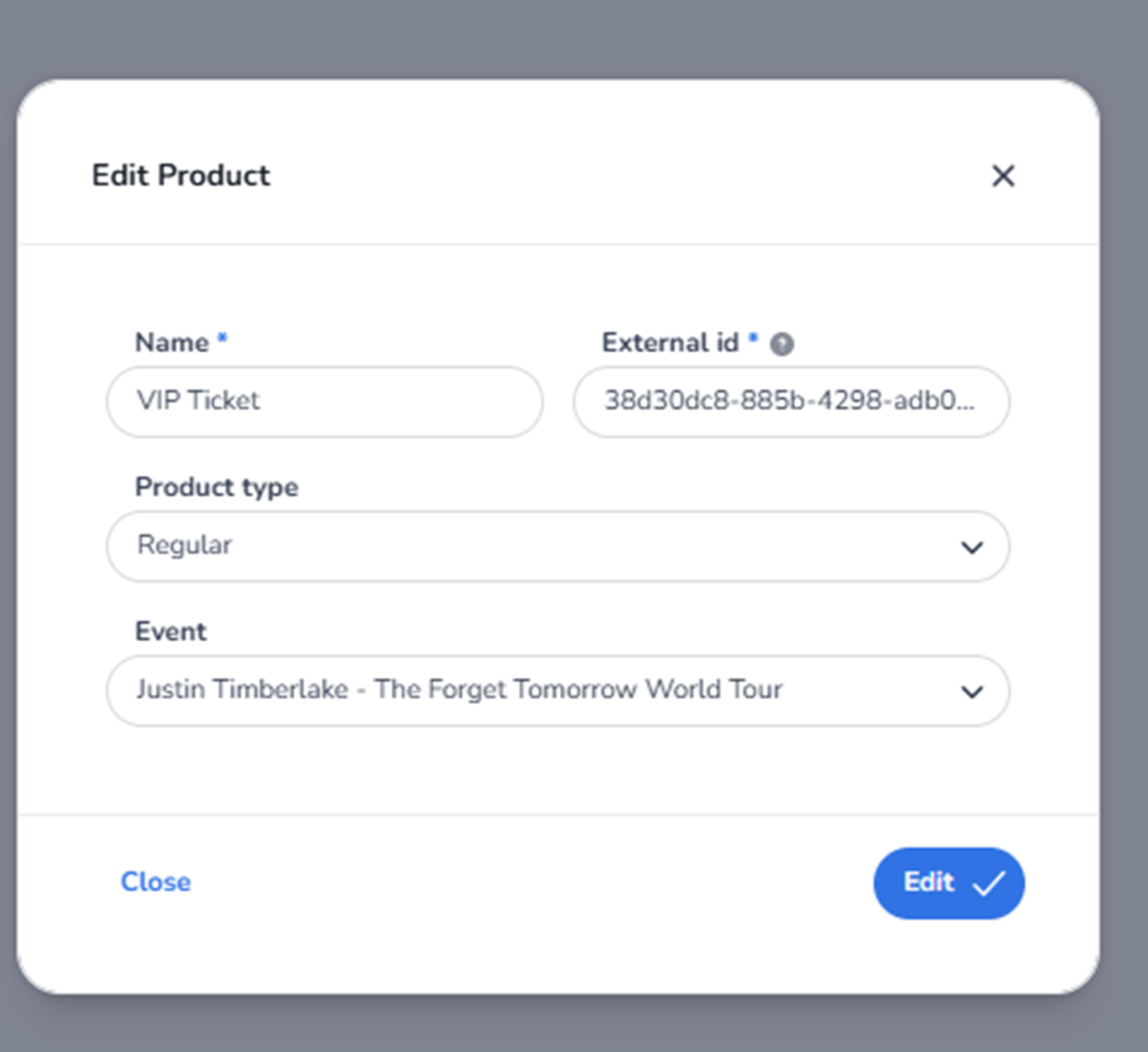
When clicking the pencil icon next to a product in the Products overview, the Edit Product modal appears.
This modal allows users to modify the core configuration of an existing ticket product.
A product represents a ticket type linked to an event. Editing a product changes how that ticket type is defined and categorised within the system.
All names and identifiers shown in the screenshot are example data and differ per organisation.
Modal Structure
The Edit Product modal is a centered pop-up window containing:
-
A title
-
Editable input fields
-
Dropdown selections
-
Action buttons
-
A close icon
This modal focuses on product-level configuration.
Top Section
Edit Product Title
Displayed at the top of the modal.
Indicates:
-
The user is modifying an existing product.
-
This is not creating a new product.
Close Icon (X)
Located in the top-right corner.
Function:
-
Closes the modal.
-
Discards unsaved changes.
Editable Fields
Name (Required Field)
Label: Name *
Function:
-
Defines the display name of the product.
-
Used in:
-
Ticket listings
-
Entrance plans
-
Scan analytics
-
Reporting
-
Changing the name updates how the ticket type appears across the platform.
Requirements:
-
Mandatory field.
-
Must contain a valid product name.
External ID
Label: External id
Function:
-
Stores a unique identifier used for integrations.
-
Used for:
-
API mapping
-
External ticketing systems
-
Synchronisation
-
Important:
-
Should only be changed if integration mapping requires it.
-
Does not directly affect scan rules.
Product Type (Dropdown)
Displays the category of the product.
Function:
-
Defines how the product is classified.
-
May influence filtering, reporting, or business logic.
Users can:
-
Select a different product type from the dropdown list.
Changing the product type may affect:
-
Reporting categories
-
Filter behaviour
-
Access segmentation
Event (Dropdown)
Displays the event linked to the product.
Function:
-
Defines which event the product belongs to.
-
Each product is associated with one event.
Users can:
-
Reassign the product to a different event (if allowed).
Important:
-
Changing the linked event may impact:
-
Ticket validity
-
Entrance plans
-
Reporting structures
-
Bottom Action Buttons
Close
Function:
-
Closes the modal.
-
Discards unsaved changes.
Edit (Primary Action Button)
Function:
-
Saves all modifications.
-
Updates the product configuration.
-
Applies changes immediately.
After saving:
-
The modal closes.
-
The updated product data is reflected in the product list.
What This Screen Controls
This modal controls the metadata of a ticket product.
Changes here affect:
-
How tickets are categorised
-
How entrance plans target specific products
-
How reports segment ticket data
-
How filters operate in the Tickets section
It does not directly change:
-
Individual ticket data
-
Scan history
-
Entrance validation limits
Those are managed elsewhere.
What You Can Do Here
From this modal, users can:
-
Rename a product
-
Update integration identifiers
-
Change product classification
-
Reassign a product to another event (if permitted)
-
Maintain consistent ticket configuration
This screen is typically used by:
-
Ticketing administrators
-
Event managers
-
Operations teams
-
Integration specialists