
Description
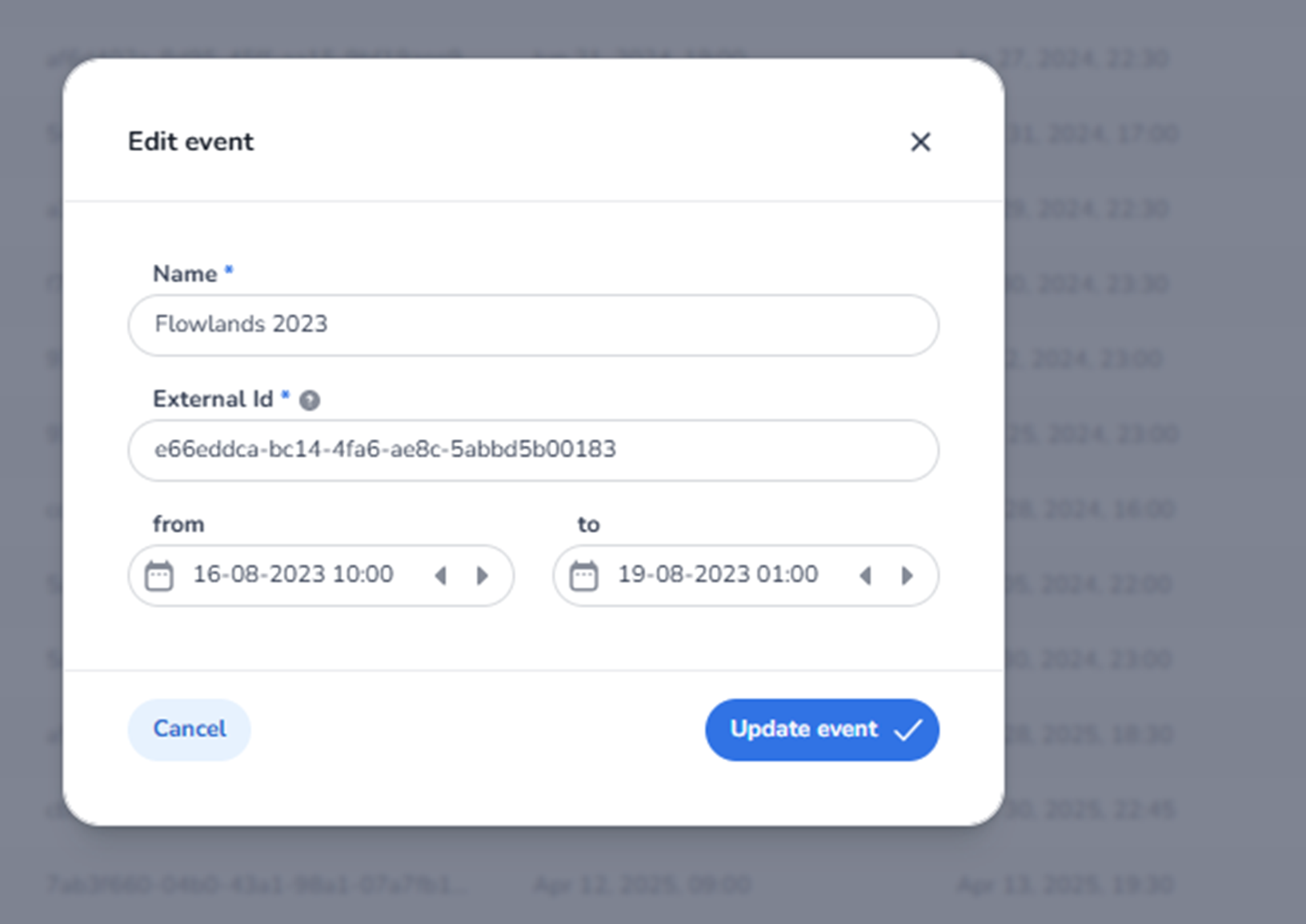
When clicking the pencil icon in the Events overview table, the Edit event modal appears.
This modal allows users to update the core configuration of an existing event.
It is a lightweight configuration window focused on basic event metadata such as:
-
Event name
-
External ID
-
Start date and time
-
End date and time
All data shown in the screenshot is example data and differs per organisation.
Modal Structure
This is a centered modal window with:
-
A title section
-
Editable input fields
-
Date/time selectors
-
Action buttons
Top Section
Edit Event Title
Displayed at the top of the modal.
Indicates:
-
The user is modifying an existing event.
-
This is not creating a new event.
Close Icon (X)
Located in the top-right corner.
Function:
-
Closes the modal.
-
Discards unsaved changes.
Editable Fields
Name (Required Field)
Label: Name *
Function:
-
Defines the internal and visible name of the event.
-
Used throughout the platform (tickets, entrance plans, reporting).
Rules:
-
Required field.
-
Must contain a valid event name.
-
Changing it updates how the event is displayed in lists and reports.
External ID (Optional / Integration Field)
Label: External Id
Function:
-
Stores an external reference identifier.
-
Used for API integrations or external system mapping.
-
Allows linking the event to third-party systems.
Important:
-
Changing this may affect integrations.
-
Should only be modified if external systems require it.
Date and Time Configuration
From (Start Date & Time)
Displays:
-
Event start date.
-
Event start time.
Includes:
-
Calendar icon (opens date picker).
-
Time selection.
-
Navigation arrows to adjust date.
Function:
-
Defines when the event begins.
-
Influences ticket validation windows.
-
Used for filtering in reporting.
To (End Date & Time)
Displays:
-
Event end date.
-
Event end time.
Includes:
-
Calendar selector.
-
Time input.
-
Navigation arrows.
Function:
-
Defines when the event ends.
-
Determines when tickets should no longer be valid.
-
Used in time-based filtering.
Bottom Action Buttons
Cancel
Function:
-
Closes the modal.
-
Discards all unsaved changes.
-
Returns to the Events overview.
Update Event
Primary blue action button.
Function:
-
Saves all modifications.
-
Updates the event in the system.
-
Applies changes to connected modules.
After clicking:
-
Modal closes.
-
Event list reflects updated information.
What This Screen Controls
This modal updates the foundational metadata of an event.
Changes here impact:
-
How the event appears in lists
-
Reporting timeframes
-
Ticket validation time windows
-
API integrations
-
Entrance plan logic
What You Can Do Here
From this modal, users can:
-
Rename an event
-
Adjust event start and end times
-
Update integration identifiers
-
Correct scheduling errors
This screen is typically used by:
-
Event managers
-
Administrators
-
Operations coordinators