
Context in HALO is a powerful tool designed to standardize operations within your agents and tools, enhancing consistency and security across workflows. This guide explains how to create and manage context effectively.
What is context
Context is a way to provide environmental information about the conversation with the user. It can help to streamline the use of agents and tools. You can think of it like the background information of a conversation. Information like what language is being used or what time it is.
Accessing Context
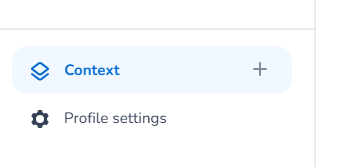
You can find the Context option in the navigation panel at the bottom of the left-side menu. This feature simplifies the process of standardizing essential values, such as tool labels and API keys, ensuring uniformity across all HALO applications.
Creating and Managing Context
Creating a New Context
-
Initiate Creation: Click the blue "+" sign to create a new context.
-
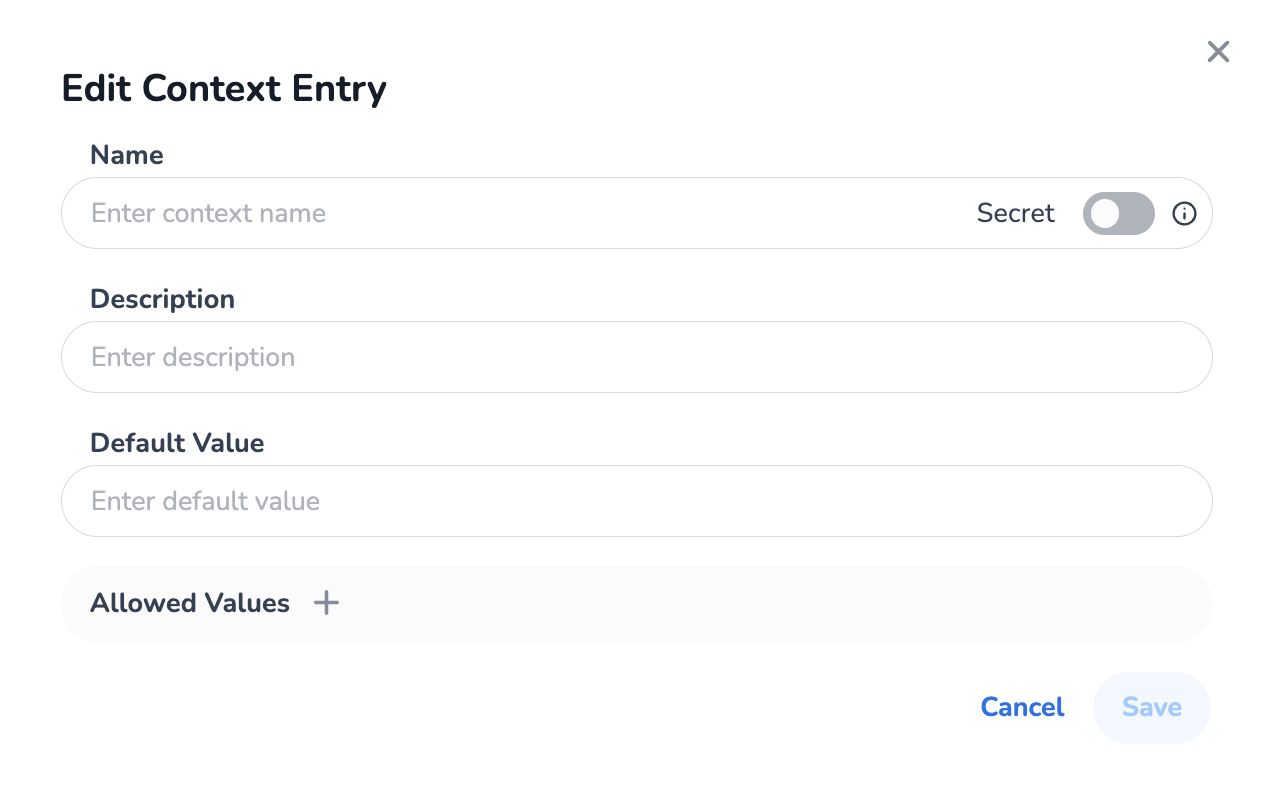
Name: Enter a clear context name that accurately represents the content and purpose of the context. This aids in easy identification and management.
-
Description: Enter a clear description of the context. This description may be used by an Agent when it uses the 'Write Context' option. You can read more about this on the Agent Editor page.
Defining Default Values
-
Default Value: In the default value field, input standardized values to be used whenever the context is invoked. This can be a tool name, API key, or any repetitive information that ensures uniform application throughout HALO.
Security and Privacy
-
Private Setting: You can set the context as private to secure sensitive data, such as API keys. This measure is essential for maintaining confidentiality within your profile.
Utilizing Allowed Values
-
Automatic Correction: Define allowed values to automatically replace common typos or abbreviations with the default value. This feature is particularly useful for standardizing names or terms prone to misspellings, such as company names.
Types of context
There are system and non-system context types. A filter can be applied at the top left to filter on all, or one of the two types.
-
System context: managed by HALO itself, not editable. Currently the following system context definitions are set:
-
language
-
channel
-
current_datetime
-
audience
-
media
-
host_id
-
client_id
-
messages
-
-
Non-system context: managed by you, and editable.
Non-Persisted Context Variables
Context variables in HALO persist across interactions by default. With transient context variables, you can now set a variable for a single interaction only—it will not persist to subsequent interactions.
This is useful for triggering one-time actions. For example, you can set a variable that triggers a UI action (such as displaying a modal) without that trigger carrying over to the next interaction.
Automatically set context
Some context are set by HALO as a convenience. The following context definitions are automatically set:
|
context |
description |
set when |
allowed values |
system context |
|---|---|---|---|---|
|
|
Identifier of the entity that is being called. Within HALO, this is the phone number that HALO is connected to. |
A conversation is started via Voice |
n/a |
yes |
|
|
Identifier of the entity that calling. Within HALO, this is the phone number of the user. |
A conversation is started via Voice |
|
|
|
|
Language of the conversation |
On every interaction |
n/a |
yes |
|
|
Current datetime. Note this system context can be modified, a timezone can be configured for it. |
On every interaction |
n/a |
yes |
|
|
Channel over which HALO is servicing the client |
A conversation is initiated |
|
yes |
|
|
Media object. See explanation below |
A media object (file) is uploaded to the conversation |
n/a |
yes |
|
messages |
Contains all the messages between the user and HALO. Can only be used inside Tools, as Agents automatically have the conversation history available. |
On every interaction |
n/a |
yes |
|
|
Name of the client in Whatsapp |
A conversation is started via WhatsApp |
n/a |
no |
|
|
Whether the request comes from an internal or external party. Internal are only Suggestions or Instructions from Mobile Service Cloud. External are all other requests to HALO, via for example WebConversations, WhatsApp, Conversation AI Cloud, or all other channels. |
On every interaction |
internal, external |
no |
the media system context consists out of a list of all uploaded media items in the conversation. See the below data object for more details:
[{
  "type": "media",
  "mime_type": "file mime type (e.g. image/png)",
  "name": "filename",
  "data": "base64 encoded representation of the file",
  "data_uri": "reference to where the file is stored within the HALO system",
  "metadata": {
    "image_height": 1336,
    "image_width": 1550
  }
}, ...]
Benefits of Context
Employing context within HALO helps maintain consistency and efficiency across your agents and tools by standardizing inputs. This leads to streamlined processes and enhances the accuracy of interactions with external systems.
Example usage
-
As a global value, whenever a change is required, such as an updated API key, you only need to modify the context value without manually adjusting each instance across HALO.
-
As a way to specify which knowledge resources should be used for what. For example, a context with name
audienceand valuesinternalandexternal, for which internal can be assigned to an knowledge resource which is for internal use only, and vice versa.
Please note that if you use context for knowledge resources, you should assign all resources a context.
Optimizing Workflow with Context
By effectively managing context, you ensure a high level of standardization and security in your HALO environment. Implement these practices to optimize your agents’ performance and improve workflow efficiency, leading to more reliable and accurate operations.
Video
Please watch the video on Context in HALO below.