
Overview
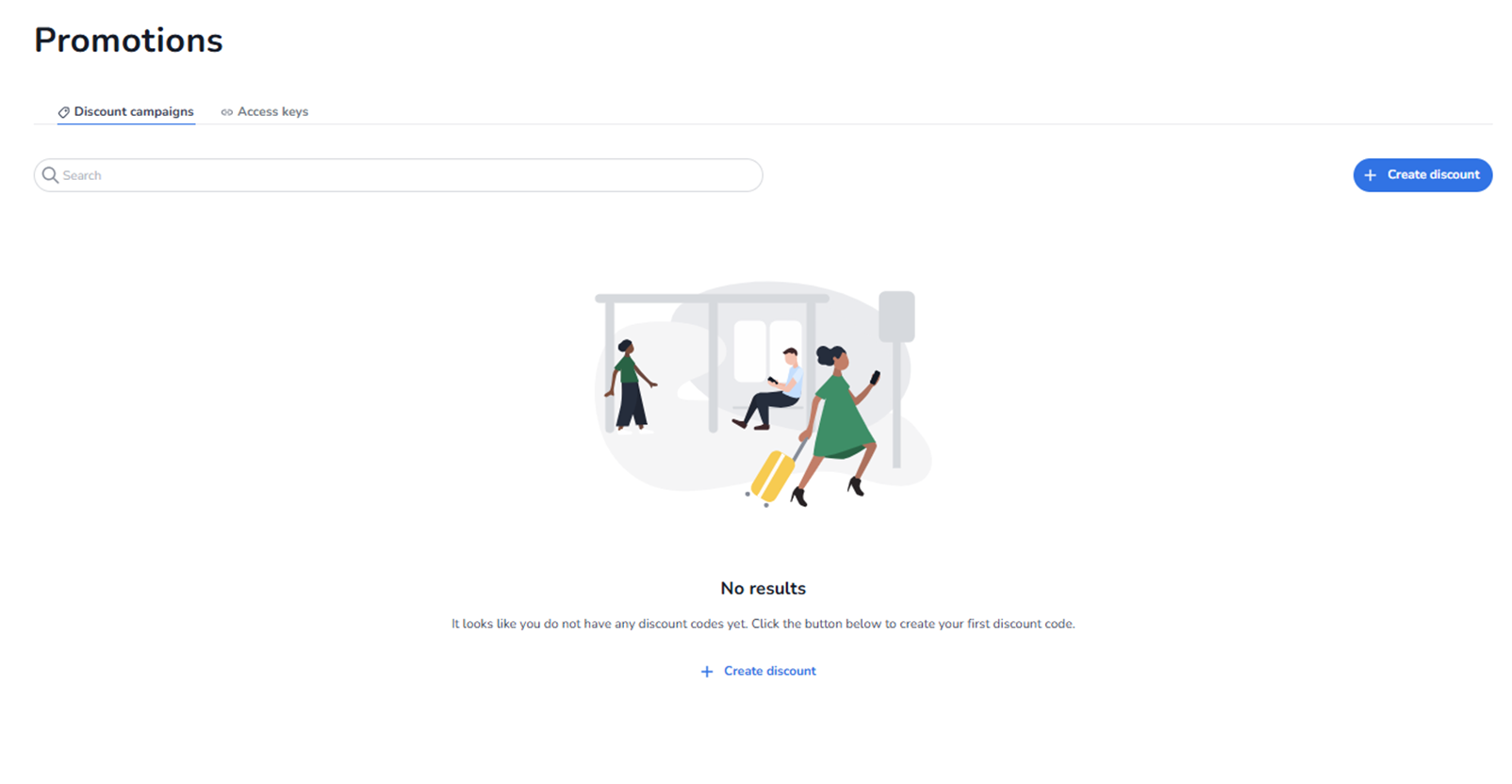
This screen appears when the user navigates to Ticketing → Promotions.
It is used to manage promotional configurations such as discount campaigns and access keys for the selected event.
Promotions influence pricing behaviour during checkout and can be used for marketing campaigns, partnerships, or controlled access.
What You See in This Section
Page Title
Promotions
Indicates that the user is inside the promotions management module.
Tabs – Promotion Types
At the top of the screen, two tabs are visible:
-
Discount campaigns (active)
-
Access keys
Discount campaigns
Used to create and manage discount codes or pricing promotions.
Access keys
Used to create restricted access codes (for example, private sales or hidden tickets).
Switching tabs changes the type of promotional logic being managed.
Top Section – Search & Actions
-
Search Bar
Field: Search
Purpose:
-
Search for existing discount campaigns or access keys.
-
Quickly locate a specific promotion by name or code.
-
Primary Action Button
Button: + Create discount
Purpose:
-
Start the creation flow for a new discount campaign.
-
Add a new promotional rule.
This is the main entry point for creating discounts.
Promotions List Area
Empty State (No Data Yet)
If no discount campaigns exist, the screen displays:
Message: No results
Supporting text:
“It looks like you do not have any discount codes yet. Click the button below to create your first discount code.”
Button: + Create discount
Purpose:
-
Guide the user to create the first promotion.
-
Provide a clear call-to-action when no data exists.
When Data Exists
If promotions are configured:
-
They will be displayed in this overview.
-
Each promotion appears as a clickable row.
-
You can open and edit existing promotions.
The list may include information such as:
-
Campaign name
-
Discount type
-
Status (active/inactive)
-
Usage limits
-
Validity period
What This Section Actually Controls
The Promotions overview controls:
-
Creation of discount campaigns
-
Management of access keys
-
Visibility of promotional rules
-
Editing of existing promotions
It influences:
-
Checkout pricing
-
Discount application
-
Campaign execution
-
Controlled ticket access
It does NOT control:
-
Ticket creation
-
Pool capacity
-
Shop design
-
Marketing tracking configuration
It governs promotional logic applied during purchase.
Important Considerations
-
Promotions must be active to apply at checkout.
-
Incorrect configuration may result in unintended discounts.
-
Access keys may restrict visibility of certain tickets.
-
If no promotions exist, no discount logic is applied.
Functional Summary
Within Ticketing → Promotions, the user can:
-
Switch between Discount campaigns and Access keys
-
Search for promotions
-
Create new discount campaigns
-
Open and edit existing promotions
When promotions are available, they are displayed in this overview for management.
This section influences:
-
Revenue adjustments
-
Marketing incentives
-
Controlled access strategies
-
Checkout pricing behaviour
It is the central management area for promotional logic within the event.