
Overview
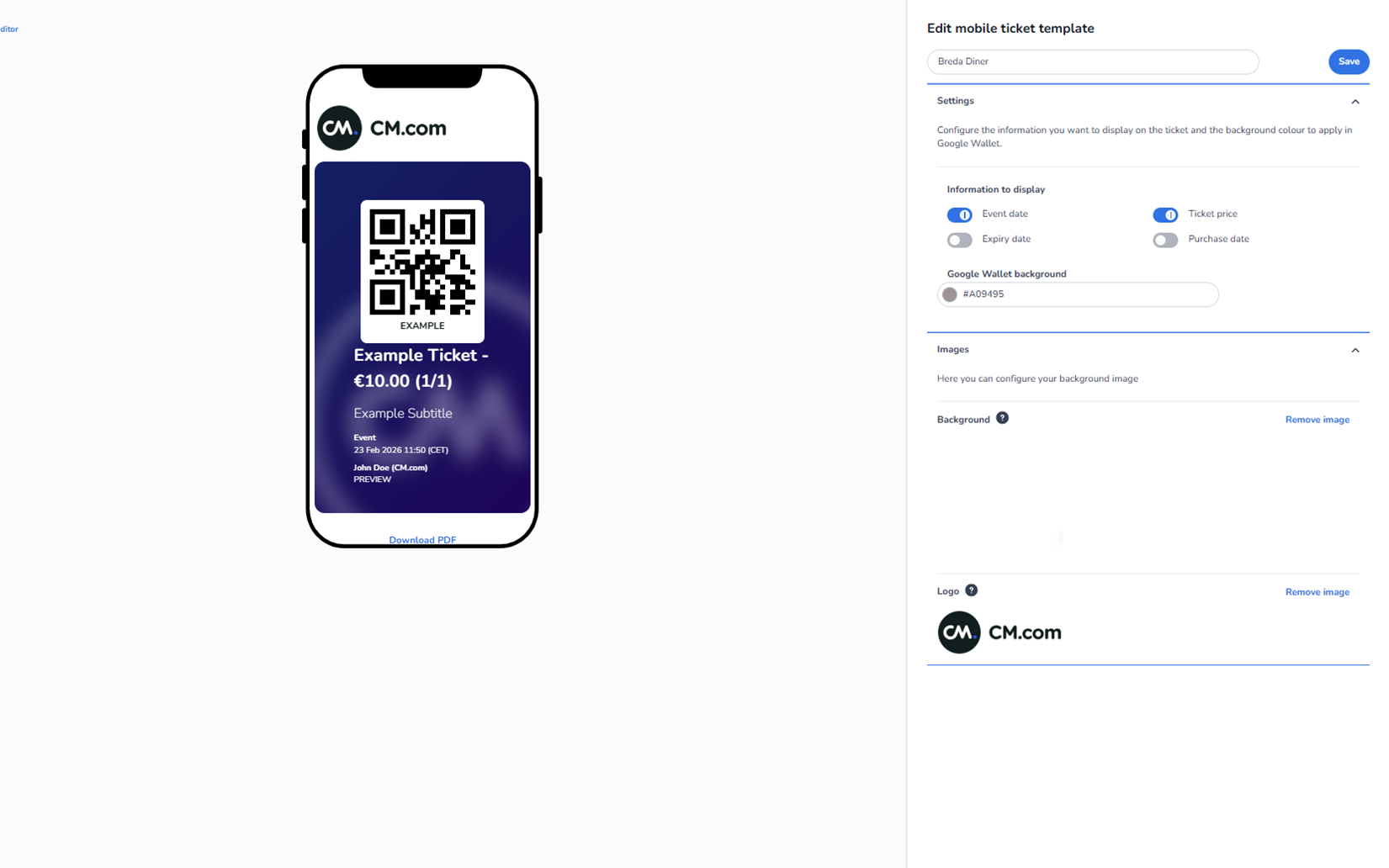
This screen appears when selecting Edit on a mobile ticket design template.
It allows you to configure:
-
How the ticket appears on mobile devices
-
Which ticket information is displayed
-
The background styling used in Google Wallet
-
Visual elements such as background image and logo
The screen is divided into two main sections:
-
Left side: Live mobile ticket preview (inside a phone frame)
-
Right side: Configuration panel
The preview updates instantly when settings are changed.
Left Side – Mobile Preview
The mobile preview simulates how the ticket will appear in Apple Wallet / Google Wallet–style presentation.
The preview may include:
-
Logo
-
QR code
-
Ticket name
-
Ticket price
-
Subtitle
-
Event date
-
Visitor name
-
Ticket counter (e.g., 1/1)
Important:
All visible data in the preview is example data. Real users will see their own ticket details.
Right Side – Configuration Panel
Template Name
Editable field at the top:
-
Used to rename the mobile template.
Save Button
-
Saves all modifications.
-
Changes are not applied until saved.
Settings Section
This section controls what information is shown on the mobile ticket and the wallet background colour.
Information to Display (Toggle Controls)
This section contains toggle switches that allow you to enable or disable specific ticket information.
Each field has an ON/OFF switch:
-
Event date
-
Expiry date
-
Ticket price
-
Purchase date
Toggle Behaviour
-
Blue (ON) → The field is visible on the mobile ticket.
-
Grey (OFF) → The field is hidden from the ticket.
You can freely turn these fields on or off depending on how much information you want the visitor to see.
When you enable or disable a field:
-
The mobile preview updates immediately.
-
The selected information will either appear or disappear from the ticket layout.
This gives full control over how detailed the ticket presentation should be.
Google Wallet Background
This field allows you to set the background colour used when the ticket is added to Google Wallet.
Options:
-
Enter a HEX colour code manually
-
Use the colour picker
Effect:
-
Changes the background appearance in the preview
-
Defines the visual styling inside Google Wallet
Images Section
This section controls visual branding elements.
Background Image
-
Displays the current background image.
-
You can remove the image.
-
If removed, the ticket will use the selected background colour only.
Logo
-
Displays the logo shown at the top of the mobile ticket.
-
Can be removed.
-
If removed, the ticket will no longer display a header logo.
Functional Summary
Within Edit Mobile Ticket Template, you can:
-
Rename the template
-
Enable or disable ticket information fields (event date, expiry date, ticket price, purchase date)
-
Control how much information is visible to visitors
-
Set Google Wallet background colour
-
Add or remove background image
-
Add or remove logo
-
Preview changes live
-
Save configuration
This configuration is specifically for mobile wallet ticket presentation and does not affect:
-
PDF ticket templates
-
Email design
-
Shop design
If you'd like, I can also rewrite this in the exact same “EM – Section Name” format for full documentation consistency.