
Overview
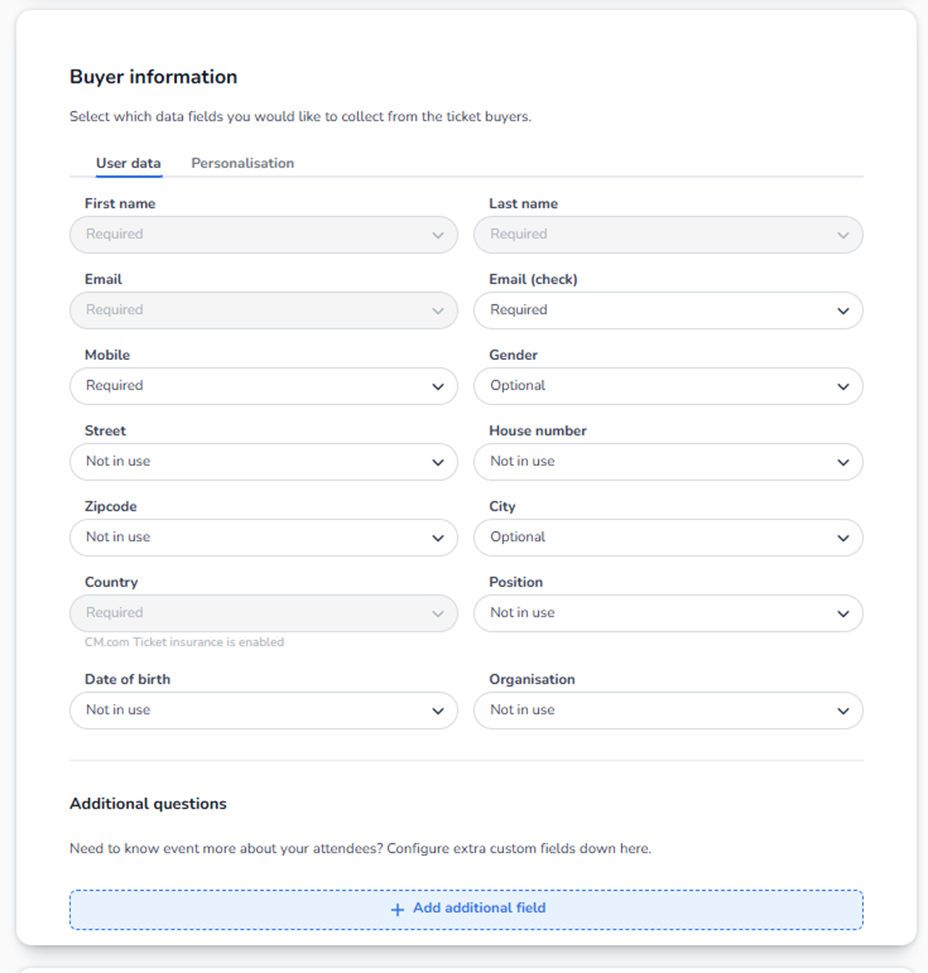
The Buyer Information section determines which data fields you collect from the ticket buyer during checkout.
This configuration applies to order-level buyer data — meaning the person placing and paying for the order.
This is not the same as ticket personalisation (attendee-level data per ticket). That will be explained separately under the Personalisation tab.
Structure of This Section
You are currently in the User data tab (not Personalisation).
For every field listed, you can choose one of three options from a dropdown:
-
Required
-
Optional
-
Not in use
Each setting changes how the checkout form behaves.
What Each Option Means
Required
If a field is set to Required:
-
The field appears in checkout.
-
The buyer must complete it.
-
The order cannot be completed without it.
Use this for:
-
Legally required data
-
Essential contact information
-
Billing-related data
-
Integration-required data
Example:
If Email is Required → The buyer cannot complete the order without entering an email address.
Optional
If a field is set to Optional:
-
The field appears in checkout.
-
The buyer may complete it.
-
The order can still be completed if left empty.
Use this for:
-
Marketing segmentation
-
Non-essential contact information
-
Additional profiling data
Example:
If Gender is Optional → The buyer may fill it in, but it is not mandatory.
Not in use
If a field is set to Not in use:
-
The field does not appear in checkout.
-
No data is collected for this field.
-
It is completely hidden from buyers.
Use this to:
-
Shorten checkout
-
Reduce friction
-
Improve conversion rates
-
Avoid collecting unnecessary data
Example:
If Street is Not in use → Buyers will not see any address field.
Fields Available in User Data
The following fields can be configured individually:
Personal Details
-
First name
-
Last name
-
Email
-
Email (check / confirmation)
-
Mobile
-
Gender
-
Date of birth
Address Information
-
Street
-
House number
-
Zipcode
-
City
-
Country
Professional Information
-
Position
-
Organisation
Each of these has its own dropdown for Required / Optional / Not in use.
Special Behavior
Some fields may automatically become required depending on enabled features.
For example:
-
If ticket insurance is enabled → Certain address fields may become required.
-
If invoicing is enabled → Billing-related data may need to be Required.
The system may restrict some configurations when features depend on them.
Additional Questions Section
At the bottom, you see:
“Additional questions”
Button:
+ Add additional field
This allows you to create custom questions beyond the standard user data.
Examples:
-
Dietary preferences
-
Marketing source
-
Special access requirements
-
Membership number
⚠️ Important:
Additional questions apply to buyer-level data unless configured differently in personalisation (which we will cover later).
Critical Distinction
Buyer Information → Order-level data (one buyer per order)
Personalisation (next tab) → Per-ticket attendee data
If someone buys 5 tickets:
-
Buyer Information = 1 set of data
-
Personalisation = potentially 5 separate sets of attendee data
Do not confuse these two layers.
Impact on Checkout Flow
More Required fields:
-
Longer checkout
-
Higher friction
-
More complete data
More Not in use fields:
-
Faster checkout
-
Higher conversion
-
Less data available for CRM or analytics
This section directly influences conversion rate.
Common Issues & Where to Check
If users report:
-
“Customers cannot complete checkout”
→ Check if too many fields are Required. -
“We don’t collect phone numbers”
→ Check if Mobile is Optional or Not in use. -
“CRM is missing buyer address”
→ Check address field configuration. -
“We need gender statistics”
→ Ensure Gender is Optional or Required (not Not in use).
Summary
Buyer Information controls:
-
Which order-level data is collected
-
Whether it is mandatory
-
How complex checkout becomes
-
Data quality for reporting and CRM
This section should be configured carefully to balance:
-
Conversion performance
-
Legal compliance
-
Data needs
-
Operational requirements