
Overview
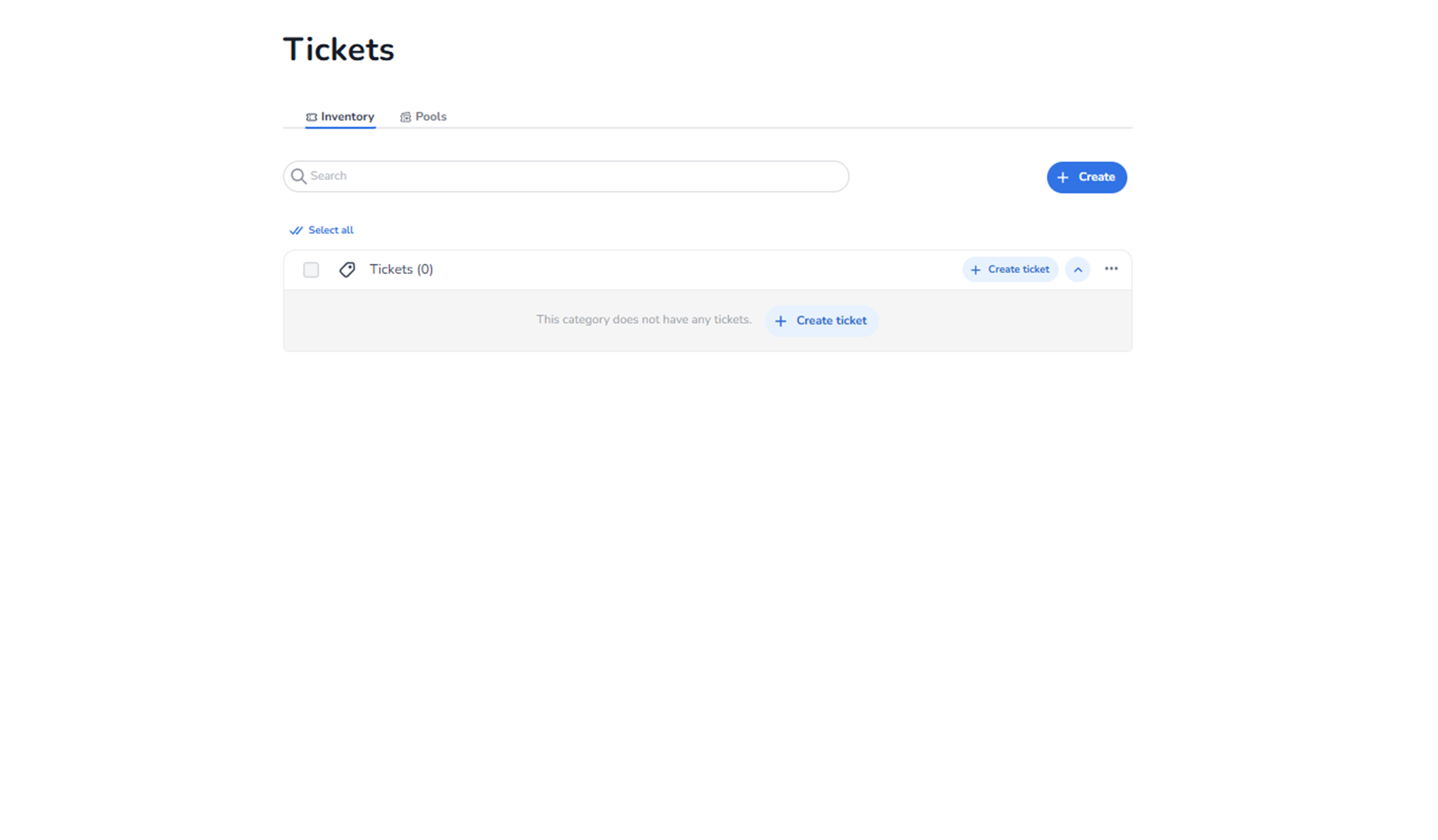
The Tickets screen in the Ticketing module is used to manage the ticket inventory of the selected event.
Its purpose is to:
-
Create ticket types
-
Organise tickets within categories
-
Search and manage ticket inventory
-
Prepare tickets before linking them to pools or sales flows
This section is about ticket objects and inventory structure.
It is not about payments, checkout configuration, or marketing tracking.
What You See in This Section
-
Tabs – Inventory & Pools
Below the main page title Tickets, two tabs are visible:
-
Inventory (active)
-
Pools (inactive)
Inventory
Used to create and manage ticket types.
Pools
Used for allocation and distribution of tickets (handled separately).
-
Search Bar
Field: Search
Purpose:
-
Filter tickets or categories within the inventory
-
Quickly locate ticket types when many exist
This search applies only to the ticket inventory view.
-
Primary Action Button
Button: + Create
Located at the top-right of the screen.
Purpose:
-
Start the ticket creation flow
-
Add a new ticket type
This is the main entry point for creating tickets.
-
Selection Controls
You see:
-
Select all (text link)
-
A checkbox on the category row
Purpose:
-
Select tickets or categories for bulk actions
-
Prepare items for batch operations
If no tickets exist, selection has no operational impact.
-
Category Row – “Tickets (0)”
This row represents a ticket category or group.
Elements visible:
-
Checkbox (left side)
-
Category label: Tickets (0)
-
+ Create ticket (quick action button)
-
Expand/Collapse icon (chevron)
-
More options menu (⋯)
Meaning of (0):
-
No tickets currently exist in this category.
Category Row Actions Explained
+ Create ticket
-
Creates a ticket directly inside this category
-
Shortcut for faster ticket creation
Chevron (Expand/Collapse)
-
Expands the category to show ticket types (when available)
-
Collapses the list for cleaner overview
More Options (⋯)
-
Opens additional category-level actions
-
May include rename, edit, or structural actions (depending on permissions)
-
Empty State
Message shown:
“This category does not have any tickets.”
Button:
Create ticket
Purpose:
-
Quick-start creation of the first ticket
-
Guides the user when inventory is empty
What This Section Actually Controls
When tickets are created here, this section controls:
-
Ticket type structure
-
Naming and categorisation
-
Base inventory objects
-
Availability preparation (before allocation to pools)
Without tickets created here:
-
No tickets can be sold
-
No pools can be assigned
-
No checkout flow can function
This is the structural foundation of ticketing configuration.
Important Considerations
-
Tickets must be created in Inventory before being allocated to Pools
-
Structural changes may affect shops and sales channels
-
Removing tickets may impact reservations or sales (depending on status)
This screen defines the core ticket objects of the event.
Functional Summary
Within Ticketing → Tickets → Inventory, the user can:
-
View ticket inventory
-
Create ticket types
-
Organise tickets into categories
-
Search within inventory
-
Select tickets for bulk handling
-
Prepare ticket structure for further configuration
This section influences:
-
What can be sold
-
How tickets are structured
-
Inventory organisation
It does NOT control:
-
Payment methods
-
Marketing tracking
-
Checkout design
-
Financial settlement
It is the structural foundation of the event’s ticket setup.