
Overview
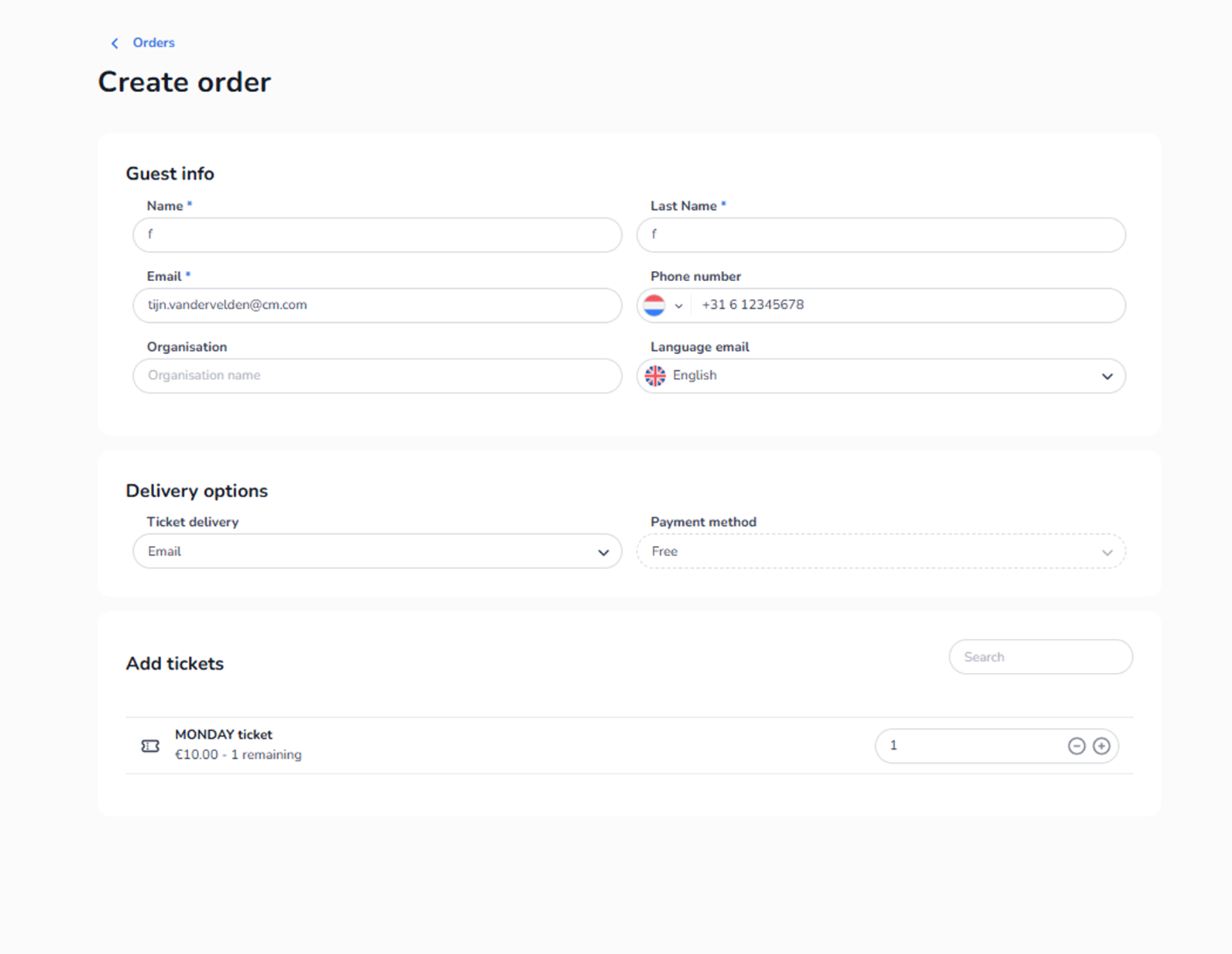
This screen appears when the user clicks + Create order inside Ticketing → Orders.
It is used to manually create a new order from the backoffice.
This flow allows staff to:
-
Enter customer details
-
Select delivery method
-
Choose payment method
-
Add tickets to the order
It is primarily used for customer service, partner sales, or internal allocations.
What You See in This Screen
Top Navigation
Breadcrumb: Orders
Allows returning to the Orders overview.
Page Title: Create order
Indicates manual order creation mode.
Guest Info Section
This section captures buyer information.
-
Name (Required)
Field: Name*
Customer’s first name.
-
Last Name (Required)
Field: Last Name*
Customer’s last name.
-
Email (Required)
Field: Email*
Used for:
-
Sending tickets
-
Order confirmation
-
Communication
Important:
Tickets delivered by email depend on this field.
-
Phone Number
Field: Phone number
Includes country code selector.
Used for:
-
Contact purposes
-
Possible SMS communication
-
Organisation
Field: Organisation
Optional field for:
-
Business customers
-
Corporate bookings
-
Language Email
Dropdown: Language email
Purpose:
-
Select the language in which the confirmation email will be sent.
Affects:
-
Email template language
-
Communication clarity
Delivery Options Section
-
Ticket Delivery
Dropdown: Ticket delivery
Defines how tickets are delivered.
Example options may include:
-
Email
-
Other configured delivery types
This controls ticket distribution method.
-
Payment Method
Dropdown: Payment method
Defines how the order is processed financially.
Example:
-
Free
-
Other configured payment options
Important:
This selection affects:
-
Order status
-
Payment handling
-
Financial reporting
Add Tickets Section
This section lists available tickets that can be added to the order.
You see:
-
Ticket name
-
Ticket price
-
Remaining availability
-
Quantity selector (+ / – controls)
Purpose:
-
Select quantity of tickets to include in the order.
The quantity field determines how many units are added.
Critical Requirement
If there are no tickets created in Inventory, this section will not display any ticket options.
Without available tickets:
-
You cannot add products to the order.
-
The order cannot be completed.
-
Manual order creation is not possible.
Tickets must first be created in:
Ticketing → Tickets → Inventory
Only then will they appear in the “Add tickets” section.
What This Screen Actually Controls
Create Order controls:
-
Customer information
-
Delivery method
-
Payment configuration
-
Ticket selection
-
Manual transaction creation
It does NOT:
-
Create new tickets
-
Modify ticket pricing
-
Change capacity settings
-
Configure sales strategy
It strictly creates a transactional order.
Important Considerations
-
Email must be correct for successful ticket delivery.
-
Payment method impacts reporting and accounting.
-
Ticket availability must exist before creating an order.
-
Capacity limits still apply when adding tickets manually.
If tickets are sold out or not created:
-
They will not appear.
-
Or they cannot be added due to capacity restrictions.
Functional Summary
Within Ticketing → Orders → Create order, the user can:
-
Enter customer details
-
Choose delivery method
-
Select payment type
-
Add available tickets
-
Manually create an order
This section influences:
-
Backoffice sales
-
Customer service operations
-
Revenue tracking
-
Ticket allocation
It is the manual order creation interface for the event.