
This section appears inside:
Design → Email templates → Edit → Template settings → Images
It controls the header image configuration of the email template.
The image settings are shared across all email types within this template (Order confirmation, Personalisation, Backoffice orders).
What This Section Means
The Images section allows you to upload and manage the main visual header image that appears at the top of the email.
This is typically used for:
-
Event branding
-
Campaign visuals
-
Banner-style graphics
-
Logo + visual combination
It defines the visual identity at the top of the email layout.
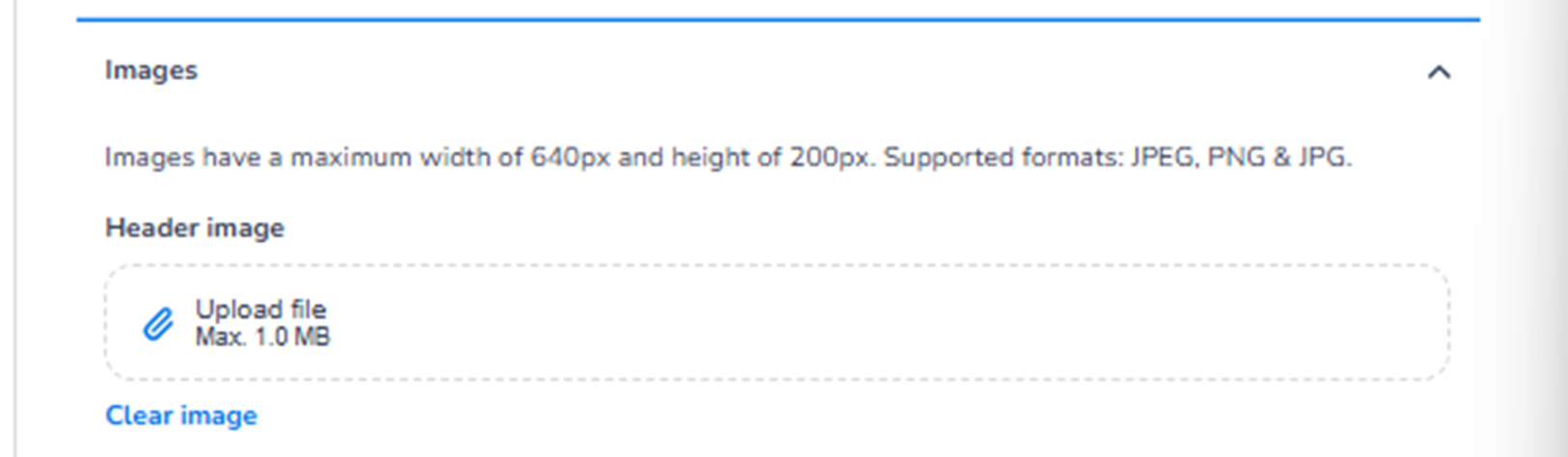
What You See in This Section - Dimension
Image Size Information
The system specifies:
-
Maximum width: 640px
-
Maximum height: 200px
-
Supported formats:
-
JPEG
-
PNG
-
JPG
-
Purpose:
-
Ensure proper rendering across email clients.
-
Maintain responsive design compatibility.
-
Prevent layout breaking due to oversized images.
These limits are important for email compatibility.
Header image
This is the main configurable image area.
Upload file
Button: Upload file
Maximum file size: 1.0 MB
Purpose:
-
Upload a new header/banner image.
-
Replace the existing header image.
The uploaded image will appear at the top of all emails using this template.
Clear image
Option: Clear image
Purpose:
-
Remove the currently uploaded header image.
-
Revert to a header without image.
Useful when:
-
Changing campaign visuals.
-
Resetting to a minimal email layout.
-
Removing outdated branding.
Important Behaviour
-
The image is shared across all email types in this template.
-
It is not configured separately per email tab.
-
Mobile and Desktop use the same image.
-
The preview updates visually when an image is uploaded.
-
Changes must be saved to apply.
What This Section Controls
The Images section controls:
-
The visual header of the email
-
Top-of-email branding
-
Campaign banner appearance
It influences:
-
First visual impression
-
Brand recognition
-
Email visual structure
It does NOT control:
-
Content blocks
-
Ticket information
-
Text styling
-
Button colours
Functional Summary
Within Template settings → Images, the user can:
-
Upload a header image
-
Replace existing branding visuals
-
Remove the header image
-
Ensure correct image dimensions
-
Maintain consistent visual identity across all email types
This section defines the top visual element of all emails within the selected template.