
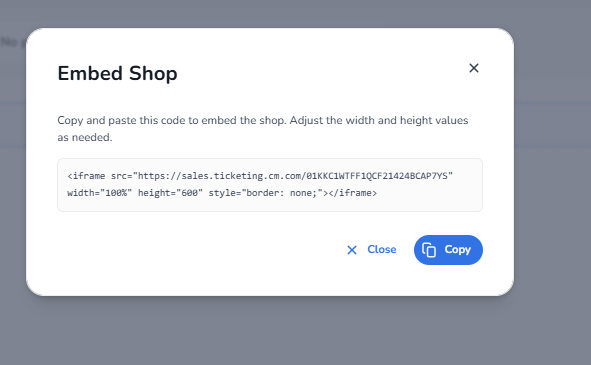
The Embed Shop feature allows you to place the ticket shop directly inside your own website using an iframe. This means visitors can buy tickets without leaving your website, creating a more integrated purchasing experience.
Where to Find the Embed Code
To access the iframe code:
-
Go to Ticketing
-
Open Shops
-
Select the shop you want to use
-
Click Edit shop
-
Click Embed at the top of the page
A popup window will appear showing the iframe embed code.
Example:
<iframe src="https://sales.ticketing.cm.com/01KKC1WTFF1QCF21424BCAP7YS" width="100%" height="600" style="border: none;"></iframe>
What You Can Do With the Embed Shop
Using the iframe embed code allows you to:
-
Display the ticket shop directly on your website
-
Let visitors purchase tickets without leaving your site
-
Integrate the ticket shop into existing event pages or landing pages
-
Control the size of the shop display by adjusting the iframe width and height
-
Keep the ticket shop connected to the same shop configuration and tickets set in the platform
Customizing the Display
You can adjust the iframe values depending on your website layout:
-
width – controls the width of the shop on the page (often set to
100%) -
height – controls how tall the shop frame appears
-
style – allows basic styling such as removing borders
Important
The iframe code must be placed in the HTML source code of your website.
This is typically done by a website administrator or developer.
The ticket shop will always reflect the current configuration of the shop in the ticketing platform, including tickets, pricing, and availability.