
This section appears inside:
Design → Email templates → Edit → Template settings → Advanced
It controls additional functional options related to the email template.
What This Section Means
The Advanced section allows you to enable or disable extra features that affect how recipients interact with the email.
These are not visual styling settings, but behavioural options.
What You See in This Section
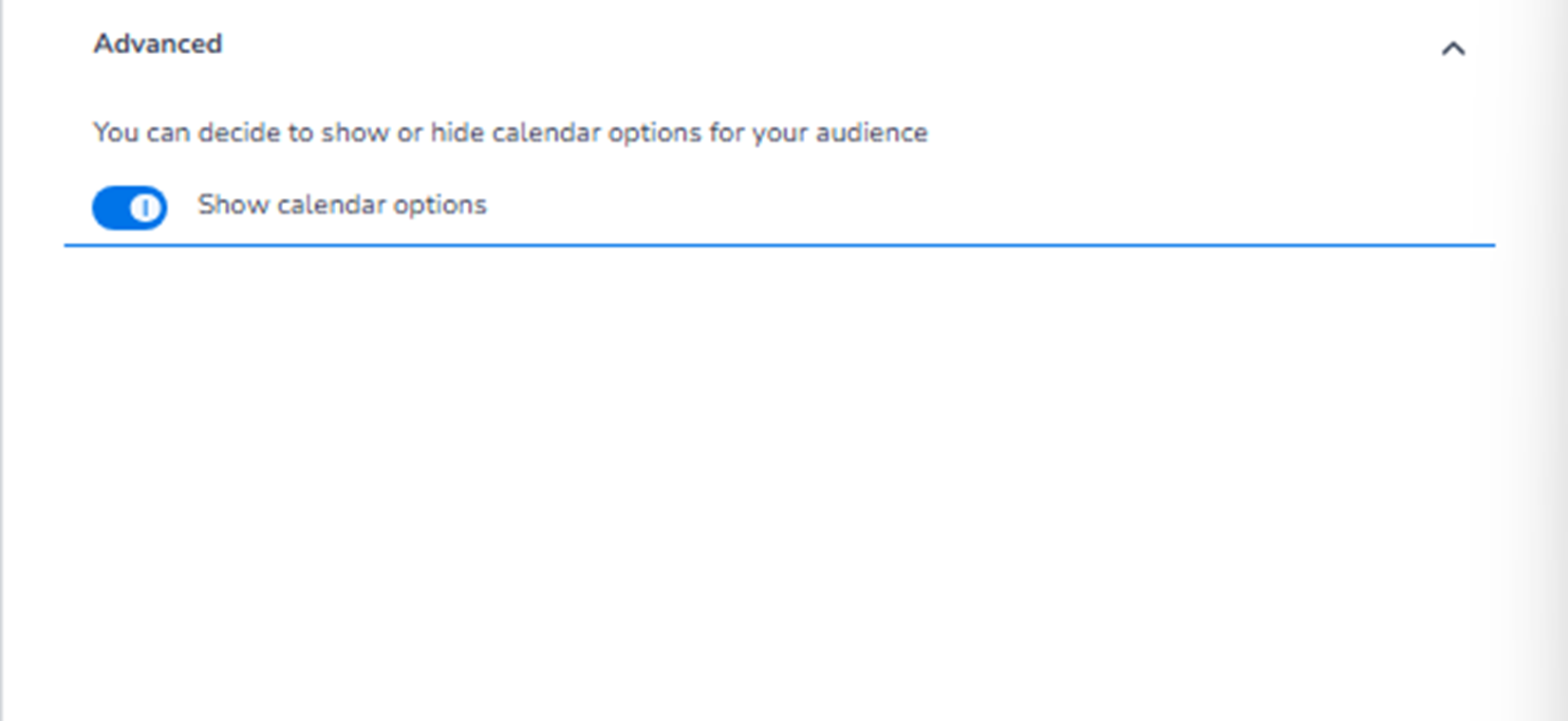
Show calendar options (Toggle)
Toggle option: Show calendar options
Description:
“You can decide to show or hide calendar options for your audience.”
What This Option Does
When enabled:
-
The email includes calendar add options.
-
Recipients can add the event directly to their calendar.
-
Typically supports:
-
Google Calendar
-
Outlook
-
iCal
-
This makes it easier for customers to remember the event.
When disabled:
-
Calendar add options will not appear in the email.
-
The email remains purely informational.
When to Enable This
Recommended when:
-
The event has a fixed date and time.
-
Attendance requires planning.
-
You want to reduce no-shows.
Optional when:
-
The event has no fixed schedule.
-
Calendar integration is not needed.
-
You prefer a minimal email layout.
Important Behaviour
-
This setting applies to the entire template.
-
It affects all relevant email types within the template.
-
It does not change styling — only functionality.
-
Mobile and Desktop are not configured separately.
-
Changes must be saved to apply.
What This Section Controls
Advanced settings control:
-
Additional interaction features.
-
Optional functionality in the email.
It influences:
-
User convenience.
-
Event reminder behaviour.
-
Engagement after purchase.
It does NOT control:
-
Branding
-
Colours
-
Layout structure
-
Email content text
Functional Summary
Within Template settings → Advanced, the user can:
-
Enable or disable calendar integration.
-
Decide whether recipients can add the event to their calendar.
-
Enhance post-purchase engagement.
This section adds optional interaction functionality to the email template.