
Overview
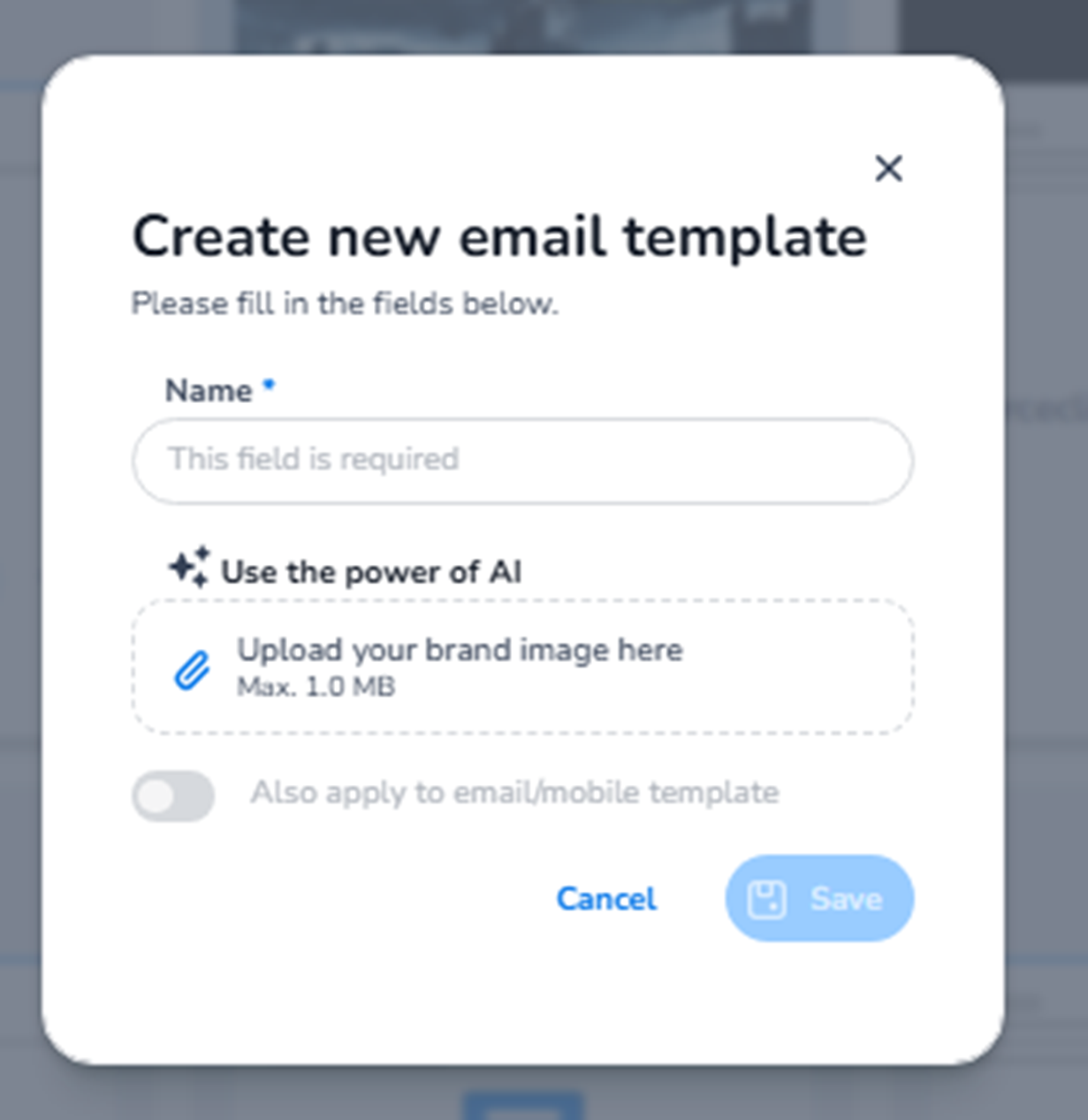
This screen appears when navigating to:
Dashboard → Design → Email templates → + New template
It is used to create a new branded email template for event communication.
Email templates control the visual styling and branding of emails sent from the platform, such as:
-
Order confirmations
-
Ticket delivery emails
-
Reminder emails
-
Notification emails
This section focuses on email branding and layout, not content logic.
What You See in This Screen
Modal Header
Title: Create new email template
Supporting text:
“Please fill in the fields below.”
Top-right corner:
-
X (close icon) → Closes the modal without saving.
-
Name (Required)
Field label: Name*
Placeholder: This field is required
Purpose:
-
Define the internal name of the email template.
-
Used to identify the template in the design overview.
This name is not shown to customers.
It is used internally for template management.
Examples:
-
Default Event Email
-
VIP Email Design
-
Summer Festival Branding
-
Use the Power of AI
Section label: Use the power of AI
This indicates that AI assistance may be available during template creation.
Purpose:
-
Assist with design generation.
-
Help structure branded email layouts.
This feature supports automated template creation based on branding input.
-
Upload Brand Image
Upload field: Upload your brand image here
Maximum size: 1.0 MB
Purpose:
-
Upload a logo or brand asset.
-
Used as the visual base for the email template.
This helps:
-
Maintain consistent branding.
-
Automatically apply logo placement.
-
Support AI-assisted layout generation.
-
Apply to Email/Mobile Template (Toggle)
Toggle: Also apply to email/mobile template
Purpose:
-
Apply this design styling across multiple communication templates.
-
Ensure consistent branding across email and possibly mobile formats.
Impact:
-
Reduces duplication.
-
Maintains visual consistency.
Bottom Actions
Cancel
Closes the modal without saving changes.
Save
Creates the new email template.
The Save button remains inactive until required fields (like Name) are filled.
What This Section Actually Controls
Creating a new email template allows you to:
-
Define email branding
-
Set logo usage
-
Establish layout style
-
Prepare branded communication flows
It influences:
-
Order confirmation appearance
-
Ticket delivery emails
-
Customer-facing email consistency
It does NOT control:
-
Ticket pricing
-
Shop design
-
Checkout flow
-
Content rules or triggers
This section controls visual styling only.
Important Considerations
-
Template names are internal references.
-
Brand image should follow size requirements.
-
Changes here affect future email communications.
-
Consistent branding improves professional appearance.
Functional Summary
Within Design → Email templates → + New template, the user can:
-
Create a new branded email template
-
Upload logo/brand image
-
Enable AI-assisted design
-
Apply branding across communication formats
This section is used to manage and standardise event email branding across the platform.