
Overview
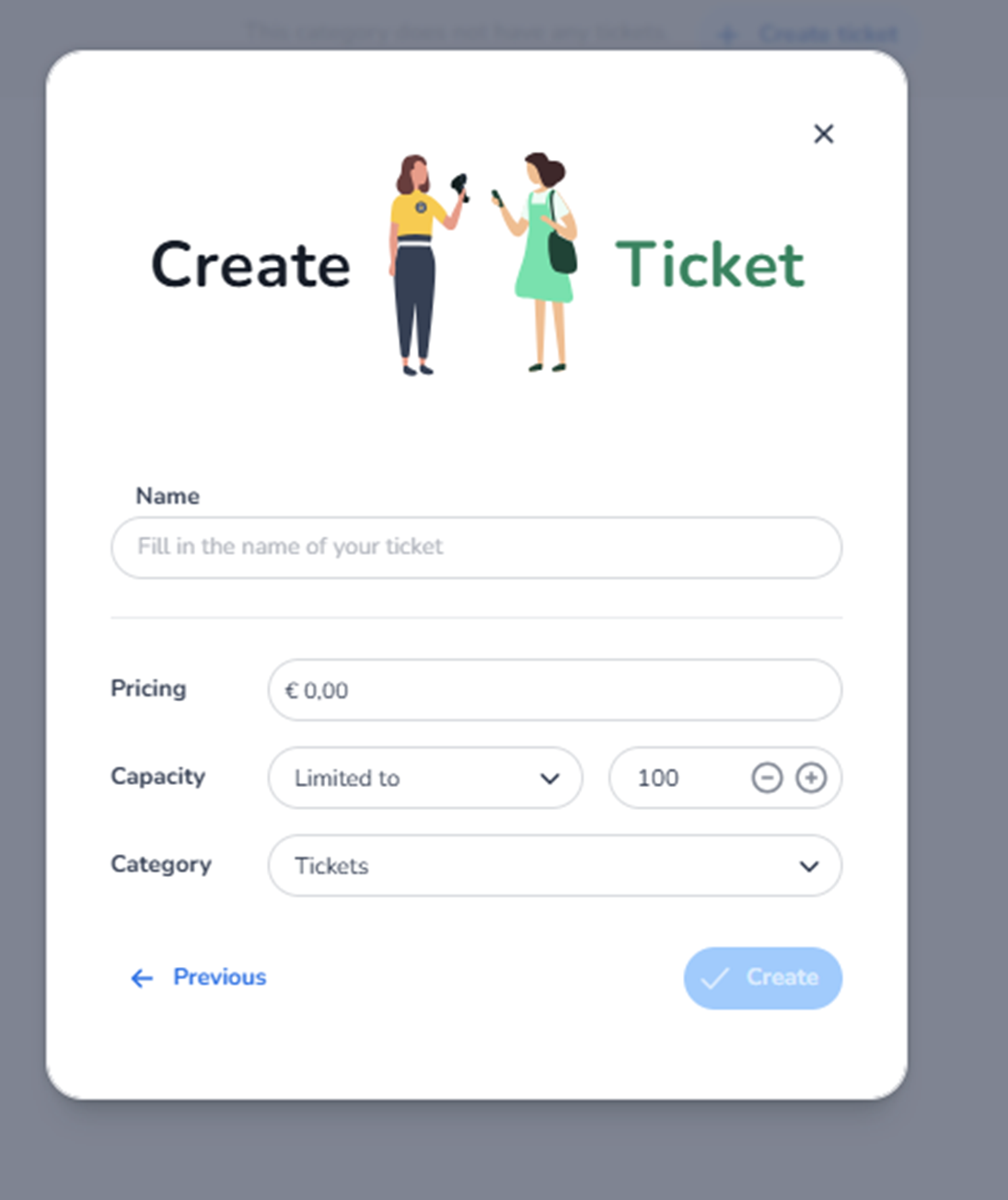
This modal appears after selecting Create an entrance ticket from the ticket type selection screen.
It is used to configure the basic properties of a sellable entrance ticket.
This is where the ticket object is defined with its core commercial attributes before being saved into the inventory.
An entrance ticket grants access to the event.
What You See in This Screen
Modal Header
Title: Create Ticket
Top-right corner:
-
X (close icon) → Closes the modal without saving.
-
Name (Required Field)
Field label: Name
Placeholder: Fill in the name of your ticket
Purpose:
-
Define the public-facing ticket name.
-
This name will appear in shops, reporting, and ticket overviews.
Examples:
-
General Admission
-
VIP Ticket
-
Early Bird – Friday
-
Weekend Pass
Important:
-
Required to create the ticket.
-
Should clearly reflect the access type or audience.
Impact:
-
Affects how the ticket is displayed in sales channels.
-
Used in reporting and order data.
-
Pricing
Field label: Pricing
Example shown: €0,00
Purpose:
-
Set the base price of the ticket.
-
Determines the amount charged during checkout.
Impact:
-
Directly affects revenue.
-
Influences financial reporting.
-
Can later be linked to pricing rules, promotions, or channels.
If set to €0,00:
-
The ticket becomes free unless changed later.
-
Capacity
Section label: Capacity
Visible elements:
-
Dropdown: Limited to
-
Numeric field (example: 100)
-
Plus (+) and minus (–) controls
Purpose:
-
Define the maximum number of tickets available.
-
Controls inventory limitation.
Possible logic:
-
Limited to X tickets
-
Other capacity configurations (depending on dropdown options)
Impact:
-
Prevents overselling.
-
Controls ticket availability.
-
Influences pool allocation later.
If limited to 100:
-
Maximum 100 tickets can be sold for this ticket type (unless adjusted later).
-
Category
Field label: Category
Example shown: Tickets
Purpose:
-
Assign the ticket to a specific category created earlier.
-
Organises tickets within inventory.
Impact:
-
Determines where the ticket appears in the inventory structure.
-
Supports structural grouping.
If multiple categories exist:
-
The ticket can be placed in the appropriate structural group.
-
Navigation & Actions
Previous
Button: Previous
Purpose:
-
Returns to the ticket type selection screen.
-
Does not create the ticket.
Create
Button: Create
Purpose:
-
Saves the configured entrance ticket.
-
Adds it to the selected category in Inventory.
This button may remain inactive until required fields (e.g., Name) are completed.
What This Screen Actually Controls
This screen defines:
-
Ticket name
-
Base pricing
-
Inventory capacity
-
Category placement
It creates the sellable entrance ticket object.
It does NOT yet control:
-
Sales channels
-
Pools
-
Advanced pricing rules
-
Checkout design
-
Marketing tracking
Those are configured in later modules.
Important Considerations
-
Capacity settings directly impact availability and overselling protection.
-
Pricing impacts revenue and reporting accuracy.
-
Category placement affects structural organisation.
-
Deleting or modifying tickets later may impact live sales or reservations.
This is the foundational configuration step for a sellable entrance ticket.
Functional Summary
Within Ticketing → Tickets → Inventory → Create Ticket → Entrance Ticket, the user can:
-
Define ticket name
-
Set pricing
-
Configure capacity limits
-
Assign the ticket to a category
-
Create a sellable entrance ticket
This screen influences:
-
Revenue
-
Availability
-
Ticket structure
-
Event access control
It is the primary commercial configuration step within ticket inventory setup.