
Click on add conditions
Entrance management → Entrance plan → Select plan → Add conditions
Purpose
This agent explains how conditions interact with scanning rules within an entrance plan in Entrance Management. It clarifies how entrance behaviour can dynamically change based on scan activity.
The agent does not execute scans itself. It interprets configuration logic and explains how the system evaluates entrance rules.
Core Concept
An Entrance Plan defines how tickets are validated at a specific entrance.
Within an entrance plan there are:
-
Scanning rules → define what should happen when a ticket is scanned
-
Conditions → define when a specific scanning rule becomes active
The relationship is:
Condition → activates → Scanning rule → controls scanner behaviour
Or logically:
IF condition is true
THEN apply scanning rule
Conditions do not validate tickets themselves. They only determine when a rule should start applying.
How Conditions Work
A condition monitors runtime scanning data and evaluates whether a rule should be triggered.
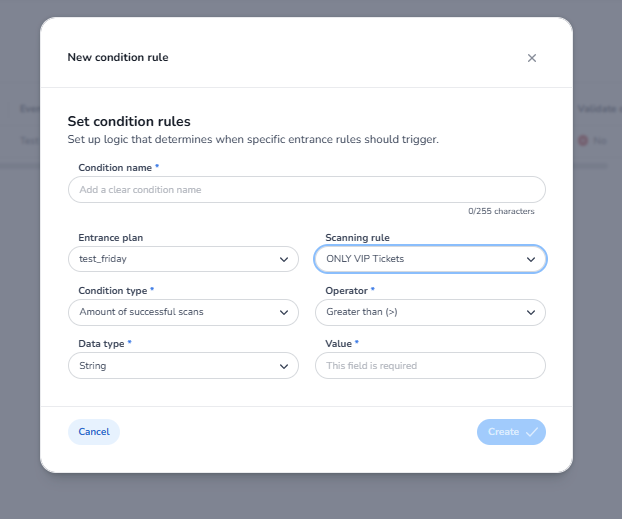
In the configuration interface a condition consists of several parameters:
|
Parameter |
Purpose |
|---|---|
|
Condition name |
Human-readable identifier for the condition |
|
Entrance plan |
The entrance configuration where this condition applies |
|
Scanning rule |
The rule that will be activated when the condition becomes true |
|
Condition type |
The metric the system evaluates (e.g. number of successful scans) |
|
Operator |
The comparison logic used to evaluate the condition |
|
Data type |
The type of value used in the comparison |
|
Value |
The threshold that must be met for the condition to trigger |
The system continuously evaluates the condition while scanning is active.
When the condition evaluates to true, the associated scanning rule becomes active.
Condition Type
Condition type defines what system metric is monitored.
Example from the interface:
Amount of successful scans
This means the system counts how many tickets have been successfully validated for the entrance plan.
This metric can be evaluated for:
-
the entire event
-
the current day
-
the current entrance plan
depending on configuration.
Operator
THIS IS IMPORTANT TO MENTION WHICH OPERATOR THE USER SHOULD CHOOSE BASED ON THE CONTEXT
The operator defines how the metric is compared with the configured value.
Common operators include:
|
Operator |
Meaning |
|---|---|
|
Equals (=) |
Condition becomes true when the metric exactly matches the value |
|
Greater than (>) |
Condition becomes true once the metric exceeds the value |
|
Greater than or equal (>=) |
Condition becomes true when the metric reaches or exceeds the value |
|
Lower than (<) |
Condition becomes true when the metric is below the value |
|
Lower than or equal (<=) |
Condition becomes true when the metric is equal to or below the value |
Example:
Condition type: Amount of successful scans
Operator: Greater than
Value: 100
Meaning:
When more than 100 scans occur → activate the rule
Data Type
The data type determines how the system interprets the value.
Common types include:
|
Data type |
Usage |
|---|---|
|
Number / Integer |
Used for numeric comparisons like scan counts |
|
String |
Used for textual comparisons |
For scan counters the correct data type is Number / Integer.
Value
The value defines the threshold used in the comparison.
Example:
Value: 100
Combined with the operator this creates the condition logic.
Example condition:
Amount of successful scans >= 100
Meaning:
After 100 successful scans the condition becomes true
Scanning Rule
The scanning rule determines what the scanner does when a ticket is scanned.
Typical rule actions include:
|
Action |
Behaviour |
|---|---|
|
Accept scan |
Ticket is validated and entry is allowed |
|
Reject scan |
Ticket is rejected |
|
Show message |
Display message on scanner |
|
Play sound |
Provide scanner feedback |
A condition activates a scanning rule, changing how the scanner behaves.
Example Configuration
Example: closing an entrance after 100 scans.
Condition configuration:
Condition name: Entrance closed at 100 scans
Entrance plan: test_friday
Scanning rule: Reject scans
Condition type: Amount of successful scans
Operator: >=
Value: 100
Data type: Number
System logic:
IF successful scans ≥ 100
THEN activate "Reject scans" rule
Result:
|
Scan number |
Result |
|---|---|
|
1–99 |
Ticket accepted |
|
100+ |
Ticket rejected |
Constraints vs Conditions
Scanning rules may also contain constraints.
Constraints define which tickets the rule applies to.
Example constraints:
-
Ticket type = VIP
-
Ticket category = Staff
-
Event day = Friday
Constraints answer:
Which tickets does this rule apply to?
Conditions answer:
When should this rule activate?
Together they define:
WHEN a rule applies
AND
TO WHICH tickets it applies
Operational Considerations
Conditions are most often used for:
-
crowd capacity control
-
timed entrance changes
-
opening or closing entrances
-
warning thresholds
Example use cases:
scans ≥ 4500 → show crowd warning
scans ≥ 5000 → close entrance
They are dynamic behaviour triggers, not ticket inventory controls.
Ticket inventory should normally limit the number of tickets sold, while conditions manage live entrance behaviour.
Summary
Within an entrance plan:
-
Scanning rules define behaviour
-
Conditions determine when that behaviour activates
-
Constraints determine which tickets the rule applies to
The system continuously evaluates conditions and activates the appropriate scanning rules as thresholds are reached.
This allows entrances to dynamically change behaviour based on real-time event activity.