
Overview
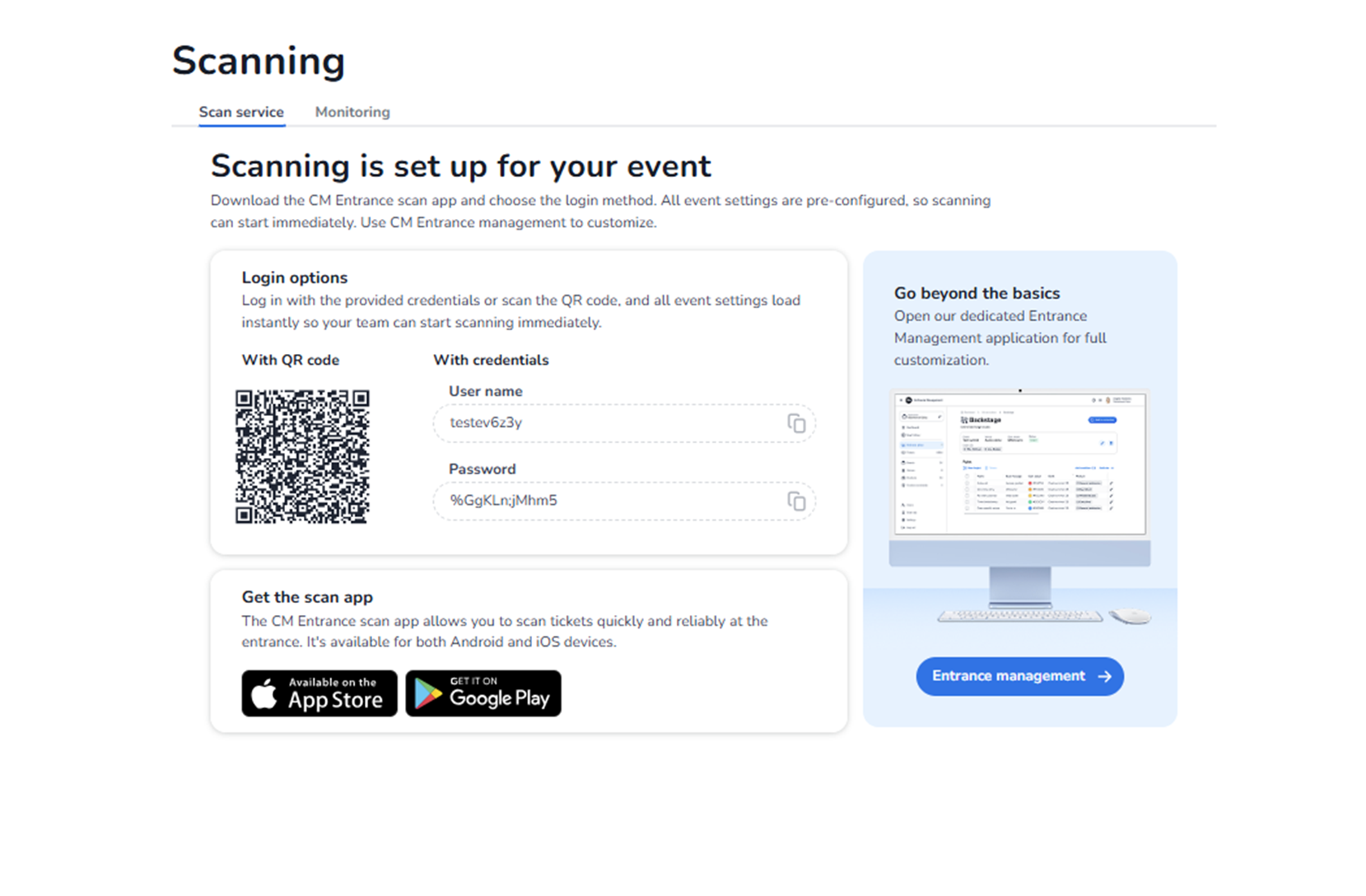
This screen appears when navigating to Ticketing → Scanning, with the Scan service tab selected.
This section is used to configure and start ticket scanning for the event.
It allows event staff to:
-
Access scanning credentials
-
Download the scan application
-
Start real-time ticket validation
-
Configure advanced entrance management
This section is operational and directly impacts event access control.
What You See in This Section
Page Header
Title: Scanning
Tabs available:
-
Scan service (active)
-
Monitoring
The active tab determines whether you are configuring scanning access or monitoring scan activity.
Main Section – Scanning is set up for your event
Message:
“Scanning is set up for your event.”
Explanation:
-
The event is already pre-configured for scanning.
-
No additional activation steps are required.
-
Scanning can begin immediately.
Supporting instruction:
Download the CM Entrance scan app and choose the login method.
Login Options
This block provides two ways to log into the scan app.
-
With QR code
-
A QR code is displayed.
-
Staff can scan this code using the CM Entrance app.
-
Event settings automatically load after scanning.
Purpose:
-
Fast and secure login.
-
Reduces manual credential sharing.
-
With credentials
Fields displayed:
-
Username
-
Password
Copy icons are available to quickly copy credentials.
Purpose:
-
Manual login option.
-
Used when QR scanning is not preferred.
Important:
These credentials load event-specific scanning settings.
Get the Scan App
Section: Get the scan app
Explanation:
-
The CM Entrance app allows reliable ticket scanning at the entrance.
Download options available:
-
App Store (iOS)
-
Google Play (Android)
Purpose:
-
Enables staff to install the official scanning application.
-
Required for operational access control.
Go Beyond the Basics – Entrance Management
Right-side panel:
Message:
“Go beyond the basics”
Button: Entrance management →
Purpose:
-
Opens the dedicated Entrance Management application.
-
Allows advanced configuration of scanning behaviour.
This may include:
-
Scan rules
-
Entry validation logic
-
Device configuration
-
Access restrictions
-
Advanced entrance setup
Important:
The knowledge and configuration details for Entrance Management are already documented in the dedicated Design/Scanning knowledge section.
This button redirects to that advanced management environment.
What This Section Actually Controls
The Scan service screen controls:
-
Login access to scanning
-
Credential management
-
Operational scanning start
-
App access distribution
It enables:
-
Real-time ticket validation
-
Entry control at the event
-
Access enforcement
It does NOT directly control:
-
Ticket pricing
-
Promotions
-
Pool capacity
-
Shop configuration
It governs entrance operations.
Important Considerations
-
Staff must use the official scan app.
-
Credentials should be handled securely.
-
Incorrect scanning setup may cause entry issues.
-
Entrance Management allows deeper configuration if required.
Scanning directly affects:
-
Event security
-
Entry flow
-
Capacity control
-
Real-time validation
Functional Summary
Within Ticketing → Scanning → Scan service, the user can:
-
Access login credentials
-
Use QR login
-
Download the scan app
-
Start scanning immediately
-
Access advanced Entrance Management
This section influences:
-
Event access control
-
On-site operations
-
Ticket validation logic
-
Real-time entry management
For advanced configuration, use Entrance management, which is covered in the existing scanning knowledge documentation.