
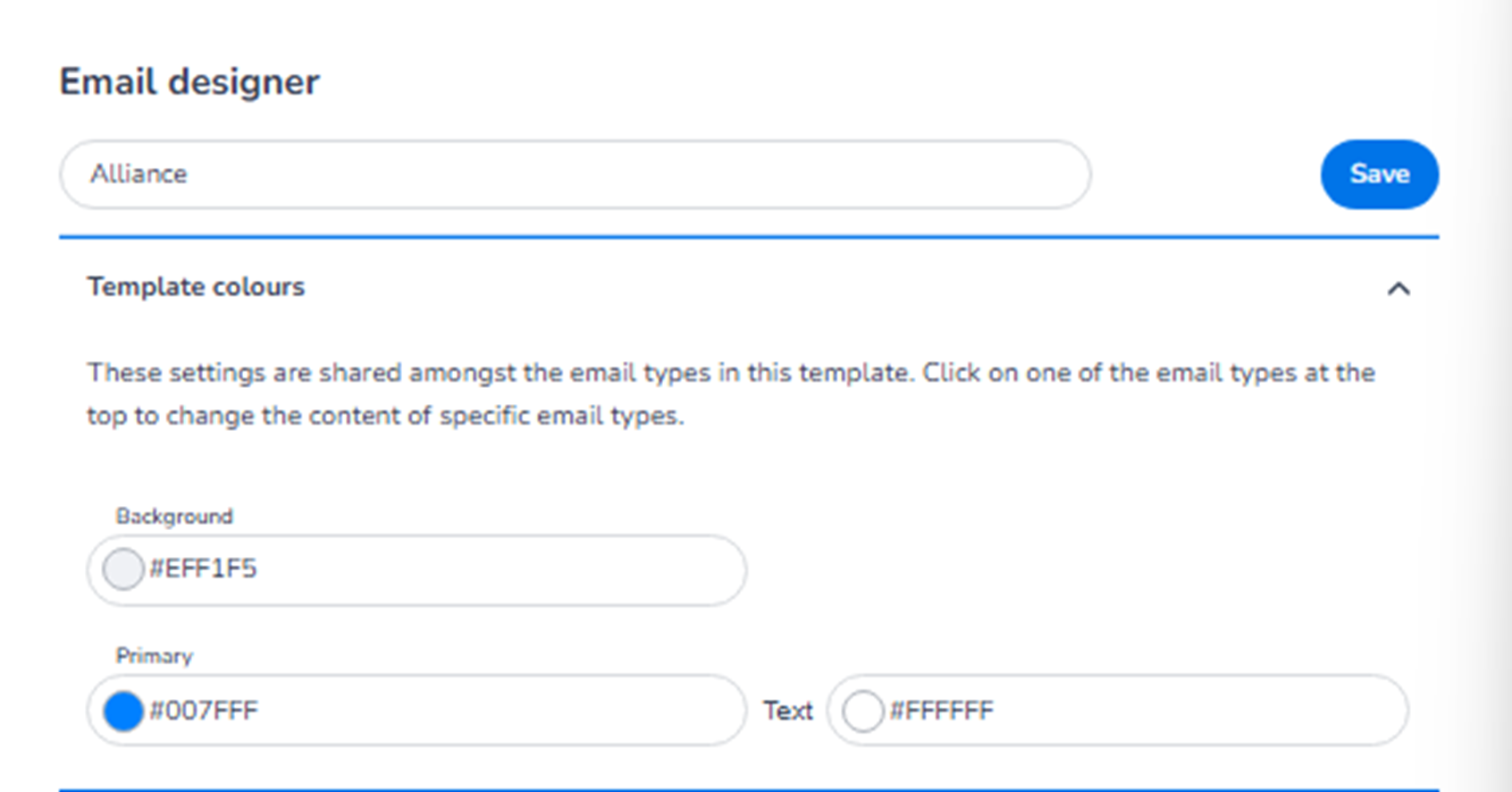
This section appears on the right side inside:
Design → Email templates → Edit → Template settings
It controls the global colour styling of the email template.
All settings here are shared across the email types within this template (Order confirmation, Personalisation, Backoffice orders).
What This Section Means
Template colours define the visual identity of the email.
These colours determine:
-
Background appearance
-
Button colours
-
Accent elements
-
Text colours
-
Overall brand consistency
Changes here affect the entire template group.
What You See in This Section
Template Name (Top Field)
At the very top:
-
Template name field
-
Save button
You can:
-
Rename the template group.
-
Save changes after updating colours.
Template colours
Description text indicates:
These settings are shared among the email types in this template.
This means:
-
You do not configure colours per email type here.
-
You define one shared colour scheme.
Colour Options Explained
-
Background
Field: Background
Purpose:
-
Defines the background colour of the email.
-
This is the main canvas colour behind all content blocks.
Example usage:
-
Light neutral for clean look
-
Brand-tinted background for identity
Impact:
-
Affects the full email background.
-
Primary
Field: Primary
Purpose:
-
Defines the main brand colour used in the email.
-
Typically applied to:
-
Buttons
-
Accent lines
-
Highlight elements
-
Important visual components
-
This is the dominant action colour in the template.
For example:
-
Ticket button colour
-
Action CTA styling
-
Text
Field: Text
Purpose:
-
Defines the main text colour used in the template.
-
Controls readability and contrast.
This affects:
-
Paragraph text
-
Labels
-
Standard content blocks
Important:
Text colour should contrast clearly with the background.
How Colour Selection Works
Each field allows:
-
Direct HEX colour input (e.g., #007FFF)
-
Visual colour picker selection
You can:
-
Match brand guidelines exactly.
-
Use corporate colour codes.
-
Adjust contrast for accessibility.
Important Behaviour
-
Changes apply to all email types within this template.
-
Colours are not configured per device.
-
Mobile and Desktop share the same colour configuration.
-
Preview updates visually as changes are made.
-
Changes only apply after clicking Save.
What This Section Controls
Template colours control:
-
Brand identity consistency
-
Visual hierarchy
-
CTA visibility
-
Overall email appearance
It influences:
-
Buttons
-
Background
-
Text styling
-
Accent elements
It does NOT control:
-
Email content
-
Ticket logic
-
Order information
-
Dynamic variables
Functional Summary
Within Template settings → Template colours, the user can:
-
Define global background colour
-
Set primary brand/action colour
-
Configure text colour
-
Ensure consistent styling across all email types
-
Maintain brand alignment across communications
This section establishes the visual foundation of all emails within the selected template.