
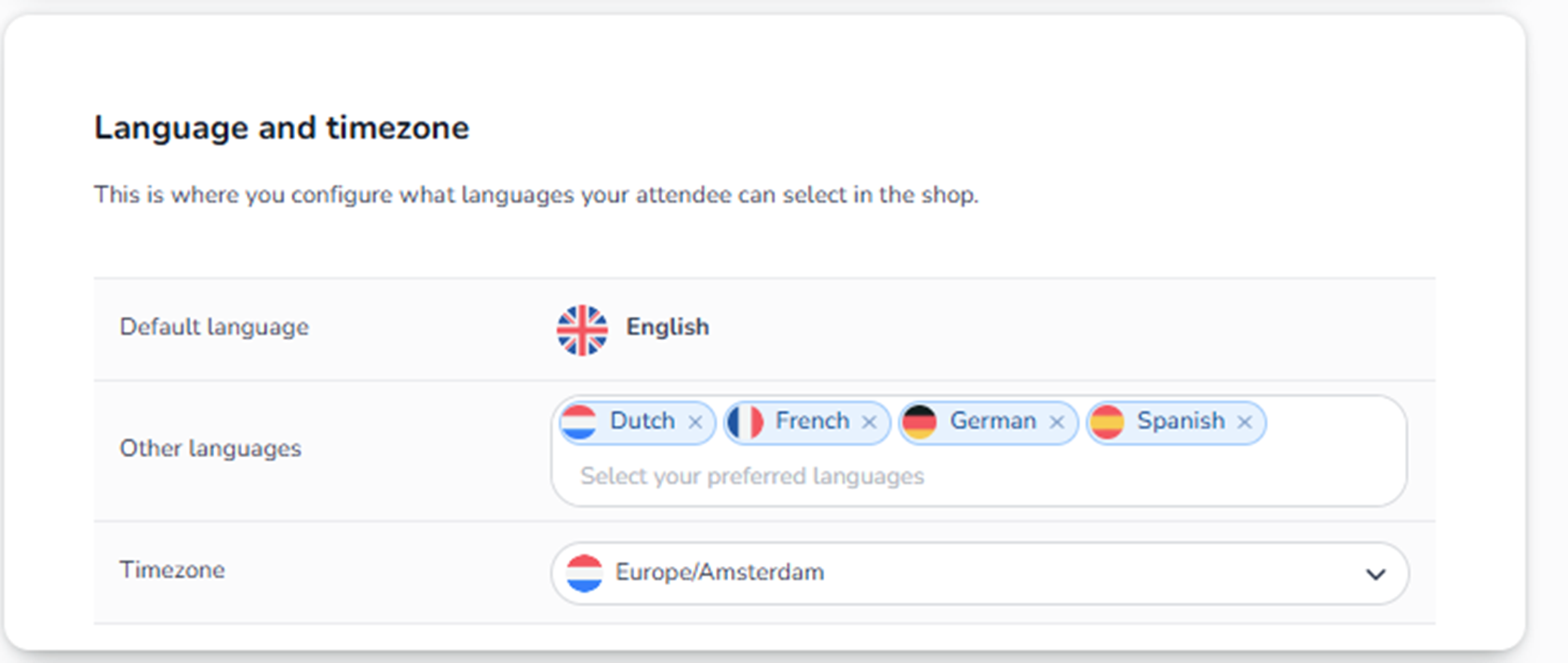
Overview
The Language and timezone section controls:
-
Which languages are available in the shop
-
What the default language is
-
Which timezone the event operates in
This directly affects how buyers see the shop and how time-based logic functions.
-
Default Language
Field: Default language
This defines the primary language of the event shop.
What it controls:
-
Shop interface language
-
Checkout labels
-
System messages
-
Possibly email templates (if multilingual configured)
The default language is used when:
-
A visitor’s browser language does not match available options
-
No manual language selection is made
Best practice:
Choose the main audience language as default.
-
Other Languages
Field: Other languages (multi-select)
Here you can add additional languages that buyers can select in the shop.
What happens when added:
-
A language switcher appears in the shop
-
Buyers can manually select their preferred language
-
Translations must be configured for content
Important:
Adding a language does NOT automatically translate your event description or emails.
You must ensure:
-
Content is translated
-
Email templates support that language
-
Legal texts are translated
Too many unused languages can cause:
-
Poor user experience
-
Partially translated pages
-
Timezone
Field: Timezone dropdown
This defines the official timezone of the event.
It affects:
-
Start and end time interpretation
-
Ticket validation timing
-
Reservation expiry timing
-
Reporting timestamps
-
Dashboard analytics
-
Schedule resend logic
Critical:
If timezone is incorrect:
-
Tickets may validate at the wrong time
-
Sales reports may appear shifted
-
Checkout timers may misalign
Always set the timezone to the physical location of the event.
Interaction With Other Sections
Timezone interacts with:
-
Event start & end date (Event settings)
-
Order process timing
-
Dashboard analytics
-
Scan app validation
Language interacts with:
-
Content and branding
-
Consents
-
Email templates
-
Buyer information labels
Common Issues
If users report:
-
“Event shows wrong time”
→ Check timezone. -
“Ticket stops working too early”
→ Verify timezone and event end time. -
“Shop shows wrong language”
→ Check default language and available languages. -
“Translations missing”
→ Ensure content is translated for enabled languages.
Summary
Language and Timezone controls:
-
Buyer interface language options
-
Default shop language
-
Event timing logic
It is simple to configure but critically important for:
-
International events
-
Multi-language shops
-
Accurate ticket validation
-
Correct reporting