
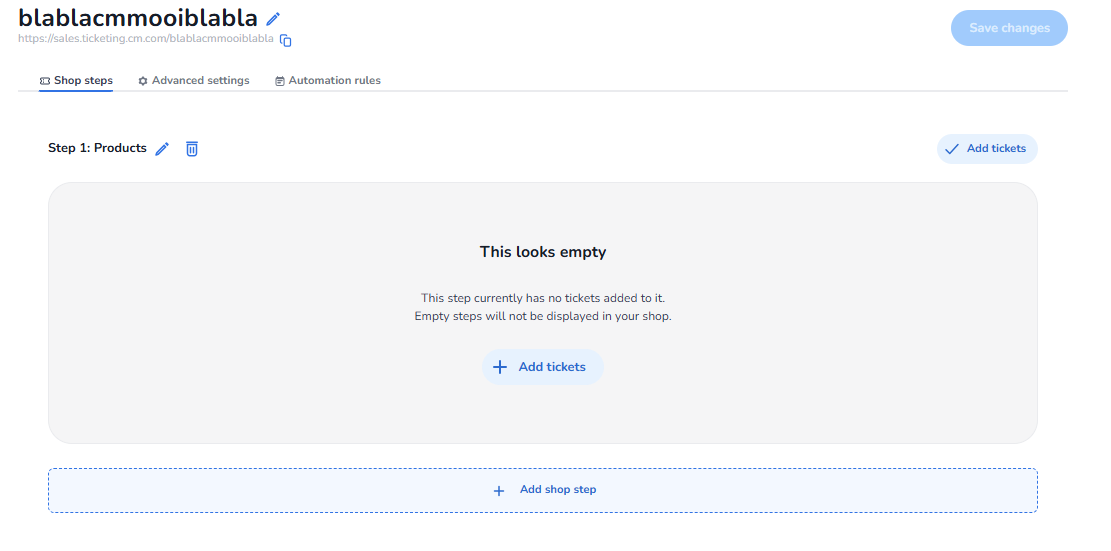
Ticketing → Shop (specific shop) → Edit
Overview
This knowledge agent provides guidance about the Ticket Shop Editor within the NXT Gen ticketing platform.
The Ticket Shop Editor is used to configure the structure of the ticket shop, including which tickets appear in the shop and how they are organized for customers during the purchase flow.
Within this interface, users can add tickets to the shop, organize them into shop steps, and configure the purchase flow.
How to Access the Ticket Shop Editor
To edit a ticket shop:
-
Open the ticketing platform.
-
Select the event you want to manage.
-
Navigate to Shops.
-
Open the ticket shop you want to edit.
This opens the Shop Editor, where the purchase flow of the ticket shop can be configured.
Main Sections in the Ticket Shop Editor
At the top of the page, several configuration tabs are available:
Shop Steps
This tab controls the structure of the ticket shop flow.
Each step represents a stage in the ticket selection process.
For example:
-
Step 1: Products (tickets)
-
Additional steps can be added for other selections or options.
Users can add tickets to each step, which determines which tickets are visible to customers in the shop.
Advanced Settings
This section contains additional configuration options for the shop behaviour, such as advanced checkout settings and shop functionality.
Automation Rules
Automation rules allow the platform to automatically trigger actions based on user behaviour or purchase conditions within the shop.
Adding Tickets to the Shop
Within the Shop Steps section, users can add tickets that will appear in the shop.
To add tickets:
-
Click Add tickets.
-
Select the ticket types you want to include.
-
Confirm the selection.
The selected tickets will now appear in the shop and can be purchased by customers.
If no tickets are added to a step, the platform will display a message indicating that the step is empty and will not appear in the ticket shop.
Adding Additional Shop Steps
Users can also structure the shop by adding multiple steps.
To create a new step:
-
Click Add shop step.
-
Configure the new step.
-
Add tickets or options to that step.
This allows organizers to guide customers through different stages of the ticket selection process.
Editing Existing Steps
For each shop step, additional controls are available:
Edit Button
Allows users to modify the configuration of the shop step, such as the step name or settings.
Delete Button
Removes the step from the ticket shop.
Deleting a step will also remove its associated configuration.
Saving Changes
After making changes to the shop configuration, users must click Save changes in the top-right corner to apply the updates.
What You Can Do in the Ticket Shop Editor
Within this interface users can:
-
Add tickets to the shop
-
Organize tickets into shop steps
-
Modify the shop purchase flow
-
Configure advanced shop behaviour
-
Set automation rules
-
Edit or remove shop steps
This section is used to control how tickets appear and how customers move through the purchase process in the ticket shop.