
Overview
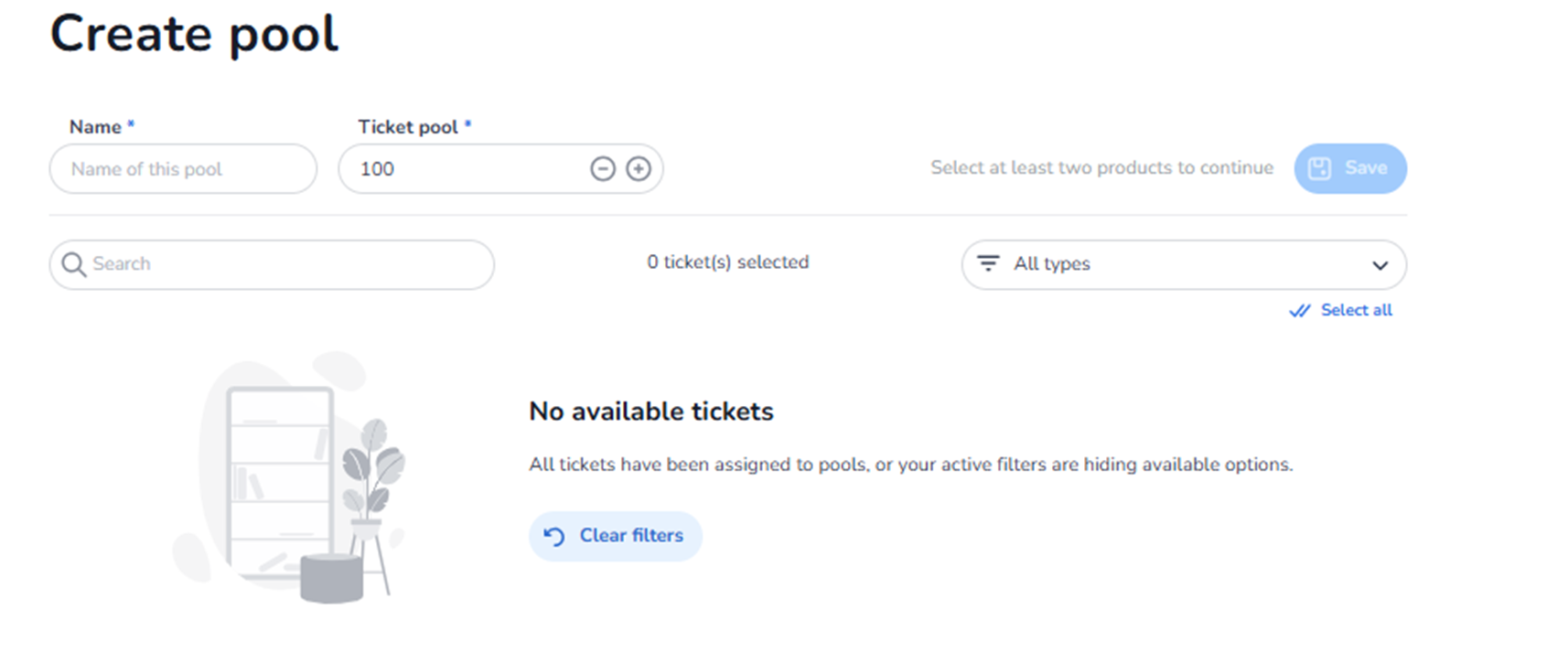
This screen appears when the user clicks + Create pool inside Ticketing → Tickets → Pools.
It is used to create a new ticket pool and define how capacity is allocated across multiple ticket types.
A pool allows shared or controlled distribution of capacity between selected tickets.
This screen defines:
-
Pool name
-
Total pool capacity
-
Which tickets are included in the pool
What You See in This Screen
Page Title
Create pool
Indicates the user is configuring a new ticket pool.
-
Name (Required Field)
Field label: Name*
Placeholder: Name of this pool
Purpose:
-
Define the internal name of the pool.
-
Used to identify the allocation structure.
Examples:
-
Main Capacity Pool
-
VIP Allocation
-
Early Access Pool
-
Partner Allocation
Important:
-
Required to save the pool.
-
Should clearly describe allocation logic.
Impact:
-
Appears in the Pools overview.
-
Used for capacity tracking and management.
-
Ticket pool Capacity (Required)
Field label: Ticket pool*
Numeric field (example: 100)
With minus (–) and plus (+) controls.
Purpose:
-
Define the total capacity available in this pool.
-
This is the maximum number of tickets that can be sold collectively across assigned tickets.
Impact:
-
Overrides individual ticket limits when shared.
-
Controls overall availability.
-
Prevents overselling when multiple tickets share the same capacity.
Example:
If pool capacity = 100
And 3 ticket types are assigned to this pool:
All combined sales across those tickets cannot exceed 100.
-
Ticket Selection Area
Below the pool configuration fields:
Search Bar
Purpose:
-
Search available tickets to assign to the pool.
-
Helps when many ticket types exist.
Filter Dropdown – “All types”
Purpose:
-
Filter tickets by type (e.g., entrance tickets, add-ons).
-
Narrow down the list of selectable tickets.
Selection Indicator
Text:
0 ticket(s) selected
Purpose:
-
Shows how many tickets are currently assigned to the pool during setup.
Important:
-
At least two products must be selected to continue (as indicated on screen).
This ensures meaningful shared allocation.
Select all
Purpose:
-
Select all visible tickets.
-
Fast bulk assignment to the pool.
Empty State (No Available Tickets)
Message:
No available tickets
Supporting text:
“All tickets have been assigned to pools, or your active filters are hiding available options.”
Button:
Clear filters
Purpose:
-
Reset filters if tickets are not visible.
-
Help the user locate available tickets.
Meaning:
-
Tickets already assigned to pools may not be selectable.
-
Filters may restrict visibility.
Save Button
Button: Save
Top-right of the screen.
Behaviour:
-
Disabled until required conditions are met:
-
Pool name entered
-
Capacity defined
-
At least two tickets selected
-
Purpose:
-
Creates the pool.
-
Assigns selected tickets to this shared capacity structure.
What This Screen Actually Controls
This screen defines:
-
Pool name
-
Shared capacity limit
-
Ticket assignment to the pool
It creates a shared allocation mechanism across tickets.
It does NOT:
-
Create new tickets
-
Modify pricing
-
Change checkout logic
-
Control marketing tracking
It strictly controls capacity distribution.
Important Considerations
-
Tickets assigned to a pool share the same capacity.
-
Pool capacity must align with venue or operational limits.
-
Assigning tickets to multiple pools may not be allowed (depending on platform logic).
-
Incorrect pool setup can result in underutilisation or blocked availability.
Pool configuration directly impacts how many tickets can be sold across grouped ticket types.
Functional Summary
Within Ticketing → Tickets → Pools → Create Pool, the user can:
-
Define a shared capacity structure
-
Set total available quantity
-
Select which tickets share that capacity
-
Filter and search tickets
-
Create structured allocation logic
This screen influences:
-
Capacity distribution
-
Sales availability
-
Overselling prevention
-
Advanced inventory management
It is the core configuration screen for shared ticket capacity control.