
Overview
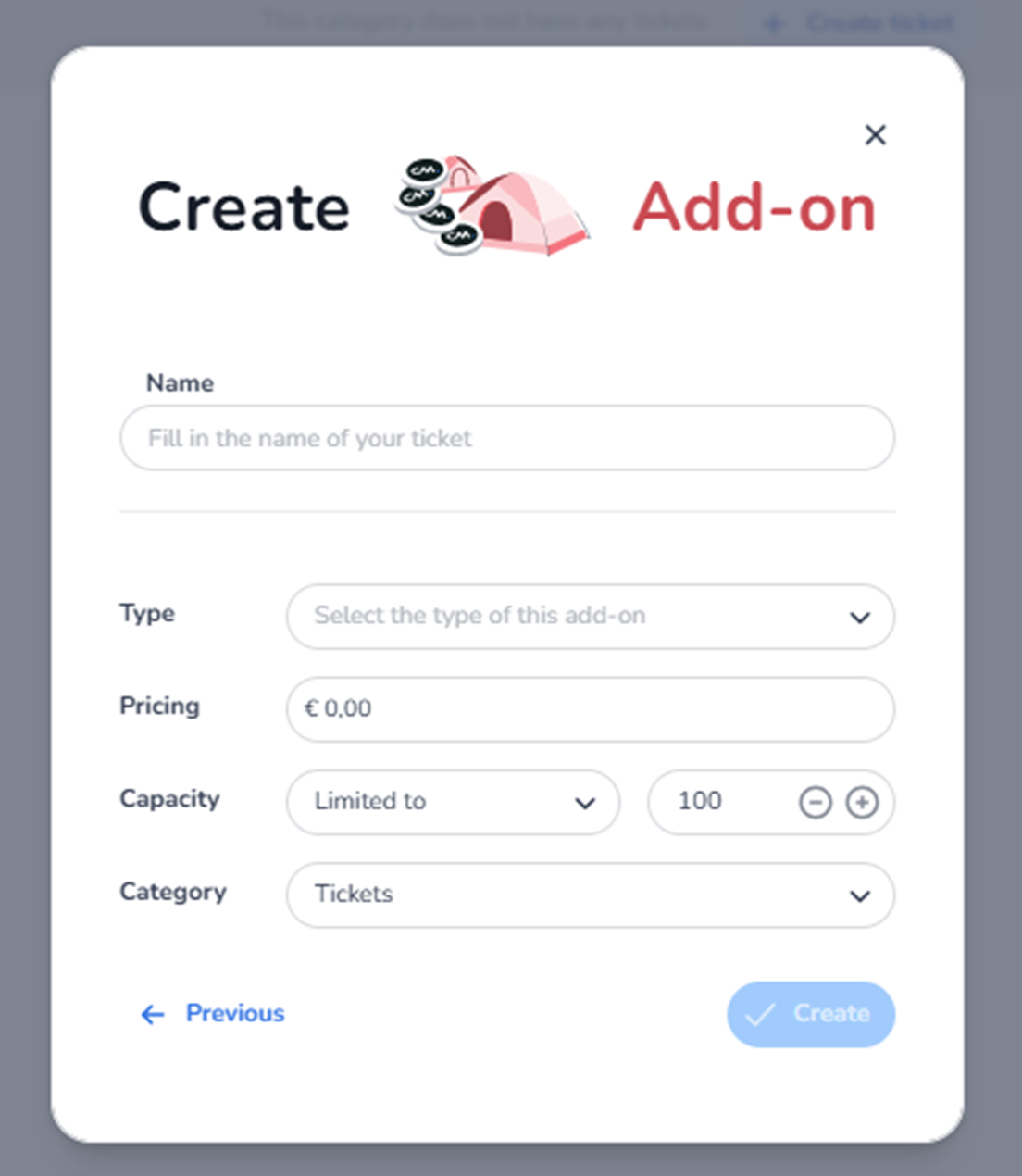
This modal appears after selecting Create an add-on from the ticket type selection screen.
It is used to configure a sellable add-on product linked to the event.
An add-on is a purchasable item that does not grant event access by itself.
It extends the commercial offering of the event (e.g., parking, camping, tokens, merchandise).
What You See in This Screen
Modal Header
Title: Create Add-on
Top-right corner:
-
X (close icon) → Closes the modal without saving.
-
Name (Required Field)
Field label: Name
Placeholder: Fill in the name of your ticket
Purpose:
-
Define the public-facing name of the add-on.
-
This name appears in shops, order confirmations, and reporting.
Examples:
-
Parking Pass
-
Camping Access
-
Drink Tokens
-
Locker Rental
Important:
-
Required to create the add-on.
-
Should clearly describe the additional product.
Impact:
-
Affects how the add-on appears in checkout and reports.
-
Type
Field label: Type
Placeholder: Select the type of this add-on
Purpose:
-
Define the functional classification of the add-on.
-
May influence how the add-on behaves within the system.
Examples (depending on platform configuration):
-
Parking
-
Camping
-
Merchandise
-
Tokens
-
Other service-related types
Impact:
-
May determine logical rules or integrations.
-
Helps categorise add-ons for operational purposes.
This is selected via a dropdown.
-
Pricing
Field label: Pricing
Example shown: €0,00
Purpose:
-
Set the base price of the add-on.
-
Determines the amount charged when selected during checkout.
Impact:
-
Directly affects revenue.
-
Included in financial reporting.
-
Can later be adjusted or linked to promotions.
If set to €0,00:
-
The add-on becomes free unless changed later.
-
Capacity
Section label: Capacity
Visible elements:
-
Dropdown: Limited to
-
Numeric field (example: 100)
-
Plus (+) and minus (–) controls
Purpose:
-
Define the maximum quantity available.
-
Controls inventory limitation for this add-on.
Impact:
-
Prevents overselling of limited resources (e.g., limited parking spots).
-
Controls operational capacity.
If limited to 100:
-
Only 100 units of this add-on can be sold.
-
Category
Field label: Category
Example shown: Tickets
Purpose:
-
Assign the add-on to a specific category within Inventory.
-
Organises structural placement.
Impact:
-
Determines where the add-on appears in the inventory list.
-
Helps separate entrance tickets from additional products if multiple categories exist.
-
Navigation & Actions
Previous
Button: Previous
Purpose:
-
Returns to the ticket type selection screen.
-
Does not create the add-on.
Create
Button: Create
Purpose:
-
Saves the configured add-on.
-
Adds it to the selected category in Inventory.
This button may remain inactive until required fields (e.g., Name, possibly Type) are completed.
What This Screen Actually Controls
This screen defines:
-
Add-on name
-
Add-on type
-
Base pricing
-
Inventory capacity
-
Category placement
It creates a sellable add-on product.
It does NOT:
-
Grant event access
-
Configure sales channels
-
Assign pools
-
Configure checkout logic
-
Control marketing tracking
Those configurations occur in later modules.
Important Considerations
-
Add-ons do not provide event entry by themselves.
-
Capacity is critical for operationally limited resources (e.g., parking spaces).
-
Pricing impacts total order value and reporting accuracy.
-
Type selection may affect operational handling or integrations.
Deleting or modifying add-ons later may affect live sales or operational planning.
Functional Summary
Within Ticketing → Tickets → Inventory → Create Ticket → Add-on, the user can:
-
Define the add-on name
-
Select an add-on type
-
Set pricing
-
Configure capacity limits
-
Assign the add-on to a category
-
Create a sellable additional product
This screen influences:
-
Revenue
-
Resource management
-
Operational planning
-
Inventory structure
It is the configuration step for non-entrance commercial products within the event.