
Overview
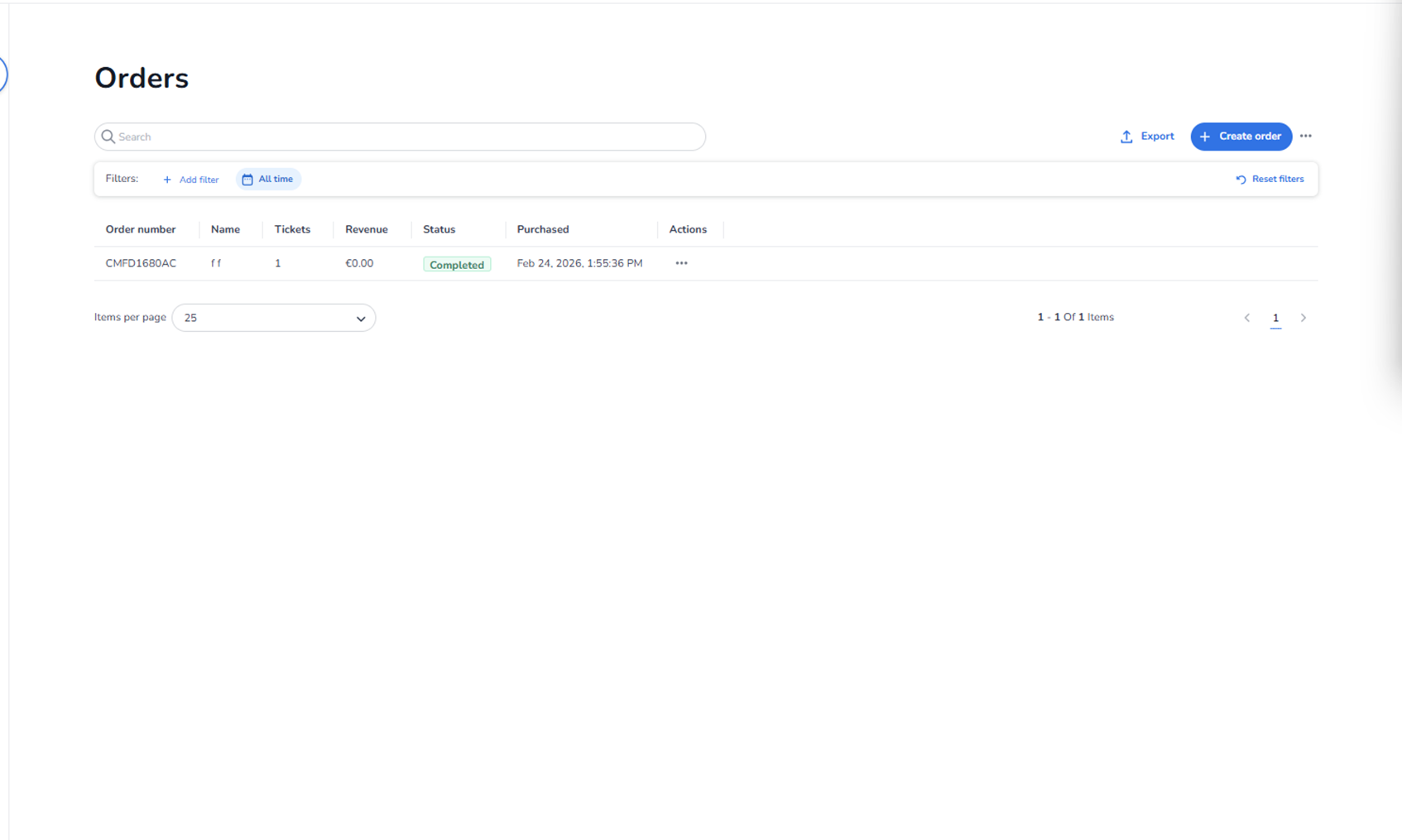
This screen appears when the user navigates to Ticketing → Orders.
It is used to view, manage, search, filter, and create ticket orders.
This section provides an overview of all customer orders related to the selected event.
It focuses on order management and transaction visibility.
What You See in This Section
Page Title
Orders
Indicates that the user is inside the order management module of Ticketing.
Top Section – Search & Actions
-
Search Bar
Field: Search
Purpose:
-
Search for orders by order number, name, or related identifiers.
-
Quickly locate a specific order.
This search applies to the order dataset of the current event.
-
Export Button
Button: Export
Purpose:
-
Export order data.
-
Likely generates a downloadable file (e.g., CSV or Excel).
Used for:
-
Reporting
-
Accounting
-
External analysis
We will later explore what options exist behind this button.
-
Create Order Button
Button: + Create order
Purpose:
-
Manually create a new order.
-
Typically used for backoffice or customer service sales.
Used when:
-
Selling tickets manually
-
Handling special requests
-
Creating internal or partner orders
We will later explore what happens behind this button.
-
More Options Menu
Icon: ⋯ (three dots)
Purpose:
-
Opens additional order-level actions.
-
May contain advanced tools or bulk actions.
Exact functionality depends on platform configuration.
Filters Section
Below the search bar:
-
Add Filter
Button: + Add filter
Purpose:
-
Add filter criteria to narrow down orders.
Examples of filter logic may include:
-
Status
-
Date range
-
Payment status
-
Shop
-
Ticket type
-
Time Filter
Filter chip: All time
Purpose:
-
Control date range of displayed orders.
-
Adjust timeframe (e.g., today, last week, custom range).
-
Reset Filters
Button: Reset filters
Purpose:
-
Clear all active filters.
-
Return to full order overview.
Orders Table
Below filters, the table displays order data.
Table Columns
Visible columns include:
-
Order number
-
Name
-
Tickets
-
Revenue
-
Status
-
Purchased
-
Actions
Each row represents a single order.
Status Indicator
The Status column displays order state.
Example status types may include:
-
Completed
-
Pending
-
Cancelled
-
Refunded
Status affects operational handling and reporting.
Actions Column
Icon: ⋯ (three dots)
Purpose:
-
Open order-specific actions.
-
May include viewing, editing, refunding, resending tickets, etc.
Exact functionality will be explored later.
Pagination & Display Controls
Items per Page
Dropdown: Items per page (25)
Purpose:
-
Control how many orders are shown per page.
Pagination Controls
Located bottom right:
-
Page number indicator
-
Next/previous navigation arrows
Purpose:
-
Navigate between pages of order results.
What This Section Actually Controls
The Orders screen allows the user to:
-
View all event orders
-
Search for specific transactions
-
Filter orders
-
Export order data
-
Manually create orders
-
Access order-level actions
It does NOT:
-
Create tickets
-
Configure pricing
-
Configure pools
-
Control marketing tracking
It strictly manages transactional order data.
Important Considerations
-
Order status determines operational next steps.
-
Exporting data may impact reporting accuracy if filters are active.
-
Creating manual orders affects revenue and ticket allocation.
-
Filters should be reviewed before exporting data.
Incorrect use may result in:
-
Incomplete reporting
-
Misinterpreted revenue data
-
Accidental manual sales
Functional Summary
Within Ticketing → Orders, the user can:
-
Search and filter orders
-
Export order data
-
Create manual orders
-
View order details
-
Perform order-level actions
-
Control pagination
This section influences:
-
Transaction management
-
Customer service workflows
-
Financial reporting
-
Backoffice operations
It is the central control panel for managing event orders.