
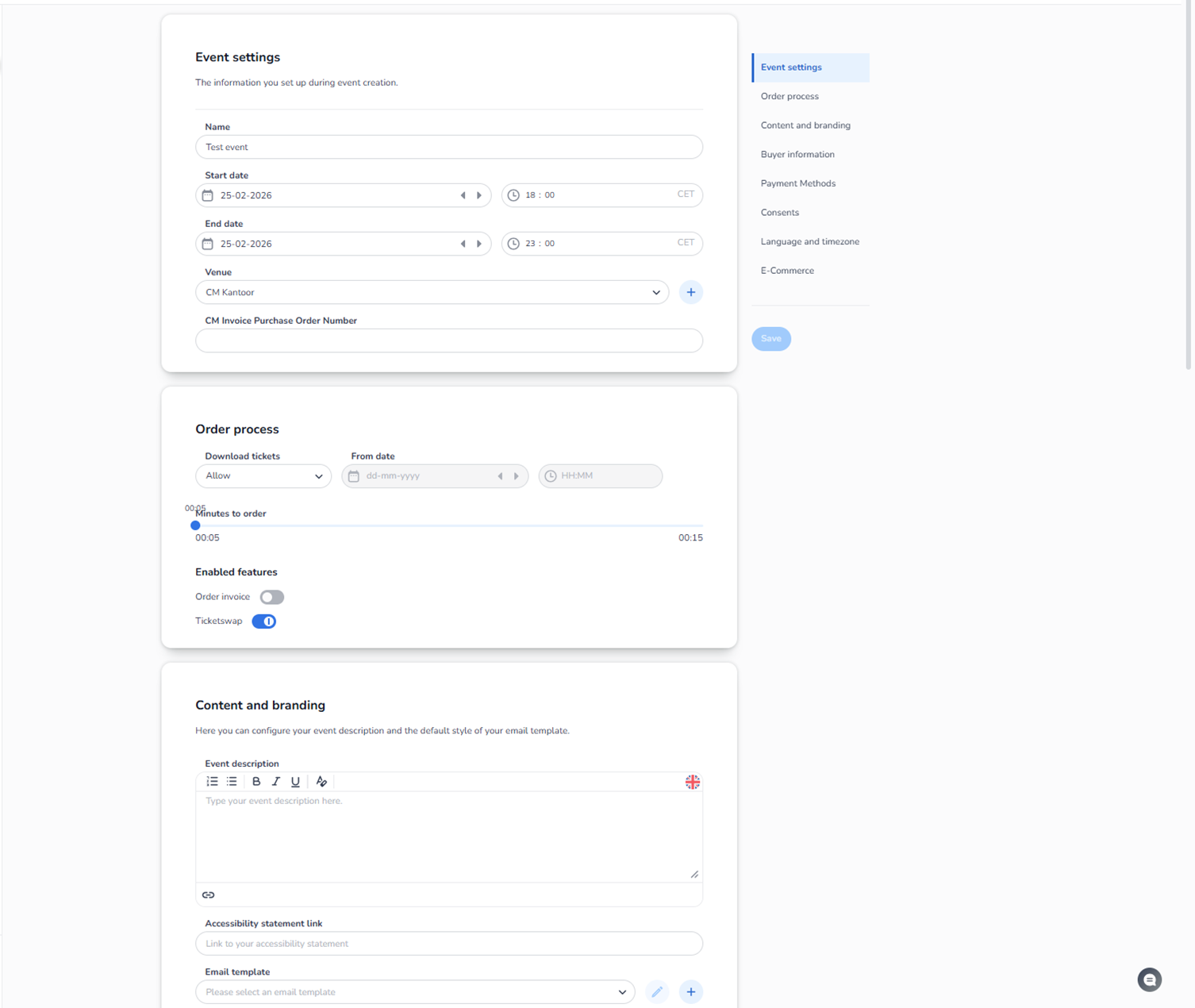
Overview
The Event settings section is where you configure the operational behavior of your event.
This is one of the most important sections in the platform.
It determines:
-
When your event is active
-
How orders behave
-
What buyers see
-
What emails look like
-
What payment methods are allowed
-
What buyer data is collected
This section contains multiple sub-sections on the right-hand side navigation.
Below is a complete explanation of what you see and what each button or control does.
Right-Side Navigation Menu
Inside Event Settings, you see the following tabs:
-
Event settings
-
Order process
-
Content and branding
-
Buyer information
-
Payment methods
-
Consents
-
Language and timezone
-
E-Commerce
Each tab controls a different part of your event logic.
-
Event Settings (Basic Event Configuration)
This section contains the core event details.
Name
Editable text field.
Changes the display name of your event.
Start date & time
Controls when the event officially begins.
Buttons:
-
Date picker icon → Opens calendar
-
Arrow buttons → Navigate date forward/backward
-
Time field → Set hour and minutes
-
Timezone label (e.g. CET) → Shows current timezone
This influences:
-
Validation timing
-
Sales window logic
-
Reporting
End date & time
Defines when the event officially ends.
Same controls as start date.
Important:
Tickets may stop validating based on this setting.
Venue
Dropdown menu:
-
Select an existing venue
-
Plus (+) button → Quickly create a new venue
This connects the event to its physical location and seating structure.
CM Invoice Purchase Order Number
Text field:
Used for internal or financial reference.
Does not affect customer-facing flow.
Save Button
Appears on the right side.
Must be clicked to apply changes.
Changes are not automatically saved.
-
Order Process
This section controls ticket purchasing behavior.
Download tickets
Dropdown options:
-
Allow → Customers can download tickets
-
Other options (depending on configuration)
Controls whether ticket download is enabled.
From date
Date and time picker:
Defines from when tickets become downloadable.
Buttons:
-
Calendar icon → Select date
-
Time field → Select time
Minutes to order (Slider)
Slider control:
Defines how long a ticket remains reserved during checkout.
Example:
If set to 5 minutes:
-
Customer has 5 minutes to complete payment
-
After that, tickets return to inventory
This is critical for high-demand events.
Enabled Features
Toggle switches:
Order invoice
Enable or disable invoice option for buyers.
Ticketswap
Enable integration with ticket resale functionality.
Blue toggle = Enabled
Grey toggle = Disabled
Always click Save after changing.
-
Content and Branding
This controls customer-facing text and email styling.
Event Description
Rich text editor:
-
Bold
-
Italic
-
Lists
-
Links
-
Formatting options
This description appears:
-
On event pages
-
Possibly in confirmation emails
Language flag icon:
Indicates language version.
Accessibility Statement Link
Text field:
Add a link to your accessibility page.
This improves compliance and transparency.
Email Template
Dropdown:
Select which email template is used for order confirmations.
Buttons:
-
Pencil icon → Edit selected template
-
Plus icon → Create new template
This controls branding of:
-
Confirmation emails
-
Ticket emails
Why This Section Is Important
Event Settings control:
-
Customer experience
-
Sales behavior
-
Reservation logic
-
Financial handling
-
Branding consistency
-
Legal compliance
Misconfiguration here can affect:
-
Sales performance
-
Customer confusion
-
Payment failures
-
Ticket validation issues
How the Agent Should Understand This
Event Settings = Operational Brain of the Event
Everything here affects:
-
Orders
-
Tickets
-
Buyers
-
Emails
-
Time logic
-
Integrations
When a user reports:
-
Tickets not downloadable
-
Checkout timeout issues
-
Wrong event time
-
Email branding problems
-
Missing invoices
-
Wrong venue connection
The first place to check is Event Settings.