
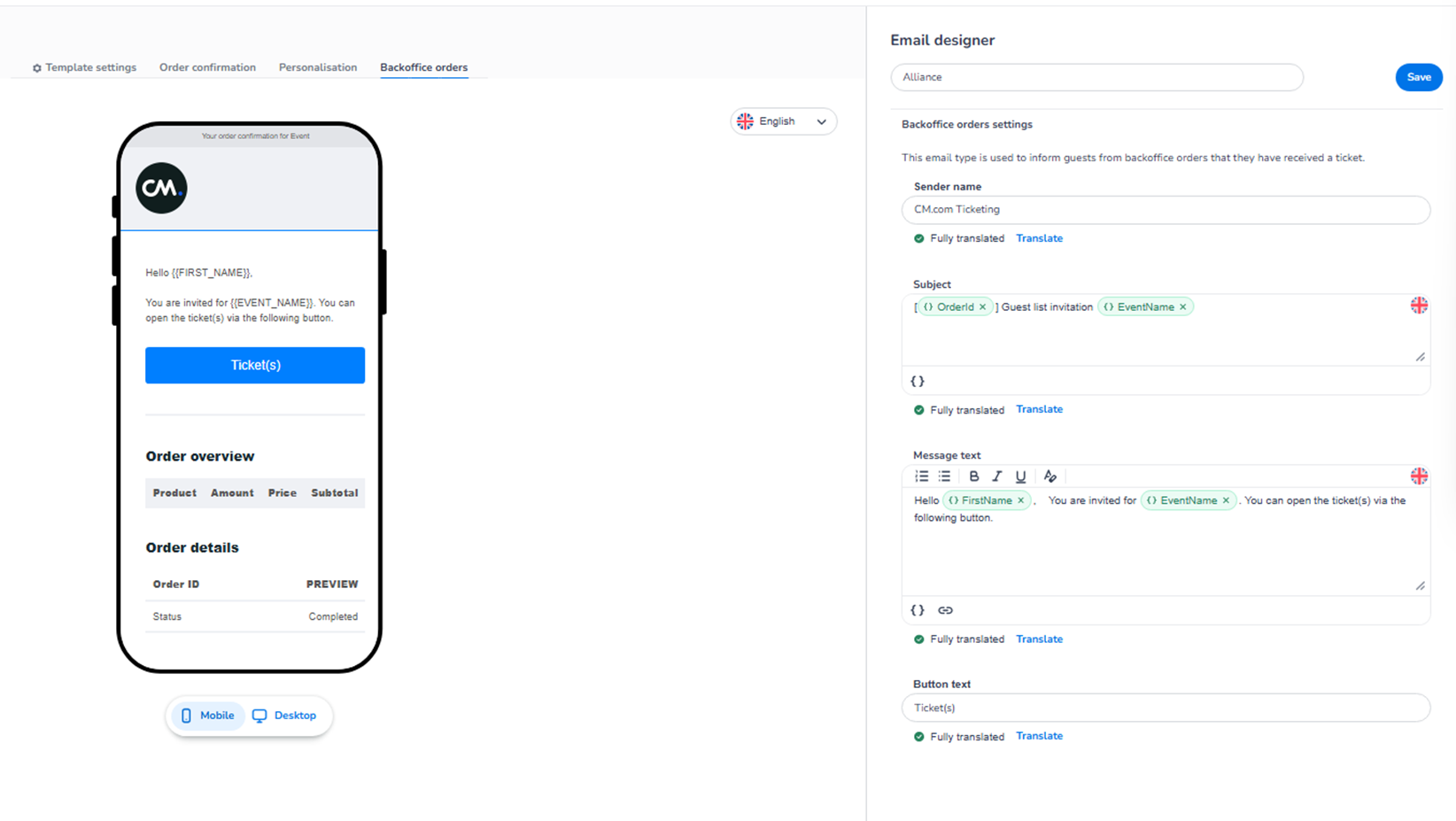
This section appears inside:
Design → Email templates → Edit → Backoffice orders
It controls the email that is sent when tickets are created or assigned through the backoffice (manual order flow).
This email is typically used for:
-
Guest list invitations
-
Manually created orders
-
Internal reservations
-
Complimentary tickets
What This Section Means
The Backoffice orders tab allows you to customise:
-
Sender name
-
Email subject
-
Invitation or notification message
-
Button text
This email informs guests that they have received a ticket through a backoffice action.
Branding (colours, layout, header image) is inherited from Template settings.
This section controls the communication content.
What You See in This Section
-
Sender Name
Field: Sender name
Purpose:
-
Defines the “From” name displayed in the recipient’s inbox.
-
Should clearly represent the event or organisation.
This improves trust and recognition.
-
Subject
Field: Subject
Purpose:
-
Defines the subject line shown in the inbox.
-
Can include dynamic variables such as:
-
Order ID
-
Event Name
-
This subject typically indicates:
-
Invitation
-
Ticket assignment
-
Guest list confirmation
Dynamic tags automatically populate with order-specific data.
-
Message Text
Field: Message text
Purpose:
-
Defines the main body of the email.
Typically includes:
-
Greeting with first name
-
Confirmation that the guest has been invited
-
Clear explanation that they can access their ticket
-
Instructions on how to proceed
Formatting tools allow:
-
Bold
-
Italic
-
Underline
-
Structured text editing
-
Dynamic variable insertion
This message should clearly communicate that the ticket was issued manually.
-
Button Text
Field: Button text
Purpose:
-
Defines the label of the call-to-action button.
-
This button allows the recipient to access or download their ticket.
Example:
-
“Ticket(s)”
-
“View your ticket”
-
“Open ticket”
Button styling is controlled in Template settings.
Translation Controls
Each editable section includes:
-
Language indicator
-
Translation status
-
Translate option
This allows multilingual versions of the backoffice email to be managed.
Preview Area (Left Side)
The left side shows a live preview of the email:
-
Reflects branding and layout.
-
Updates when content changes.
Below the preview:
-
Mobile / Desktop toggle
-
Preview only
-
No difference in configuration
-
All edits apply to both versions
-
Important Behaviour
-
This email is triggered when a backoffice order is created or completed.
-
It is commonly used for guest list management.
-
It confirms that the recipient has received access to a ticket.
-
Dynamic fields populate automatically.
-
Changes apply after clicking Save.
What This Section Controls
Backoffice orders controls:
-
Communication for manually issued tickets.
-
Invitation messaging.
-
Ticket access button text.
It influences:
-
Guest communication clarity
-
Professional appearance of guest list invitations
-
Internal order workflows
It does NOT control:
-
Backoffice order logic
-
Ticket creation rules
-
Payment processing
-
Inventory allocation
Functional Summary
Within Backoffice orders, the user can:
-
Configure sender name
-
Define subject line with dynamic variables
-
Customise invitation message
-
Set CTA button text
-
Manage translations
-
Preview Mobile and Desktop layout
This section ensures that tickets created through backoffice workflows are communicated clearly and professionally to recipients.