
Screen Context
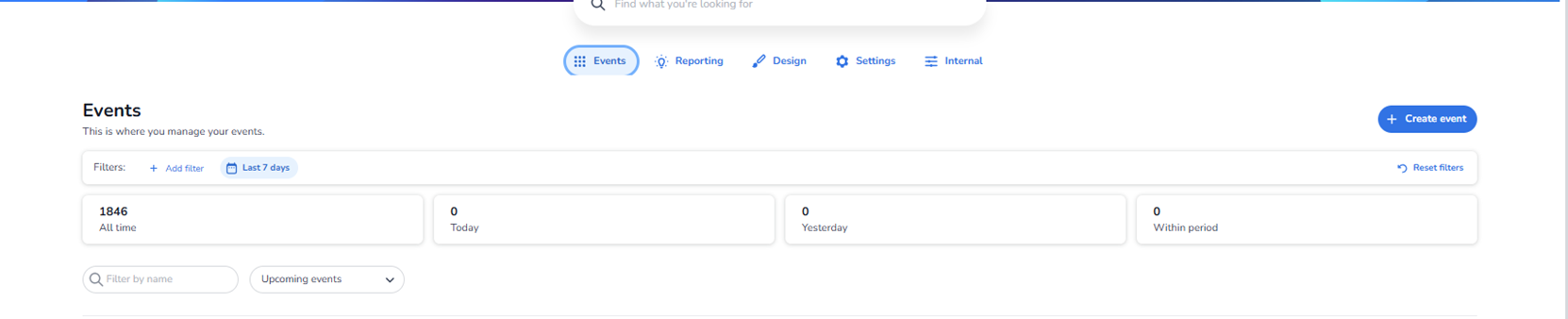
This is the default start screen after login in the CM Ticketing (NXT Gen) platform.
The active main section is Events.
Top Bar
Left side:
-
CM logo
-
“Ticketing” label
Right side:
-
Language selector (flag icon)
-
Help icon (question mark)
-
App/grid icon
-
User/profile icon
These icons typically open:
-
Language settings
-
Help documentation
-
App overview / product switcher
-
User account menu
Welcome Section
Centered at top of page:
-
Greeting text:
-
Example format: “Good afternoon, [User Name]”
-
The name shown is the logged-in user
-
-
Large search bar:
-
Placeholder text similar to: “Find what you're looking for”
-
This is a global search field
-
Used to search within the platform
-
Main Navigation Tabs (Horizontal)
Below the search bar:
-
Events
-
Reporting
-
Design
-
Settings
-
Create event --> Create a new event
These are top-level navigation sections.
-
The active tab is visually highlighted (in the screenshot: Events).
-
Clicking another tab navigates to that section.
Events Section
Title
“Events”
Subtitle
“This is where you manage your events.”
Event Filters
Below the title:
-
Search field
-
Placeholder similar to: “Filter by name”
-
Filters the event list based on event name
-
-
Dropdown selector
-
Default example: “Upcoming events”
-
Filters events by status/type (e.g., upcoming, past, etc.)
-
Event List Area
Below the filters:
A vertical list of event entries.
Each event entry contains:
-
Thumbnail image (left)
-
Event name (bold text)
-
Event date and time range
-
Three-dot menu icon (right side)
The three-dot menu typically opens additional actions for that event.
Important:
-
Event names are dynamic and account-specific.
-
The number of events displayed depends on filters and account data.
-
This screen does not show event details directly — clicking an event opens its detail page.
What This Screen Represents
This screen allows users to:
-
View all events linked to their account
-
Filter events by name or status
-
Open a specific event
-
Navigate to Reporting
-
Navigate to Design
-
Navigate to Settings
Screen Context
This is the default start screen after login in the CM Ticketing (NXT Gen) platform.
The active main section is Events.
Top Bar
Left side:
-
CM logo
-
“Ticketing” label
Right side:
-
Language selector (flag icon)
-
Help icon (question mark)
-
App/grid icon
-
User/profile icon
These icons typically open:
-
Language settings
-
Help documentation
-
App overview / product switcher
-
User account menu
Welcome Section
Centered at top of page:
-
Greeting text:
-
Example format: “Good afternoon, [User Name]”
-
The name shown is the logged-in user
-
-
Large search bar:
-
Placeholder text similar to: “Find what you're looking for”
-
This is a global search field
-
Used to search within the platform
-
Main Navigation Tabs (Horizontal)
Below the search bar:
-
Events
-
Reporting
-
Design
-
Settings
-
Create event --> Create a new event
These are top-level navigation sections.
-
The active tab is visually highlighted (in the screenshot: Events).
-
Clicking another tab navigates to that section.
Events Section
Title
“Events”
Subtitle
“This is where you manage your events.”
Event Filters
Below the title:
-
Search field
-
Placeholder similar to: “Filter by name”
-
Filters the event list based on event name
-
-
Dropdown selector
-
Default example: “Upcoming events”
-
Filters events by status/type (e.g., upcoming, past, etc.)
-
Event List Area
Below the filters:
A vertical list of event entries.
Each event entry contains:
-
Thumbnail image (left)
-
Event name (bold text)
-
Event date and time range
-
Three-dot menu icon (right side)
The three-dot menu typically opens additional actions for that event.
Important:
-
Event names are dynamic and account-specific.
-
The number of events displayed depends on filters and account data.
-
This screen does not show event details directly — clicking an event opens its detail page.
What This Screen Represents
This screen allows users to:
-
View all events linked to their account
-
Filter events by name or status
-
Open a specific event
-
Navigate to Reporting
-
Navigate to Design
-
Navigate to Settings