
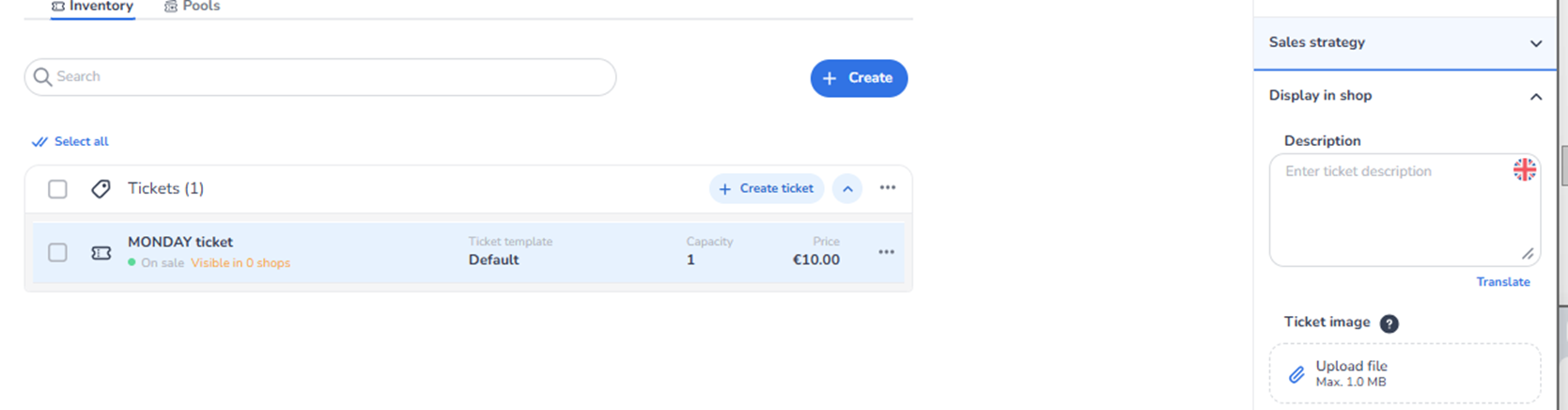
Overview
This section appears in the right-side ticket detail panel under Display in shop when a ticket is selected.
It controls how the ticket is visually presented in the ticket shop.
Display in Shop defines:
-
The descriptive text shown to customers
-
The visual image associated with the ticket
This section focuses on presentation and customer-facing communication.
What You See in This Section
-
Description
Field label: Description
Placeholder: Enter ticket description
Purpose:
-
Add detailed information about the ticket.
-
Provide clarity to customers before purchase.
Examples of content:
-
What is included in the ticket
-
Access rules
-
Time restrictions
-
Entry conditions
-
Upgrade details
Additional functionality:
-
Translation support (multilingual capability).
-
Ability to provide descriptions per language.
Impact:
-
Improves conversion by reducing uncertainty.
-
Helps differentiate similar ticket types.
-
Reduces support questions.
This description is visible in the shop interface.
-
Ticket Image
Field label: Ticket image
Button: Upload file
File limit: Max. 10 MB
Purpose:
-
Upload an image associated with the ticket.
-
Enhance visual presentation in the shop.
Typical uses:
-
VIP badge visuals
-
Day-specific branding
-
Themed event graphics
-
Add-on illustrations
Impact:
-
Improves visual appeal.
-
Supports branding consistency.
-
Can increase engagement and conversion.
If no image is uploaded:
-
The ticket will display without a custom visual.
What This Section Actually Controls
Display in Shop controls:
-
Ticket description text
-
Ticket visual representation
It affects how the ticket appears to customers during browsing and checkout.
It does NOT control:
-
Pricing
-
Availability
-
Sales status
-
Capacity
-
Pools
-
Marketing tracking
It strictly manages customer-facing presentation.
Important Considerations
-
Clear descriptions improve buyer confidence.
-
Images should align with event branding.
-
Uploaded files must respect size limits.
-
Multilingual descriptions should match shop language settings.
Incorrect or unclear presentation may result in:
-
Lower conversion rates
-
Customer confusion
-
Increased support inquiries
Functional Summary
Within Ticketing → Tickets → Inventory → Ticket Detail → Display in Shop, the user can:
-
Add or edit ticket description
-
Upload or change ticket image
-
Configure multilingual presentation
This section influences:
-
Customer experience
-
Visual branding
-
Conversion optimisation
It is responsible for how the ticket is presented in the shop environment.