
You can also import orders via Ticketing – Import Orders (⋯ (three dots))
Overview
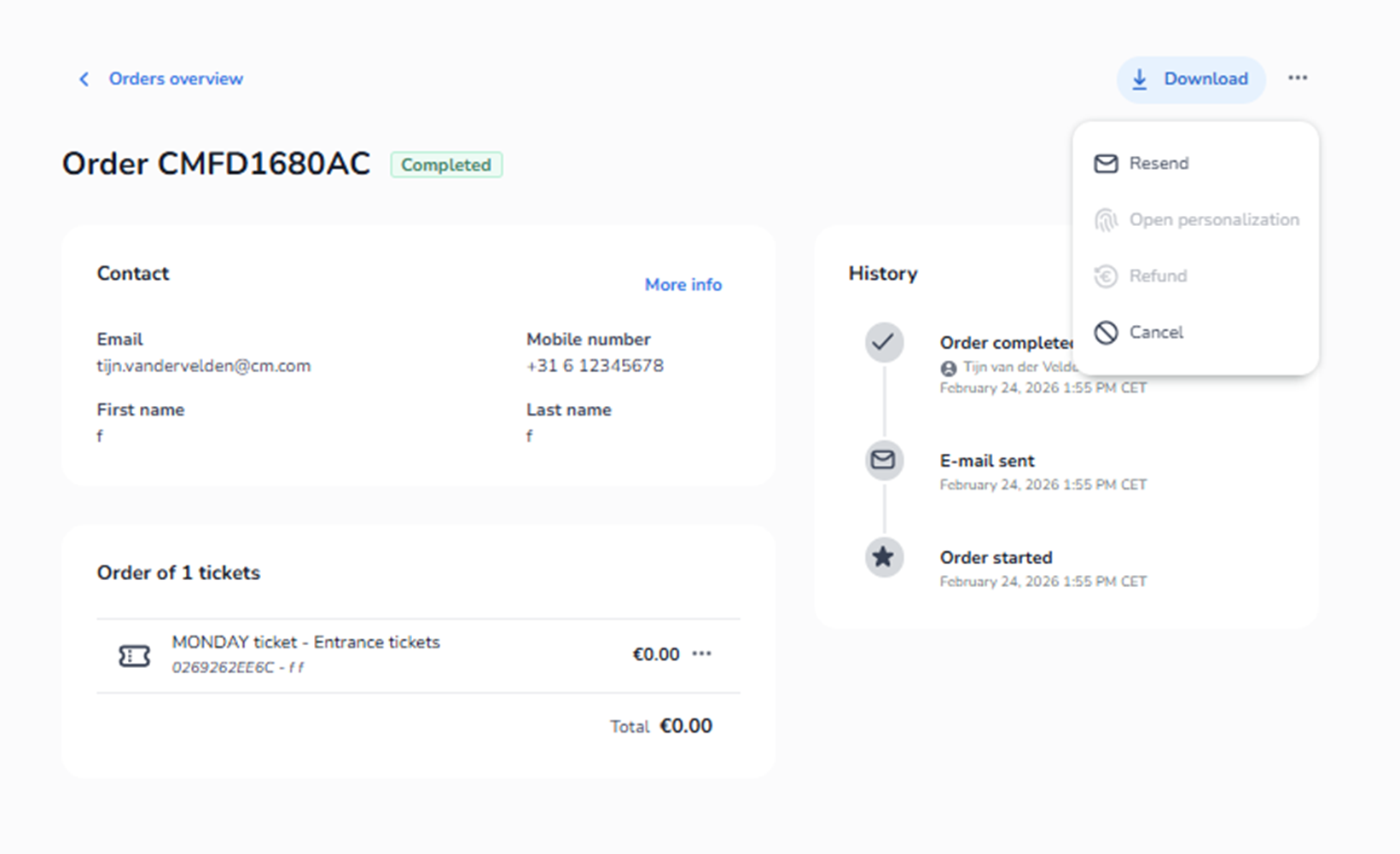
This screen appears after selecting a specific order in Ticketing → Orders.
From the order detail view, you can perform key order actions using the ⋯ (three dots) menu in the top-right. Very important to click on the ⋯ (three dots) to get this menu.
These actions are used for customer service and backoffice operations, such as:
-
Resending tickets
-
Managing personalisation
-
Refunding an order
-
Cancelling an order
Step 1 – Open the Order
Navigate to:
Ticketing → Orders
Click the specific order you want to manage.
This opens the Order Detail View, showing:
-
Order header (order number + status)
-
Contact details (email, name, mobile)
-
Order contents (tickets, totals)
-
History timeline (order events)
Clicking on more info
-
When clicking on more info at a specific order you see all the data of a person, here you can change the specific data like name, phone number, email adress etc. You can do that by click on the edit button in the right corner of that dropdown menu.
Step 2 – Open the Actions Dropdown
In the top-right of the order detail screen:
Click the ⋯ (three dots).
A dropdown menu appears with available actions.
Actions Available in the Dropdown
-
Resend
Purpose:
-
Resend the order email and tickets to the customer.
-
Used when a customer did not receive or lost the original email.
Key behaviour:
-
Sends to the email shown in the Contact section.
-
Does not create a new order.
-
Does not change the order status.
-
Does not generate new tickets—only re-delivers the existing ones.
-
Open Personalisation
Purpose:
-
Open the ticket personalisation flow for this order (if personalisation is enabled for the ticket).
-
Used when attendee details must be completed, corrected, or re-submitted.
Key behaviour:
-
Only available when the ticket requires personal data.
-
Supports fixing missing or incorrect attendee info.
-
Refund
Purpose:
-
Start a refund process for the order (full or partial depending on platform rules).
-
Used when the customer is eligible for a refund.
Key behaviour:
-
Typically impacts revenue reporting and payment reconciliation.
-
May be disabled if the payment method or order status does not allow refunds.
-
Cancel
Purpose:
-
Cancel the order.
-
Used when the order should no longer be valid (e.g., administrative cancellation, failed processing, invalid purchase).
Key behaviour:
-
Cancelling may invalidate tickets tied to the order.
-
May be disabled depending on order state or payment conditions.
Important Notes for the Agent
-
These actions are accessed only via the ⋯ (three dots) menu in the order detail view.
-
Some actions may appear disabled depending on:
-
Order status
-
Ticket settings (personalisation)
-
Payment method
-
Refund/cancellation rules
-
The user should always confirm:
-
Correct customer email (before resend)
-
Correct order and ticket contents (before refund/cancel)
-
Whether personalisation is required (before opening personalisation)
Functional Summary
To manage an order:
-
Go to Ticketing → Orders
-
Open the specific order
-
Click ⋯ (three dots)
-
Choose an action:
-
Resend
-
Open personalisation
-
Refund
-
Cancel
-
This menu is the central control point for operational order handling in the backoffice.