
Overview
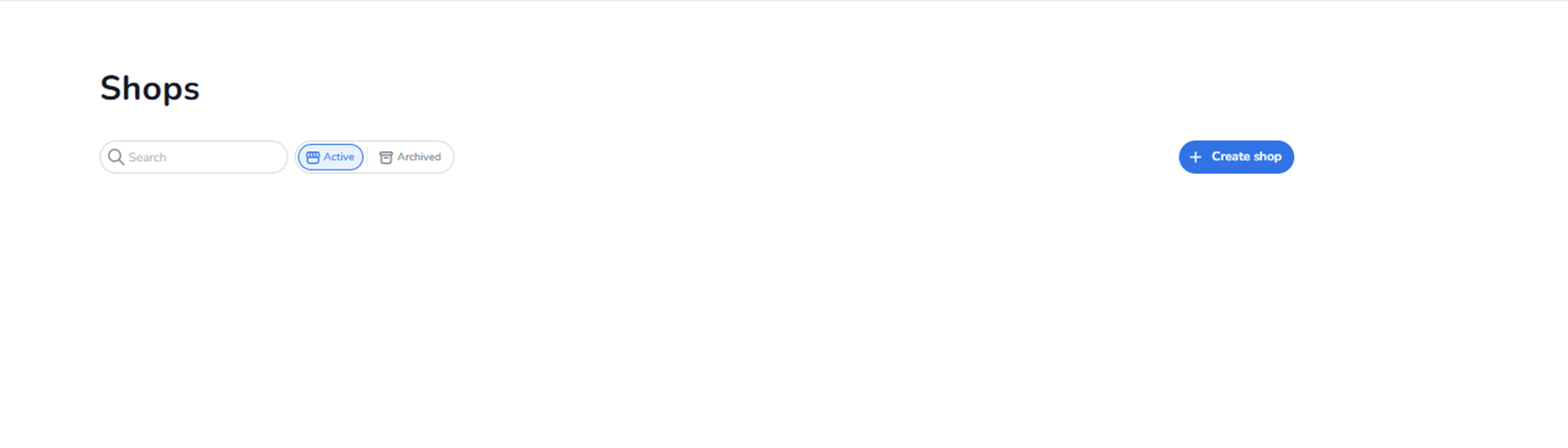
This screen appears when the user navigates to Ticketing → Shops.
It is used to manage all ticket shops connected to the selected event.
Here you can:
-
View existing shops
-
Create new shops
-
Open and edit shop settings
-
Manage shop status (active or archived)
This section controls shop-level configuration and availability.
What You See in This Screen
Page Title
Shops
Indicates that the user is inside the shop management module.
Top Section – Search & Filters
-
Search Bar
Field: Search
Purpose:
-
Search for specific shops by name.
-
Quickly locate a shop when multiple shops exist.
-
Status Filter
Two selectable options:
-
Active (selected by default)
-
Archived
Active
Displays shops that are currently active and operational.
Archived
Displays shops that have been archived and are no longer active.
This filter controls which shops are visible in the overview.
-
Create Shop Button
Button: + Create shop
Purpose:
-
Start the shop creation flow.
-
Create a new ticket shop for the event.
This is the primary action for adding new sales channels.
Shops List Area
If shops exist:
-
They will be displayed in this section.
-
Each shop appears as a clickable item.
-
Clicking on a shop opens its configuration.
Within each shop, you can:
-
Edit shop settings
-
Configure visibility
-
Manage ticket availability per shop
-
Adjust shop behaviour
If no shops exist:
-
The list will appear empty until a shop is created.
Editing a Shop
When clicking on a shop:
-
You enter the shop configuration view.
-
You can adjust operational settings and ticket assignments.
Important:
Editing the visual design of a shop is handled in the Design section of the dashboard.
The Shops module controls shop configuration and structure,
while the Design module controls branding and styling.
What This Section Actually Controls
The Shops overview controls:
-
Shop creation
-
Shop activation or archiving
-
Shop-level access
-
Shop configuration entry point
It does NOT directly control:
-
Ticket creation
-
Pricing configuration
-
Pool logic
-
Marketing tracking
It manages the sales channel structure.
Important Considerations
-
Tickets must be assigned to shops (via Sales Strategy) to be visible for purchase.
-
Archiving a shop removes it from active selling.
-
Shop configuration affects how customers access tickets.
-
Visual styling is configured in the Design section, not here.
Incorrect configuration may result in:
-
Tickets not appearing in a shop
-
Shops being visible but empty
-
Sales channel misalignment
Functional Summary
Within Ticketing → Shops, the user can:
-
View all active shops
-
Switch between Active and Archived shops
-
Search shops
-
Create new shops
-
Open and edit existing shops
This section influences:
-
Sales channel structure
-
Ticket distribution
-
Operational availability
It is the control centre for managing ticket shops within the event.