
Dashboard → Settings → Schedule resend orders → Schedule resend
Description
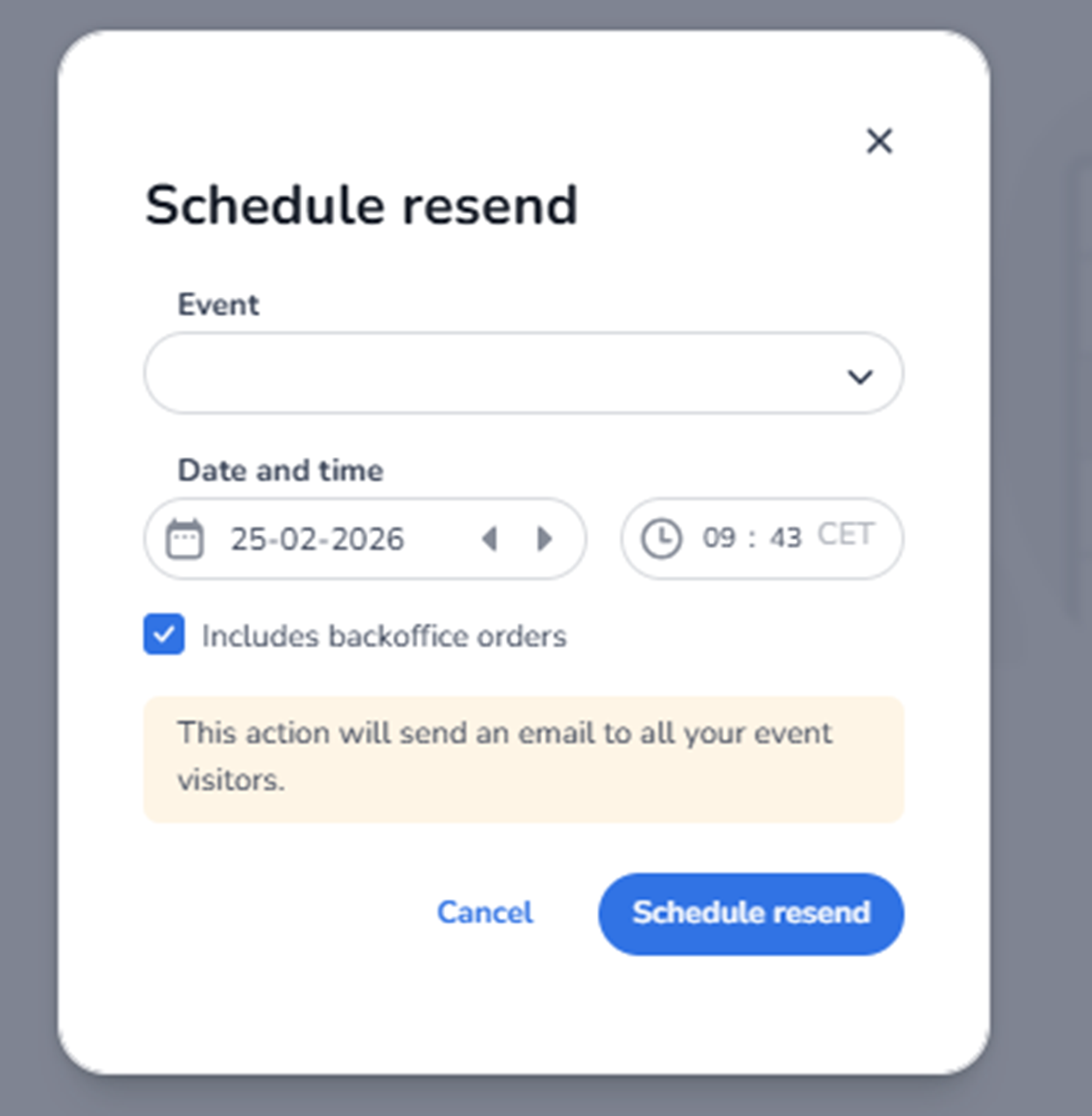
When clicking Schedule resend, the Schedule resend modal appears.
This modal allows administrators to configure an automated resend of order confirmation emails for a selected event at a specific date and time.
Once scheduled, the system will automatically send emails to eligible attendees.
You can check the box Includeds backoffice orders or not. Backoffice orders means guestlist tickets. If you want to include that as well to resend that order.
Modal Structure
The modal contains:
-
A title
-
Event selection
-
Date and time configuration
-
Optional inclusion settings
-
Informational warning
-
Action buttons
-
Close icon
Close Icon (Top Right)
Function:
-
Closes the modal.
-
Cancels the scheduling process.
-
Discards unsaved changes.
Event Selection
Event Dropdown
Purpose:
-
Select the event for which the resend should apply.
How to use:
-
Click the dropdown.
-
Choose the correct event.
-
Confirm selection.
Important:
-
The resend will only apply to the selected event.
-
All eligible attendees of that event will receive the email.
Date and Time
Date Picker
Allows selection of the day the resend should be triggered.
How to use:
-
Click the calendar field.
-
Select the desired date.
-
Use navigation arrows to move between months if needed.
Time Picker
Allows configuration of the exact time the resend should be executed.
How to use:
-
Click the time field.
-
Adjust hours and minutes.
-
Confirm the desired execution time.
The displayed time zone is based on the platform’s configured time zone.
Includes Backoffice Orders
Checkbox option.
Purpose:
-
Determines whether manually created back-office orders are included in the resend.
If checked:
-
Orders created internally (outside standard checkout) will also receive the resend email.
If unchecked:
-
Only standard customer checkout orders will receive the resend.
This allows more controlled communication targeting.
Informational Warning Box
Displays a notification explaining:
-
The action will send an email to all selected event visitors.
-
The resend affects multiple attendees simultaneously.
This serves as confirmation before scheduling.
Action Buttons
Cancel
Function:
-
Closes the modal.
-
Discards scheduling configuration.
-
No resend is created.
Schedule Resend (Primary Button)
Function:
-
Saves the configuration.
-
Schedules the resend.
-
Adds the entry to the Resend Orders overview.
After clicking:
-
The modal closes.
-
The scheduled resend appears in the overview list.
-
The system automatically executes the resend at the configured time.
How to Add a Schedule Resend (Step-by-Step)
-
Click Schedule resend.
-
Select the appropriate event.
-
Choose the desired date.
-
Set the execution time.
-
Decide whether to include back-office orders.
-
Review the informational message.
-
Click Schedule resend to confirm.
The resend is now scheduled and will run automatically.
What This Action Impacts
This action affects:
-
Attendee email communication
-
Order confirmation delivery
-
Customer experience
-
Support workload
It does not change:
-
Ticket validity
-
Event configuration
-
Entrance plan rules
-
Scan data