
Overview
The Consents section determines which consent checkboxes your audience will see during checkout.
These consents are shown in the shop before completing an order and are used for:
-
Legal compliance
-
Terms acceptance
-
Privacy agreements
-
Marketing permissions
This section does not create new consents.
It links to and displays consents that are managed at account level.
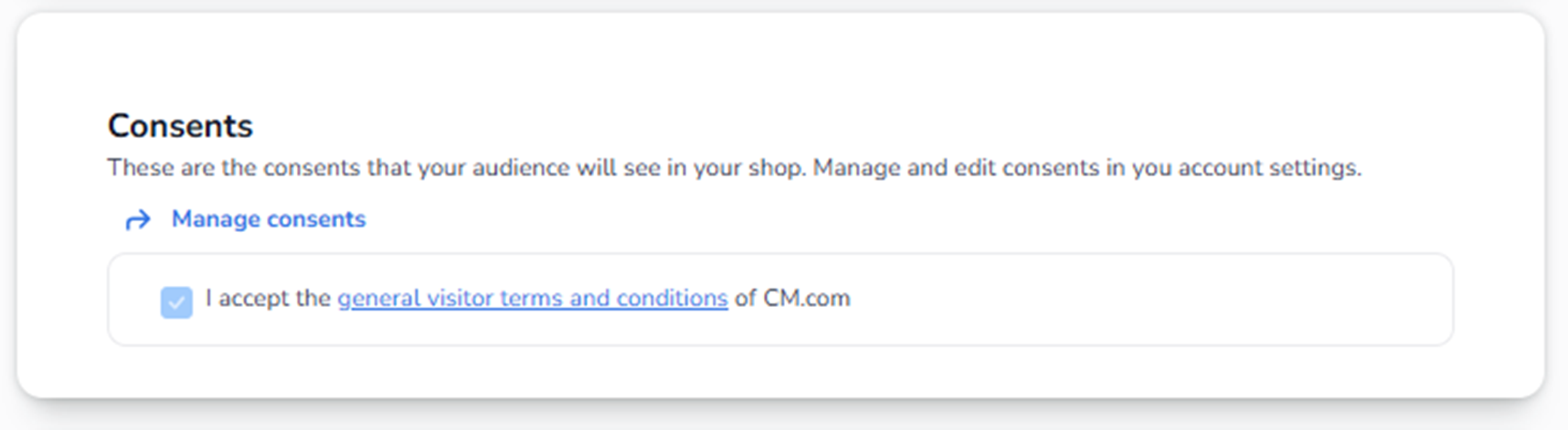
What You See on This Screen
You see:
-
A short explanation text
-
A Manage consents link
-
A list of currently active consents
-
A checkbox preview of how it appears to buyers
Example:
“I accept the general visitor terms and conditions …”
This preview shows what the buyer will see in the shop.
Manage Consents Button
The Manage consents link redirects you to:
Settings → Consents (account-level configuration)
This is where you:
-
Create new consents
-
Edit consent text
-
Set consent type (marketing, privacy, generic)
-
Configure whether consent is required
-
Define legal wording
Important:
Event Settings only displays and activates consents.
Creation and editing happen in Account Settings.
How It Works
-
You create or manage consents in Account Settings.
-
Those consents become available to events.
-
In this Event Settings section, they are applied to the checkout.
-
Buyers must accept required consents before completing their order.
Required vs Optional Consents
Depending on configuration in Account Settings:
-
Required consents must be accepted to complete purchase.
-
Optional consents may be used for marketing permissions.
Example:
Required → Terms and Conditions
Optional → Newsletter subscription
Why This Section Is Important
This controls:
-
Legal compliance
-
GDPR alignment
-
Marketing opt-ins
-
Liability coverage
Incorrect configuration may cause:
-
Legal exposure
-
Missing marketing permissions
-
Checkout blocking issues
Common Issues
If users report:
-
“Consent checkbox not showing”
→ Check if consent exists in Account Settings. -
“Cannot complete order”
→ Verify if required consent is active. -
“Marketing consent missing”
→ Create and configure it via Manage consents.
Summary
Consents in Event Settings:
-
Display the consents active for this event
-
Show how they appear in checkout
-
Link to the account-level management section
Creation and editing of consent text happens via Manage consents in Settings.