
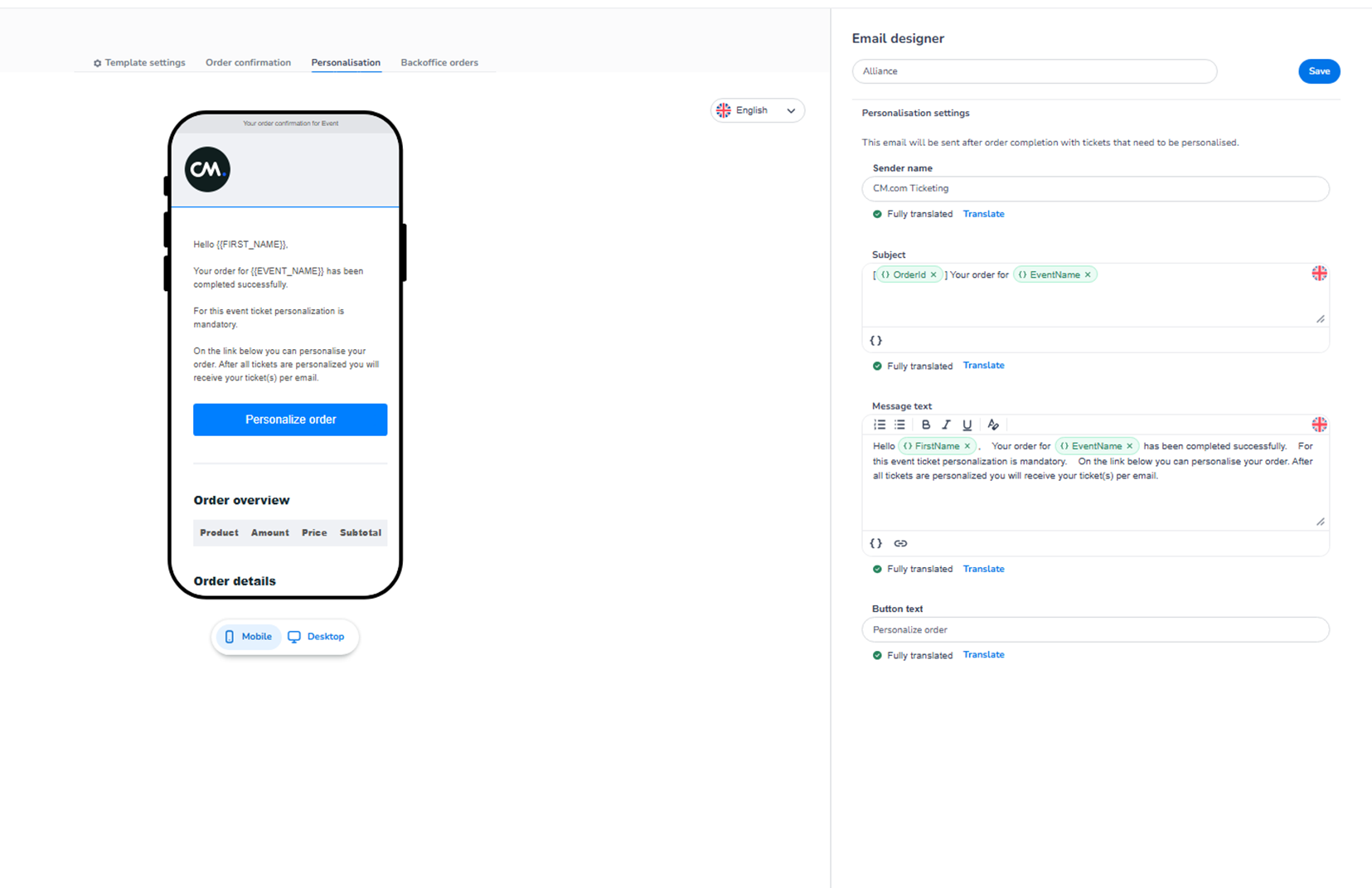
This section appears inside:
Design → Email templates → Edit → Personalisation
It controls the email that is sent when tickets require personalisation after purchase.
This email is triggered when:
-
Ticket personalisation is mandatory.
-
Customers must assign ticket details (e.g. name per ticket) before receiving the final tickets.
What This Section Means
The Personalisation tab allows you to customise:
-
Sender name
-
Email subject
-
Instructional message
-
Personalisation button text
This email guides customers through the ticket personalisation process.
Branding (colours, images, layout) is inherited from Template settings.
This section focuses on the communication and instructions.
What You See in This Section
-
Sender Name
Field: Sender name
Purpose:
-
Defines the name shown in the customer’s inbox.
-
This is the “From” name of the personalisation email.
Should match your brand or event identity for consistency.
-
Subject
Field: Subject
Purpose:
-
Defines the subject line shown in the inbox.
-
Can include dynamic variables such as:
-
Order ID
-
Event Name
-
This should clearly indicate that action is required.
Example concept:
-
Your order for [Event Name] – Personalisation required
Dynamic tags automatically populate with order data.
-
Message Text
Field: Message text
Purpose:
-
Defines the main body text of the personalisation email.
Typically includes:
-
Greeting with first name
-
Confirmation that the order is completed
-
Explanation that ticket personalisation is mandatory
-
Clear instructions on what to do next
Formatting tools allow:
-
Bold
-
Italic
-
Structured layout
-
Dynamic variable insertion
This section is important because it explains:
-
Why personalisation is needed
-
What the customer must do
-
When they will receive their tickets
-
Button Text
Field: Button text
Purpose:
-
Defines the label of the call-to-action button.
-
This button directs the customer to the personalisation page.
Example:
-
“Personalize order”
-
“Complete ticket details”
-
“Assign ticket names”
The button styling (colour, shape) is controlled in Template settings.
Translation Controls
For each editable section you may see:
-
Language indicator
-
Translation status (e.g., Fully translated)
-
Translate option
This allows managing multilingual versions of the personalisation email.
Preview Area (Left Side)
The left side shows a live preview:
-
Displays how the personalisation email will look.
-
Reflects the current branding.
-
Updates when content changes.
Below the preview:
-
Mobile / Desktop toggle
-
Preview only
-
No functional difference in configuration
-
All edits apply to both versions.
Important Behaviour
-
This email is only sent when personalisation is required.
-
It is triggered after order completion.
-
Tickets are delivered after personalisation is completed.
-
Dynamic variables populate automatically.
-
Changes apply after clicking Save.
What This Section Controls
Personalisation controls:
-
The communication instructing customers to personalise tickets.
-
The clarity of required actions.
-
The call-to-action text for completing personalisation.
It influences:
-
Customer compliance
-
Ticket assignment completion rate
-
Post-purchase experience
It does NOT control:
-
Personalisation logic itself
-
Ticket rules
-
Capacity
-
Payment flow
Functional Summary
Within Personalisation, the user can:
-
Configure sender name
-
Define subject line with dynamic variables
-
Write instructional message content
-
Set the personalisation button label
-
Manage translations
-
Preview Mobile and Desktop layout
This section ensures customers clearly understand how to complete ticket personalisation after purchase.