
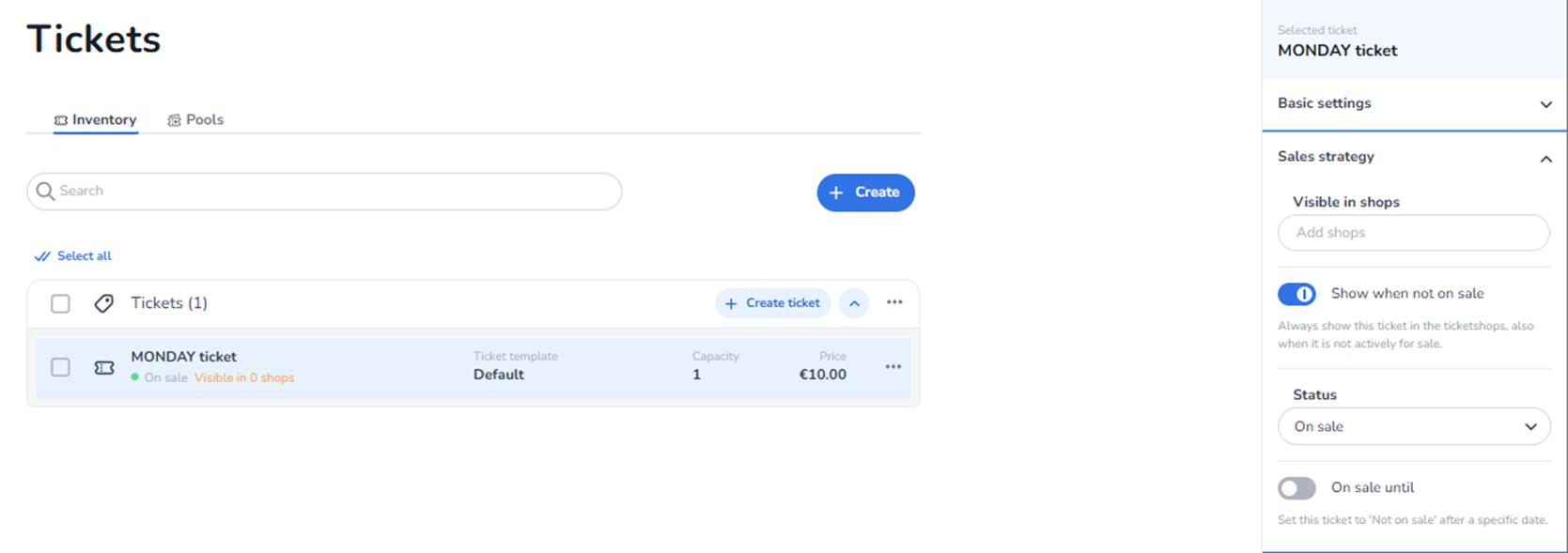
Overview
This section appears in the right-side ticket detail panel under Sales strategy when a ticket is selected.
It controls how and where the ticket is sold.
Sales Strategy defines:
-
In which shops the ticket is visible
-
Whether the ticket is shown when not on sale
-
The current sales status
-
Optional sale end timing
This section manages commercial availability logic.
What You See in This Section
-
Visible in Shops
Field label: Visible in shops
Button/Field: Add shops
Purpose:
-
Assign the ticket to one or more shops.
-
Determines in which sales channels the ticket appears.
If no shops are added:
-
The ticket is not visible to buyers.
-
It cannot be purchased.
Impact:
-
Controls distribution.
-
Enables selective channel selling.
-
Supports multi-shop strategies (e.g., public shop vs partner shop).
-
Show When Not On Sale
Toggle: Show when not on sale
Description shown:
“Always show this ticket in the ticketshops, also when it is not actively for sale.”
Purpose:
-
Control visibility when the ticket is set to “Not on sale”.
-
If enabled, the ticket remains visible but unavailable for purchase.
Impact:
-
Can display sold-out or upcoming tickets.
-
Supports marketing transparency.
-
Improves user experience by showing availability status.
If disabled:
-
Ticket disappears from shops when not on sale.
-
Status
Field label: Status
Dropdown (example options may include):
-
On sale
-
Not on sale
Purpose:
-
Define whether the ticket can currently be purchased.
Impact:
-
On sale → Ticket can be bought (if visible and capacity available).
-
Not on sale → Ticket cannot be purchased.
Changing status directly affects checkout availability.
-
On Sale Until
Toggle: On sale until
Description:
Set this ticket to “Not on sale” after a specific date.
Purpose:
-
Automatically end ticket sales at a defined time.
-
Useful for early bird or timed releases.
Impact:
-
Enables automated sales cutoff.
-
Reduces manual operational work.
-
Supports phased ticket strategies.
If enabled:
-
A date/time selection is required.
-
Ticket automatically switches to “Not on sale” after that moment.
What This Section Actually Controls
Sales Strategy controls:
-
Sales channel visibility
-
Purchase availability
-
Automatic sale timing
-
Visibility when unavailable
It determines whether and where customers can buy the ticket.
It does NOT control:
-
Pricing
-
VAT
-
Capacity (directly)
-
Pool logic
-
Marketing tracking
It strictly governs commercial availability and distribution.
Important Considerations
-
A ticket must be added to at least one shop to be sellable.
-
Status “On sale” does not override capacity limits.
-
If part of a pool, pool availability may restrict sales even if status is “On sale.”
-
Automatic end dates should align with marketing campaigns.
Incorrect configuration may result in:
-
Tickets not appearing in shops
-
Tickets being visible but not purchasable
-
Sales ending unexpectedly
Functional Summary
Within Ticketing → Tickets → Inventory → Ticket Detail → Sales Strategy, the user can:
-
Assign tickets to shops
-
Control visibility in shops
-
Toggle display when not on sale
-
Set current sales status
-
Configure automatic sale end timing
This section influences:
-
Distribution channels
-
Sales timing
-
Customer visibility
-
Commercial control
It is the primary control area for ticket availability and channel distribution.