
Overview
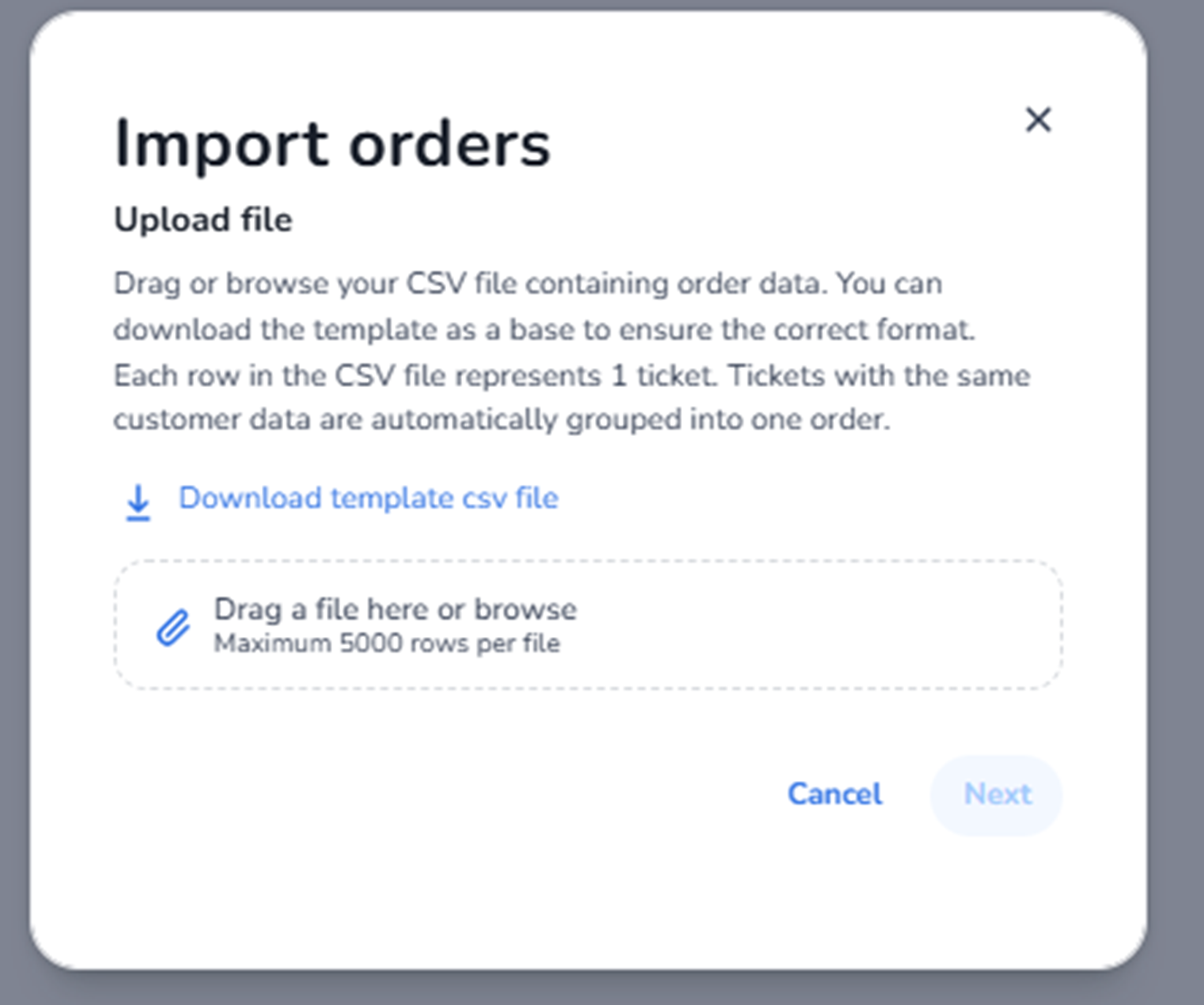
This modal appears when the user clicks the ⋯ (three dots) in the Orders overview and selects Import orders.
It is used to bulk import orders into the system via a CSV file.
This function allows administrators to:
-
Upload multiple orders at once
-
Migrate external order data
-
Create structured backoffice orders in bulk
This is a batch-processing tool.
What You See in This Screen
Modal Title
Import orders
Top-right corner:
-
X (close icon) → Closes the modal without importing.
Upload File Section
Instructions
Text explains:
-
Upload a CSV file containing order data.
-
Each row in the CSV represents 1 ticket.
-
Tickets with the same customer data are automatically grouped into one order.
Important logic:
If multiple rows share the same customer details:
→ They will be combined into a single order.
This enables structured multi-ticket order imports.
Download Template
Link: Download template csv file
Purpose:
-
Download the required CSV template.
-
Ensures correct column structure and formatting.
Important:
Using the template reduces import errors.
File Upload Area
Drag-and-drop field:
“Drag a file here or browse”
Maximum: 5000 rows per file
Purpose:
-
Upload CSV file for processing.
-
Supports drag-and-drop or manual file selection.
Restriction:
-
File must follow the template structure.
-
Maximum 5000 ticket rows per import.
Action Buttons
Cancel
Closes the modal without importing data.
Next
Button: Next
Behaviour:
-
Remains disabled until a valid file is uploaded.
-
Proceeds to validation and processing step.
What This Screen Actually Controls
Import Orders controls:
-
Bulk creation of orders
-
Ticket assignment per order
-
Automated grouping logic
-
Migration of structured order data
It allows large-scale administrative order creation.
It does NOT:
-
Modify existing orders directly
-
Change ticket pricing
-
Override capacity logic
-
Modify ticket configuration
It strictly processes new order imports.
Important Considerations
-
CSV must follow the provided template format.
-
Each row equals one ticket.
-
Duplicate customer data rows are grouped automatically.
-
Import is limited to 5000 ticket rows per file.
-
Capacity rules still apply during import.
Incorrect CSV formatting may result in:
-
Import validation errors
-
Incorrect grouping
-
Failed processing
Imported orders affect:
-
Revenue reporting
-
Capacity allocation
-
Order history
Functional Summary
Within Ticketing → Orders → ⋯ → Import orders, the user can:
-
Download import template
-
Upload structured CSV file
-
Bulk create orders
-
Automatically group tickets per customer
-
Process up to 5000 ticket rows per import
This section influences:
-
Administrative bulk sales
-
Data migration workflows
-
Large-scale order management
-
System integration scenarios
It is the batch import interface for the Orders module.