
Overview
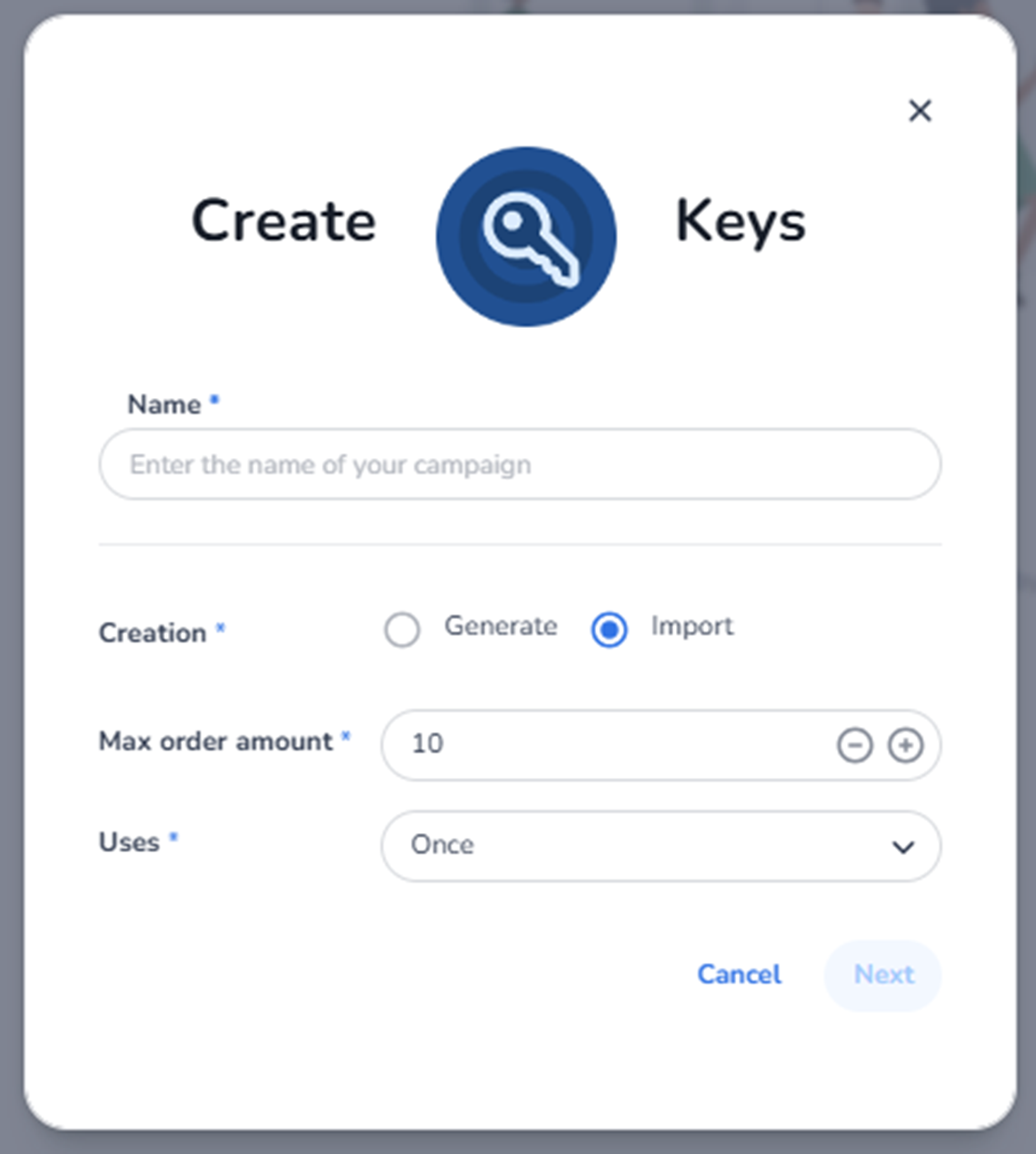
This screen appears after clicking + Create campaign inside Ticketing → Promotions → Access keys, with Creation = Import selected.
Instead of automatically generating keys, this option allows you to use your own predefined access keys.
This is typically used when:
-
You already have a list of access codes
-
Codes are distributed externally
-
You integrate with external systems
-
You want specific, recognisable key formats
What You See in This Screen
Modal Header
Title: Create Keys
Top-right corner:
-
X (close icon) → Closes the modal without saving.
-
Name (Required)
Field label: Name*
Placeholder: Enter the name of your campaign
Purpose:
-
Define the internal campaign name.
-
Used in the Access keys overview for identification.
This name is internal and does not represent the actual access codes.
-
Creation Method (Required)
Field label: Creation*
Selected option: Import
Purpose:
-
Indicates that access keys will be uploaded manually.
-
The system will not generate codes automatically.
-
You must provide the key list in a later step.
This is used when:
-
You want full control over key values.
-
Codes must match external distribution lists.
-
Keys are pre-generated by another system.
-
Max Order Amount (Required)
Field label: Max order amount*
Numeric field with minus (–) and plus (+) controls.
Purpose:
-
Defines the maximum number of tickets a customer can purchase per order when using an imported access key.
Impact:
-
Prevents bulk purchases.
-
Controls order-level purchasing behaviour for restricted access.
-
Uses (Required)
Field label: Uses*
Dropdown (example: Once)
Purpose:
-
Defines how many times each imported key can be used.
Possible configurations may include:
-
Once
-
Multiple times
Important:
This applies per individual key from the imported list.
Example:
If set to Once:
-
Each imported key becomes invalid after a single use.
Navigation & Actions
Cancel
Closes the modal without saving.
Next
Proceeds to the next step of the import flow.
The Next button remains disabled until:
-
Name is entered
-
Required configuration is completed
In the next step, the user will typically:
-
Upload a CSV file
-
Paste a list of keys
-
Validate key format
What This Screen Actually Controls
This screen defines:
-
The campaign identity
-
That keys will be imported instead of generated
-
Maximum tickets per order
-
Per-key usage limits
It prepares the campaign for:
-
Manual key upload
-
External system integration
-
Controlled distribution
It does NOT yet define:
-
Which tickets are unlocked
-
Validity dates
-
Shop restrictions
-
Advanced campaign logic
Those steps follow after clicking Next.
Important Considerations
-
Imported keys must be unique.
-
Incorrect formatting may cause upload validation errors.
-
Usage limits apply per key.
-
Max order amount prevents purchase abuse.
Import is best suited for:
-
Partner campaigns
-
Corporate distribution
-
External marketing tools
-
Predefined access lists
Functional Summary
Within Ticketing → Promotions → Access keys → Create campaign (Import), the user can:
-
Define a campaign name
-
Select import as the creation method
-
Set order limits
-
Configure usage rules
-
Continue to the key upload step
This section influences:
-
Controlled ticket visibility
-
Private sales flows
-
External key management
-
Audience-restricted ticket access
It is the configuration screen for manually imported access key campaigns.