
Overview
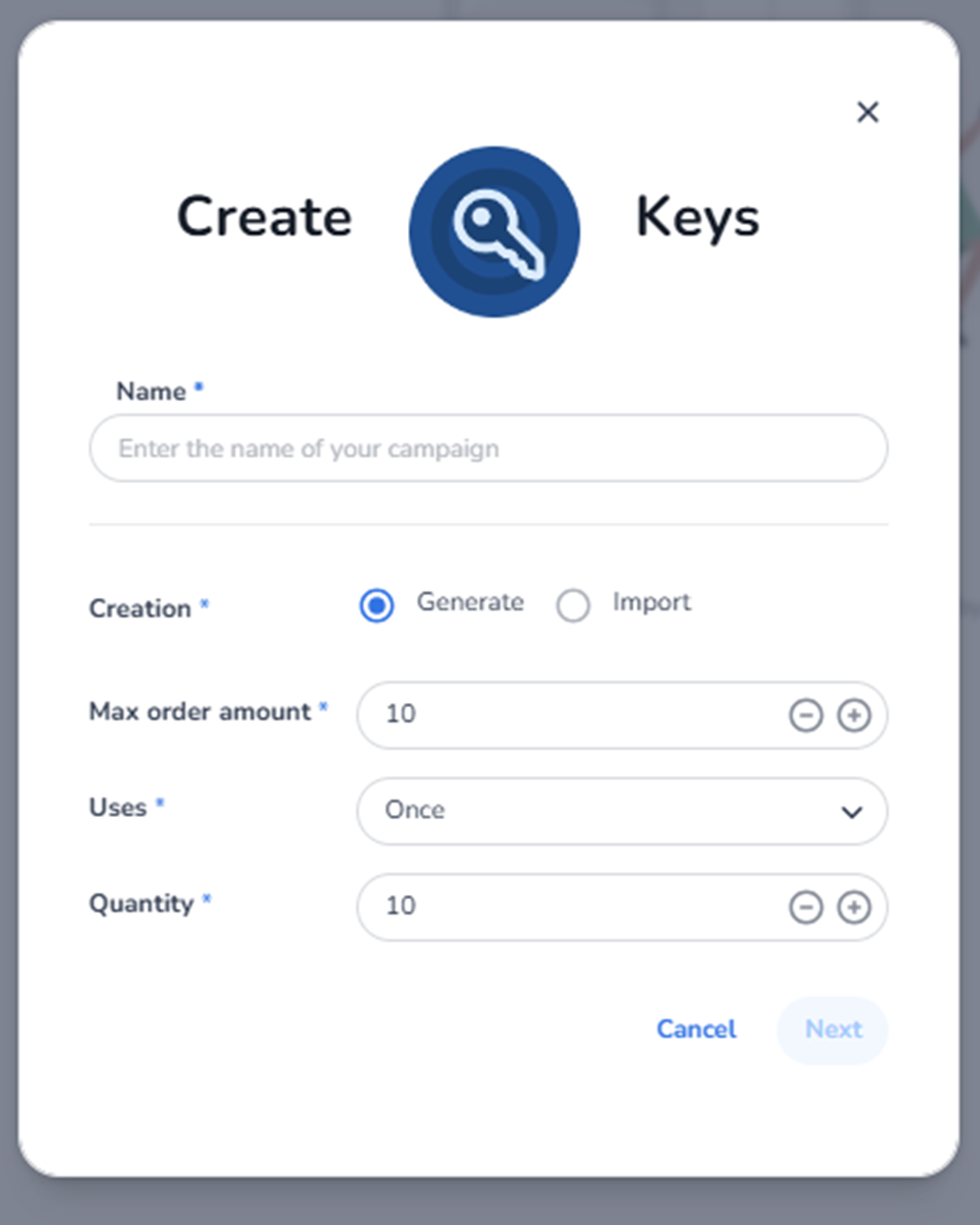
This screen appears after clicking + Create campaign inside Ticketing → Promotions → Access keys, with Creation = Generate selected.
It is used to automatically generate multiple unique access keys for a campaign.
Access keys are used to:
-
Unlock hidden tickets
-
Grant private or early access
-
Restrict ticket visibility to selected users
This screen defines the structure and limits of the generated access key campaign.
What You See in This Screen
Modal Header
Title: Create Keys
Top-right corner:
-
X (close icon) → Closes the modal without saving.
-
Name (Required)
Field label: Name*
Placeholder: Enter the name of your campaign
Purpose:
-
Define the internal name of the access key campaign.
-
Used in the Access keys overview for identification.
Examples:
-
VIP Pre-sale
-
Partner Early Access
-
Private Launch
-
Influencer Access
Important:
-
Required field.
-
Internal reference, not the actual keys.
-
Creation Method (Required)
Field label: Creation*
Option selected: Generate
Purpose:
-
Automatically generate unique access keys.
-
The system creates the specified number of keys.
This is used when:
-
You do not need predefined key values.
-
You want system-generated secure codes.
-
Max Order Amount (Required)
Field label: Max order amount*
Numeric field (example: 10)
With minus (–) and plus (+) controls.
Purpose:
-
Define the maximum number of tickets that can be purchased per order when using the access key.
Impact:
-
Controls bulk buying within restricted access.
-
Prevents excessive purchasing per transaction.
Example:
If set to 5:
-
A customer using the key can only purchase up to 5 tickets per order.
-
Uses (Required)
Field label: Uses*
Dropdown (example: Once)
Purpose:
-
Define how many times each generated key can be used.
Options may include:
-
Once
-
Multiple times (depending on configuration)
Important distinction:
This applies per individual key.
Example:
If set to Once:
-
Each key can only be used one time.
-
After use, it becomes invalid.
-
Quantity (Required)
Field label: Quantity*
Numeric field (example: 10)
With minus (–) and plus (+) controls.
Purpose:
-
Define how many unique access keys will be generated.
Example:
If quantity = 100:
-
100 unique access keys will be created.
Impact:
-
Determines campaign scale.
-
Controls distribution capacity.
Navigation & Actions
Cancel
Closes the modal without saving.
Next
Proceeds to the next configuration step.
The Next button remains disabled until:
-
Name is filled
-
Required fields are configured
What This Screen Actually Controls
This screen defines:
-
Access key campaign identity
-
Automatic key generation
-
Number of keys
-
Usage limits per key
-
Maximum tickets per order when using the key
It establishes the structure for a private access campaign.
It does NOT yet control:
-
Which tickets are unlocked
-
Validity period
-
Shop restrictions
-
Advanced access conditions
Those may be configured in the next step.
Important Considerations
-
Quantity defines total distribution size.
-
Uses controls exclusivity per key.
-
Max order amount prevents bulk exploitation.
-
Generated keys are system-defined and secure.
Incorrect setup may result in:
-
Over-access
-
Limited distribution
-
Purchase abuse
-
Misaligned campaign scale
Functional Summary
Within Ticketing → Promotions → Access keys → Create campaign (Generate), the user can:
-
Define campaign name
-
Automatically generate access keys
-
Set number of keys
-
Define per-key usage limit
-
Limit maximum tickets per order
-
Proceed to further configuration
This section influences:
-
Controlled ticket visibility
-
Private sales strategy
-
Early access campaigns
-
Audience segmentation
It is the configuration screen for automatically generated access key campaigns.