
Overview
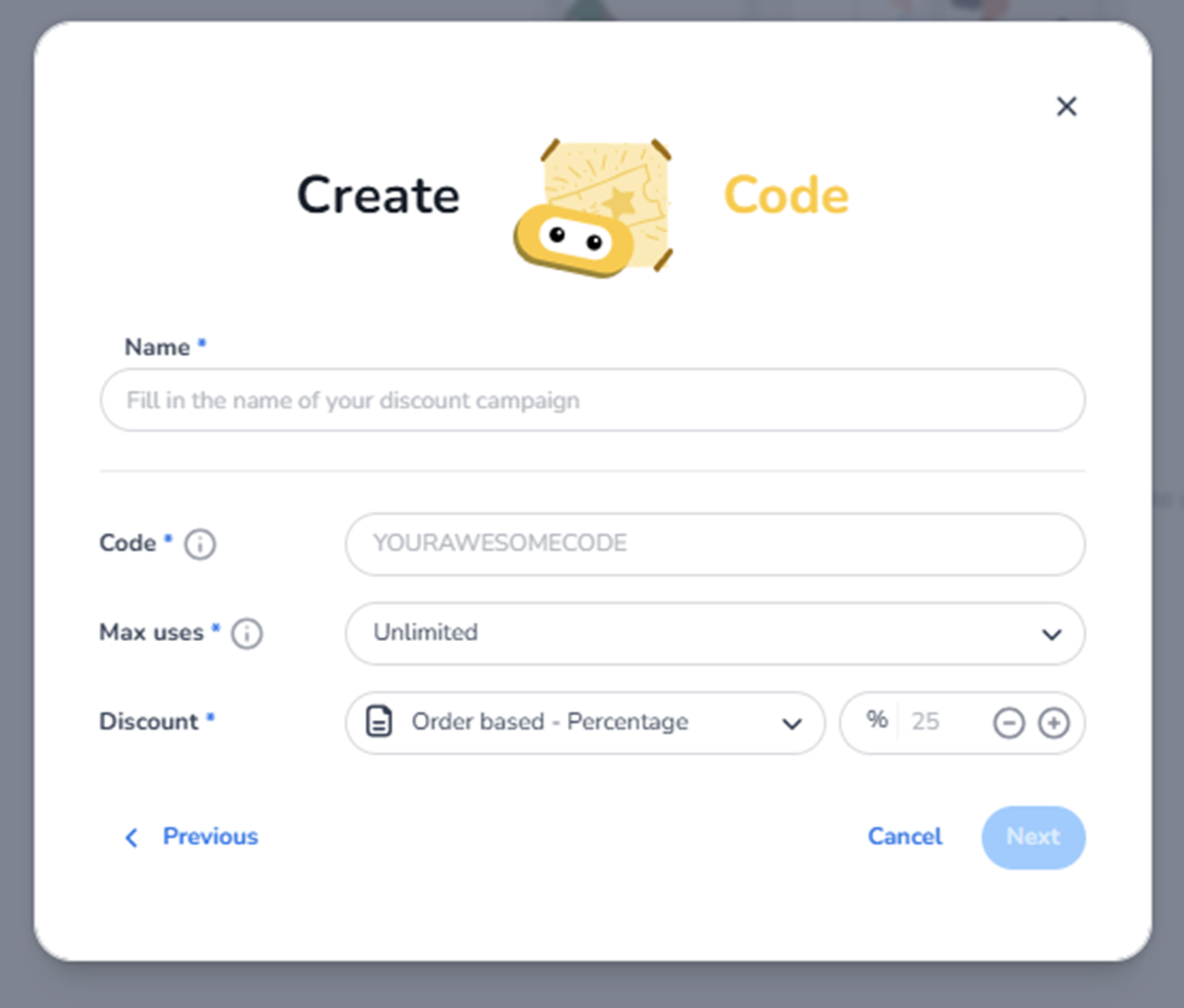
This screen appears after selecting Create a single code in the New Discount modal.
It is used to configure a reusable discount code that can be applied during checkout.
This screen defines:
-
Campaign name
-
The discount code itself
-
Usage limits
-
Discount type and value
This is the first configuration step of a single-code promotion.
What You See in This Screen
Modal Header
Title: Create Code
Top-right corner:
-
X (close icon) → Closes the modal without saving.
-
Name (Required)
Field label: Name*
Placeholder: Fill in the name of your discount campaign
Purpose:
-
Define the internal name of the promotion.
-
Used in the promotions overview for identification.
Examples:
-
Early Bird 10%
-
Summer Sale
-
Partner Discount
-
VIP Offer
Important:
-
Required field.
-
Not necessarily the code customers enter (this is internal campaign name).
Impact:
-
Appears in the promotions list.
-
Helps identify and manage the campaign.
-
Code (Required)
Field label: Code
Placeholder example: YOURAWESOMECODE
Purpose:
-
Define the actual discount code customers enter at checkout.
This is the public-facing promotional code.
Important:
-
Must be unique.
-
Customers will use this code during purchase.
Impact:
-
Directly affects checkout pricing when applied.
-
Used for tracking campaign performance.
-
Max Uses
Field label: Max uses
Dropdown (example: Unlimited)
Purpose:
-
Define how many times the code can be used in total.
Options may include:
-
Unlimited
-
Limited to X uses
Impact:
-
Controls total campaign reach.
-
Prevents overuse.
-
Useful for limited promotions.
Example:
If limited to 100 uses:
-
After 100 successful redemptions, the code becomes invalid.
-
Discount (Required)
Field label: Discount
Configuration includes:
-
Discount type dropdown
-
Value input (e.g., percentage or amount)
Example shown:
-
Order based – Percentage
-
25%
Possible discount types may include:
-
Order-based percentage
-
Fixed amount
-
Ticket-based discount
Purpose:
-
Define how the discount is calculated.
-
Determine how the price is reduced during checkout.
Impact:
-
Directly influences revenue.
-
Affects final order total.
Example:
25% percentage discount reduces total order price by 25%.
Navigation & Actions
Previous
Returns to the discount type selection screen.
Cancel
Closes the modal without saving.
Next
Proceeds to the next step in the promotion setup.
The Next button may remain disabled until required fields are completed.
What This Screen Actually Controls
This screen defines:
-
Discount campaign identity
-
Public promo code
-
Usage limitations
-
Discount calculation logic
It sets the commercial foundation of the promotion.
It does NOT yet control:
-
Validity dates
-
Ticket restrictions
-
Shop restrictions
-
Advanced campaign conditions
Those may be configured in later steps.
Important Considerations
-
Code must be unique to avoid conflicts.
-
Discount type should align with campaign strategy.
-
Max use limits protect revenue.
-
Percentage discounts scale with order value.
Incorrect setup may result in:
-
Revenue loss
-
Over-redemption
-
Misaligned campaign tracking
Functional Summary
Within Ticketing → Promotions → Create Discount → Single Code, the user can:
-
Define campaign name
-
Create public discount code
-
Set usage limits
-
Configure discount type and value
-
Proceed to advanced campaign configuration
This section influences:
-
Checkout pricing
-
Campaign execution
-
Revenue adjustments
-
Promotional tracking
It is the primary configuration screen for a reusable discount code campaign.